

Quick Summary: Tally on Cloud lets you run TallyPrime or Tally ERP 9 on a secure remote server and access your accounts from anywhere, using any device (PC, mobile, Tablet). This guide also tells you how to set up TallyPrime on QloudRDP and secure your work with backups and encrypted access.
I have met some business owners who keep their ledger saved in one office desktop.
They do that because they feel that the old routine is safe. But let me tell you that it is really an old way and it also puts the financial records at real risk. (Putting all the information about business related transaction at just one place, in your office desktop)
You cannot access even a single voucher once you step away from the office. This is also another serious problem. You can only see your transactions when you’re in front of your desktop. Means if you’re at home, you can’t access it.
That is why a modern accounting setup is really important for security and it should open on any screen like on mobile, on laptop or on your tablet.
All of this is possible once TallyPrime or Tally ERP 9 is set up on a secure remote server.
Only then, you, your accountant and your CA can reach the same data from a PC, Mac, tablet or phone.
- What Is Tally on Cloud?
- How Does Tally on Cloud Work?
- Tally on Cloud vs Traditional Desktop Tally: What’s the Difference?
- Why Are Indian Businesses Moving Tally to the Cloud?
- Who Should Use Tally on Cloud?
- Key Features of Tally on Cloud
- Is Tally on Cloud Safe & Secure for Financial Data?
- Do You Need a New Tally License for the Cloud?
- How Much Does Tally on Cloud Cost in India?
- How to Get Started With Tally on Cloud
- Frequently Asked Questions (FAQ)
- Conclusion: Is Tally on Cloud Right for Your Business?
What Is Tally on Cloud?
Tally on Cloud means your Tally software and your company accounting data is on cloud (a powerful remote server or a network of servers) and you log in to that cloud using the internet.
There is absolutely no change in the functioning of Tally. You still see the exact same Tally screen you already know.
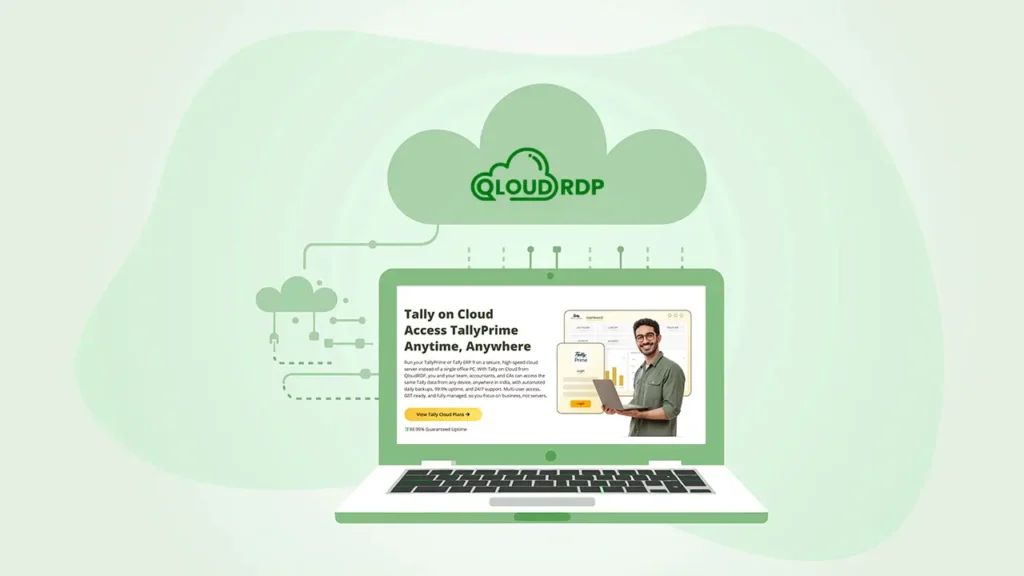
The only thing that changes is that your Tally software, your office files are saved in a remote server and that the actual work now happens on a machine in a secure data centre and not on your local hard drive of your PC
Let me explain to you in a much easier way! See, Tally on cloud is that you buy a server on rent, you install your licensed copy of TallyPrime or Tally ERP 9 in the server and you access the tally software through remote desktop protocol.
For years, Tally ran on Windows alone, since the software is built for the Windows platform. That limited most of the Tally users like book keepers, accountants to one office PC only.
Tally cloud hosting technology changes it completely. You can now run Tally using Mac, iOS, Android devices if you run Tally ERP 9 on cloud.
How does it happen?
The server runs Windows for you in the background so that you can open the full desktop version of Tally from a Mac, an iPad, a Chromebook, or an Android phone. Your device becomes a window into the server, and the heavy workload (like saving huge data, vouchers, transactions) stays on the cloud server only.
Your real device (using which you remotely access Tally on cloud) remains free from any use.
Remember: The cloud does not change the functioning of the Tally.
You get the same menus and the same reports.
You simply access them from more places.
How Does Tally on Cloud Work?
You may be new to the cloud, so let me explain it simply. Think of the cloud as a Windows computer hosted in a secure data centre that stays powered on 24/7.
Now, your provider gives you RDP login credentials so that you can easily host Tally on cloud and save all your business transactions and accounting files remotely and do entry from anywhere using any device.
Tally on Cloud
Access TallyPrime Anytime, Anywhere
So, let’s see how tally on cloud work! First I’ll tell you what you need to work with tally and then tell you how it works:
Now, let’s see how tally works on cloud!
Tally runs on the server, so your vouchers and reports are processed and saved there. The accounting information is not saved on your local device.
In simple terms, your device sends your clicks and keystrokes to the server and receives the screen back. The actual Tally processing happens on the server, not your local device.
Pro Tip: A proper internet line of 5 Mbps or more per user gives you a smooth session. For a single accountant, even a basic broadband plan is really good.
Tally on Cloud vs Traditional Desktop Tally: What’s the Difference?
If you’re reading this blog, this means you may already have Tally on your desktop. You may be wondering why a cloud setup is needed so much?
Let me help you understand this properly. I’ve done a proper comparison between the tally on cloud vs traditional desktop tally.
After the table, I will explain each row in plain words.
| Factor | Traditional Desktop Tally | Tally on Cloud |
|---|---|---|
| Access | Tied to one office PC or LAN | Any device, any location, over the internet |
| Multi-user | Users share one office network (LAN) | Team logs in together from different cities in real time |
| Backup | You must remember to take manual copies | Automatic daily backups is handled for you |
| Security | Depends on one PC and local antivirus | Bank-grade encryption, firewalls, isolated servers |
| Cost | Heavy cost spent on servers and hardware | Low monthly fee, small starting cost (Free trial is also there) |
| Maintenance | You or an IT person repair locally | Provider manages updates and repairs |
A local PC keeps Tally tied to one location, while cloud Tally lets your team securely access shared files from anywhere, anytime. It also reduces server, LAN, and IT costs.
Why Are Indian Businesses Moving Tally to the Cloud?
As per my analysis, I’ve seen that Indian businesses are shifting Tally to the cloud every quarter. It is because business transactions do not happen from 9am to 5pm, the dealings happen anytime of the day and likewise it is not important for an accountant to be always available in the office.
Tally on cloud allows the accounting users (those who use tally) to access the business transaction files, allows the accountant to file GST returns, see e-invoices and e-way bills from any location, using any device (using iPhone or Android phones).
A setup that opens from anywhere makes things easier. Let me tell you exactly why an Indian businessman is moving tally to the cloud now:
Access From Anywhere, Any Device
You get full, working Tally on a MacBook, an iPad, an Android tablet, or a Chromebook. The Windows-only feature of Tally drops away.
Your team can log in and pass vouchers from home or from an airport lounge. As long as you hold an internet connection (if it is weak, doesn’t matter), your accounting files and important transactions travel with you.
This single advantage convinces most of the businessmen who travel a lot.
Real-Time Multi-User & Multi-Branch Access
Just imagine a shop in Mumbai and a warehouse in Delhi.
Now imagine that if you’re in your office or in your local setup, syncing those two means a lot of emails and chances of duplicate entries. And now imagine that your Tally is on the cloud.
In that case, both sites open the same company file at the same time. Your operator updates stock while your accountant files GST from another city. Isn’t that cool?
Automated Backups & Data Safety
You should know that local backups depend on memory of the local drive (meaning your local PC) and the memory of the accountant (for regularly backing up the files).
But, a cloud system takes copies on a fixed schedule, often daily or even hourly. If in case your laptop crashes, catches ransomware, or faces a power issue, your business transaction records stay safe on the server.
You recover in minutes.
Lower Cost Than On-Premise Servers
A local server, a LAN and regular IT visits can drain a lot of money and can lead to a serious problem also.
The cloud solves all of that problem into one monthly fee (which is only $12 to $15 a month).
You skip the high-end server purchase (which can go upto a thousand dollars) and you skip the repair bills. Even a low-cost laptop (not that high profile laptop) performs well, since the powerful server CPUs do the real work for you.
Who Should Use Tally on Cloud?
Tally on Cloud suits a wide range of users, yet some groups gain far more than others. Let me point out those users who actually need tally on cloud and it can benefit them in real terms.
Chartered Accountants & CA Firms
You handle many clients, and each one keeps a separate set of books. A cloud setup lets you open any client file from your own desk, a client office, or a court waiting room. You audit, cross-check, and file returns from one login. During tax season, that speed pays for itself many times over.
SMEs & Growing Businesses
Small and medium firms rarely want a costly server room. The cloud hands you enterprise-level access at a small monthly price. You add users as you hire and trim them as needed, so your spend tracks your real size through the year.
Multi-Branch & Retail Businesses
You run several outlets, and each one records sales daily. A cloud file merges every branch into one live view. Your head office sees group sales, stock, and cash flow in real time, so decisions get faster and sharper.
Remote & Hybrid Teams
Your staff splits time between home and office. A cloud login gives each person the same Tally, the same data, and the same speed from any spot. The office desk stops being the only place where accounting happens.
Key Features of Tally on Cloud
A good Tally on Cloud plan carries more than a remote access.
Let me tell you the features that shape your daily comfort, so you know what to look for in a remote server plan to shift tally on cloud.
GST & TDL Compatibility
Handle GST returns, e-invoices, e-way bills, and custom TDLs just like the desktop version, without losing essential features.
Remote Printer Support
Print invoices and vouchers directly through your local printer while using Tally remotely, just like you would on your desktop.
Bank-Grade Security & Encryption
Your Tally data stays protected with encryption, firewalls, strong passwords, and optional two-factor authentication for added security.
Daily Automated Backups
Automatic backups create restore points regularly, helping you recover Tally data quickly after accidental changes, crashes, or other issues.
Full Windows Desktop Access
Access the complete Windows version of Tally Prime or Tally ERP 9 with all menus, shortcuts, reports, and features intact.
Easy Scalability
Start with one user and add more as your business grows, without purchasing additional hardware or rebuilding your entire setup.
24/7 Managed Support
Your provider monitors the server, handles updates, and resolves technical issues, allowing you to focus on your accounting work.
That’s how Tally on Cloud makes everyday accounting easier and accessible.
But when your financial data moves to the cloud, one question naturally comes next: Is Tally on Cloud safe and secure for financial data?
Is Tally on Cloud Safe & Secure for Financial Data?
Yes, tally on Cloud is safe and secure for your financial data and in most cases it protects your books better than a local office PC.
Let me tell you why I think that.
I would like you to compare that to a single desktop guarded by one free antivirus.
The cloud clearly stands on the stronger side. Your real risk on a local PC comes from theft, fire and drive failure and the cloud answers each of those directly.
Remember: Use strong passwords, turn on two-factor login and please grant each staff member only the access they truly need.
Do You Need a New Tally License for the Cloud?
No! You do not need a new Tally license in most cases. You can bring your existing TallyPrime or Tally ERP 9 license and use it on the cloud server.
Let me explain to you how, since a couple of rules do apply.
Two points need your attention here:
There is one more layer on Windows-based cloud servers.
The host also needs a Windows Server license and a remote access license.
Pro Tip: Upgrade to Gold before you migrate, so every user can log in at once from day one.
How Much Does Tally on Cloud Cost in India?
It is really cheap (as already discussed above) Tally on Cloud pricing in India stays refreshingly affordable. Your monthly cost is on only three things:
Right now (at the time I am writing this article), a tally prime on cloud plan can start as low as a few hundred rupees per user each month.
Here is a clear snapshot of the common tiers.
I’ve taken the Tally on cloud pricing of QloudRDP (As per my research, it happens to be the most affordable as compared to the available options in the market. If you want you can always do a backend study before going with a plan)
| Plan Type (You can check their Live Latency on the site) | Typical Starting Price | Best For |
|---|---|---|
| Light Usage (Starter) | Rs 1499 per user per month | Single users, freelancers, small shops |
| Power Usage (Professional) | Rs 3999 per month (2 to 5 users) | Growing SMEs and CA firms |
| Multi-Instance Usage (Business) | Rs 5999 per month (6 to 10 users) | Heavier data and custom TDLs |
Prices are subject to change as of 2026. GST at 18% applies on top and your Tally license is a separate purchase you already own or buy from Tally Solutions.
For a full breakdown with live plans and current offers, see the official website:
Tally on Cloud
Access TallyPrime Anytime, Anywhere
Match the plan to your real user count and you avoid paying for power you do not need.
Please Note:
QloudRDP is my own company. I am not trying to promote my company. I am trying to give an idea about the Tally on cloud pricing (minimum price) that a businessman needs to start using it. You are free to choose other providers with low cost and high resources.
How to Get Started With Tally on Cloud
I know the word “cloud” makes this sound like some big technical project. But it is absolutely not like that. I’ve done this setup plenty of times for my clients (accounting professionals and businessmen) and I promise you can finish the whole thing in under 1 minute from your browser. There is no server knowledge needed to do the steps.
Just follow me.
Let me tell you how to set up a tally on cloud, step-by-step, right from picking the right plan as per the need and budget up till the payment page.
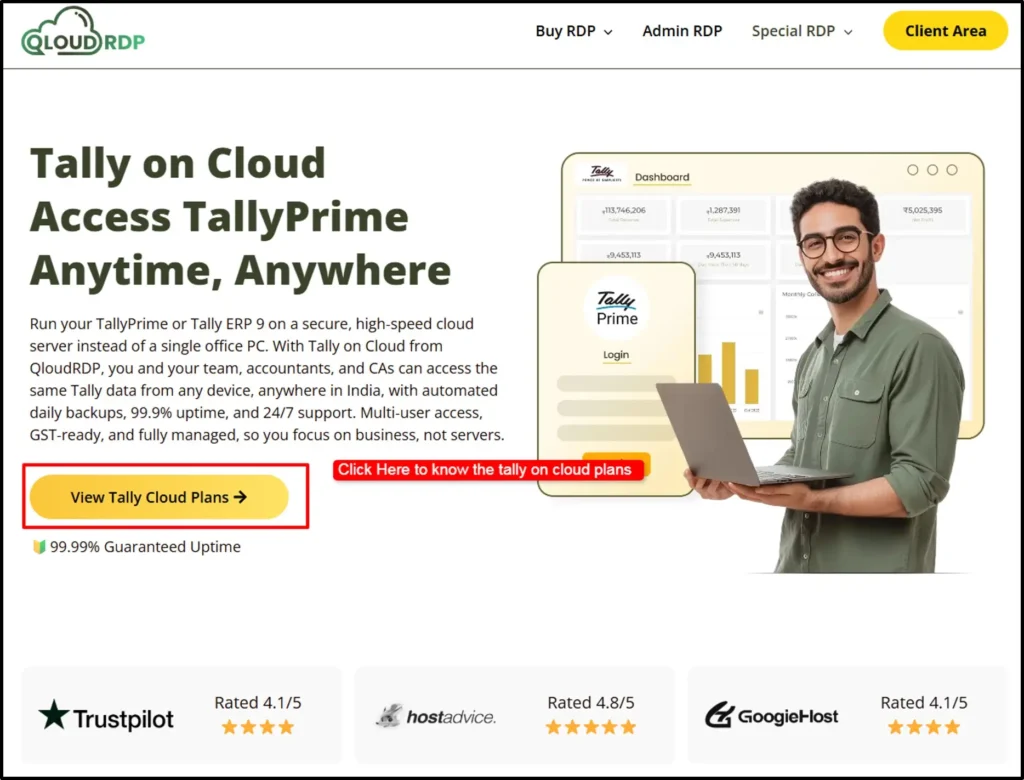
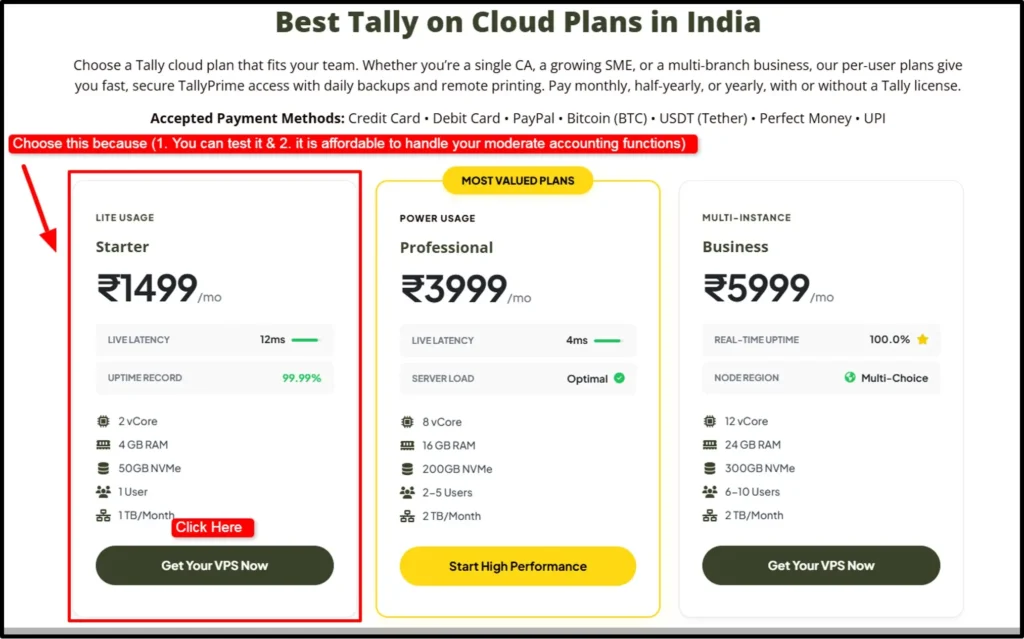
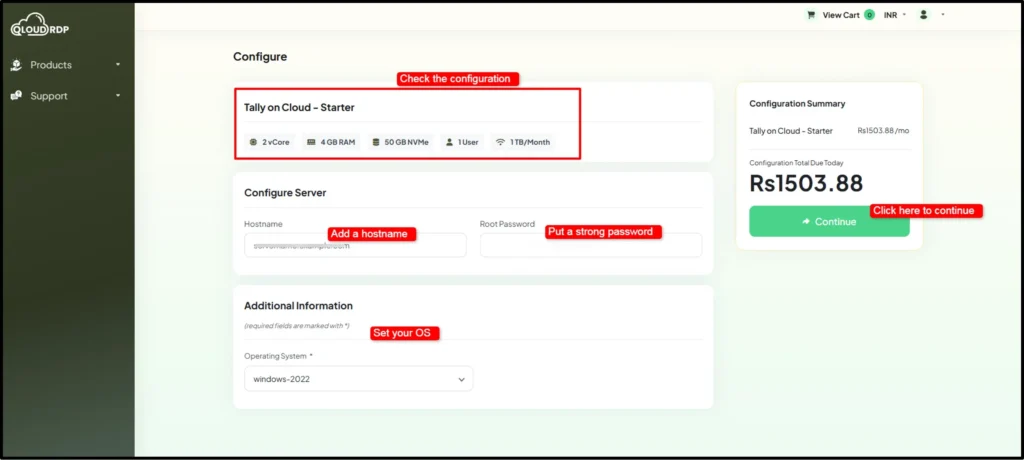
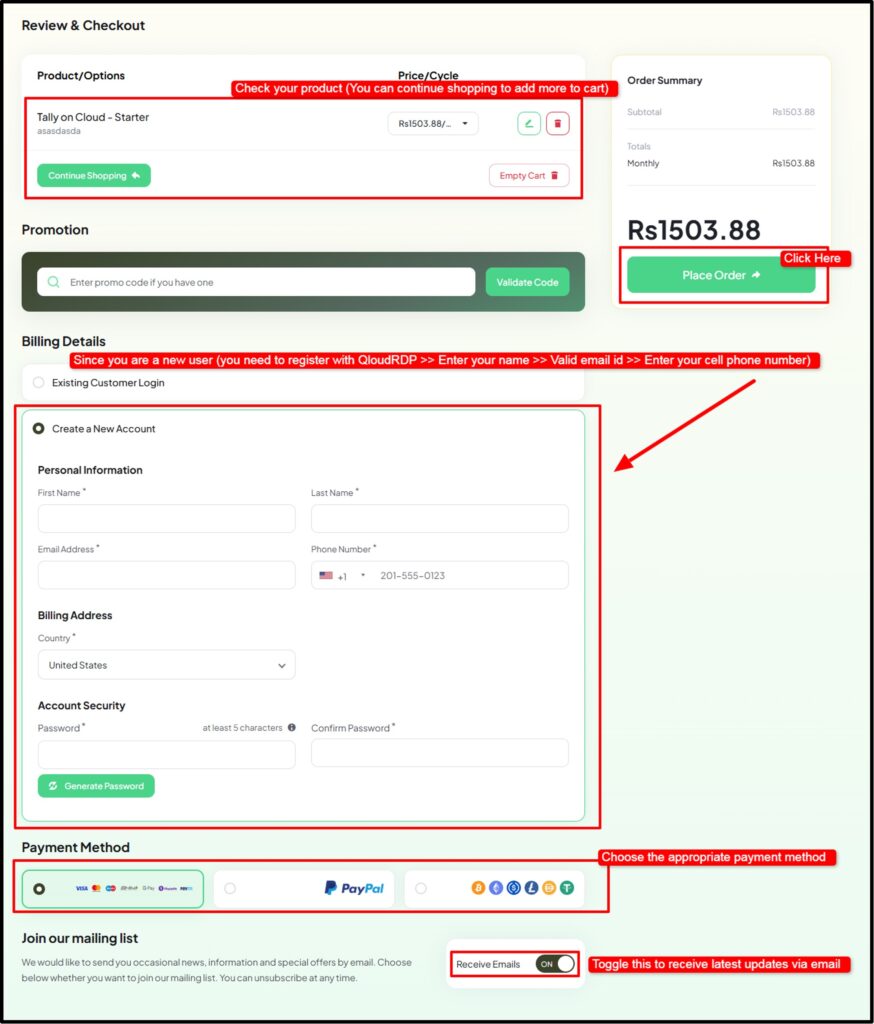
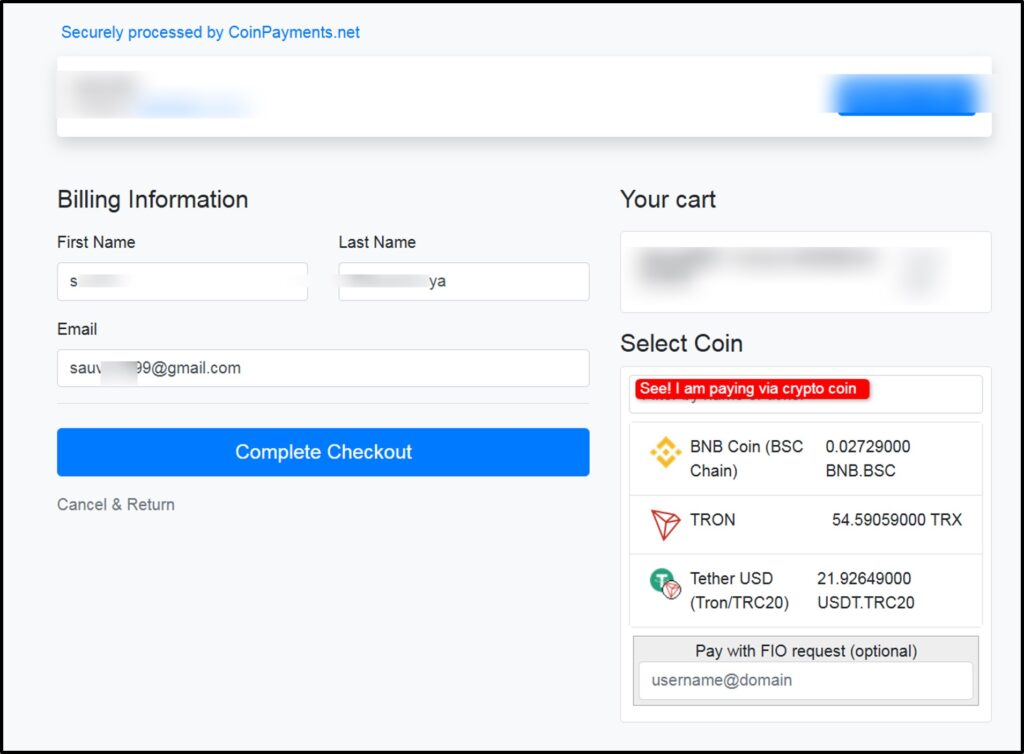
That’s it. That’s the whole sign-up.
You can easily Start Your Tally on Cloud Sign-Up >> Pay by UPI, card, or PayPal. And then what happens once you pay?
Everything starts off right away.
The team installs and sets up TallyPrime for you on a fresh Windows Server, moves your old Tally data over for free, and emails you your login details. Then you just sign in and get back to work, same as always.
Frequently Asked Questions (FAQ)
What is Tally on Cloud in simple words?
Tally on Cloud means your Tally software is on a secure remote server and you log in using any device over the internet. You get the same Tally you already use, reachable from any device, anywhere with automatic backups running for you.
Is Tally on Cloud better than desktop Tally?
Yes! For most businesses, tally on cloud is better than desktop tally as the cloud adds remote access, real-time multi-user work, daily backups and stronger security, all for a small monthly fee.
Can I access Tally on Cloud from my mobile or Mac?
Yes. You can access the full desktop version of Tally on cloud from your mobile or Mac, or from an iPad. You can even access it using your Android phone, or your Chromebook through remote desktop protocol. The server runs Windows for you in the background.
Does Tally on Cloud need the internet all the time?
Yes, tally on cloud needs the internet all the time as an active internet line keeps your session live, since the software runs on the server. A steady 5 Mbps connection per user is good for smooth sessions.
Can multiple users access Tally on Cloud at once?
Yes. With a Gold (multi-user) Tally license, several team members log in together from different locations and work on one shared company file in real time.
Is my data safe on Tally on Cloud?
Yes. Your tally data is safe on the cloud because of encryption, firewalls, and isolated servers in Tier III or Tier IV data centres, with daily backups kept apart from the live server. Just make sure to add strong passwords and two-factor login for 100% guaranteed safety.
Conclusion: Is Tally on Cloud Right for Your Business?
Yes, for the vast majority of Indian businesses, yes, Tally on Cloud is the right move.
You can gain access from any device. Real-time teamwork across branches, automatic backups and bank-grade security, you get all of that for just a small monthly cost. The old habit of fixing your books to one office desktop simply carries too much risk.
I told you what Tally on Cloud means, how it works, how it stacks up against a desktop setup, why Indian firms keep switching, who gains the most, the real features, the safety layers, the license rules, the pricing and the setup steps.
You now have a full idea about tally on cloud now.
💡 Most Loved Article!








8 Comments