

Ever wondered how you can control a powerful computer anywhere in the world, right from your screen?
That’s exactly what Remote desktop Protocol makes possible, and honestly, it’s bigger than most people realise.
The global remote desktop market was valued at $3.92 billion in 2025 and is expected to hit $14.73 billion by 2034, as per Fortune Business Insights. The giants like Microsoft, TeamViewer, and AnyDesk are all fighting for this space, which only tells you how fast things are moving.
Even as per Forbes Advisor Data 2026, 98% of people want to work remotely, and 16% of companies are now fully remote. That is not a trend anymore; in fact, it is the new normal.
This is exactly where RDP steps in. After extensively working with remote infrastructure and testing multiple RDP setups across different networks and devices, I can confidently say it remains one of the most reliable ways to enable remote access.
Here, I will walk you through how RDP actually works, how you can configure it, and how to get the best out of it, all based on real- world usage and tested methods.
What do you mean by “Remote Desktop Protocol”?
RDP (Remote Desktop Protocol) is a technology developed by Microsoft that lets you control a computer from anywhere, just like you’re sitting right in front of it.
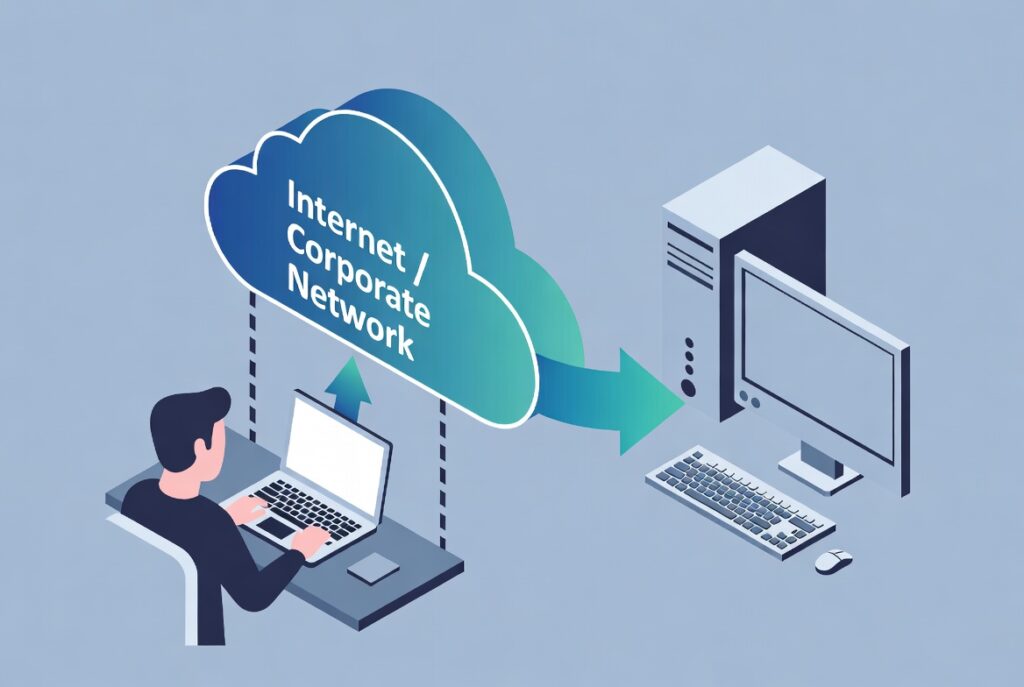
An RDP server lets you connect to a powerful remote system over the internet and use it for heavy tasks, software, or work that your own device might not handle easily.
Everything runs on that remote machine, so you get high speed, smooth performance, and 24/7 access without slowing down your personal device. It’s commonly used for remote work, managing servers, running applications, or handling resource-intensive tasks efficiently.
Essential Requirements
Before you connect, there are four things you need to know:
How it Works
When you launch an RDP session, here’s what happens:
Everything travels through an encrypted channel, keeping your session private and secure.
What are the Different Types of RDP?
Every RDP is not the same. It depends on your needs; the type of RDP you choose can be categorized into 3 main types, as follows.
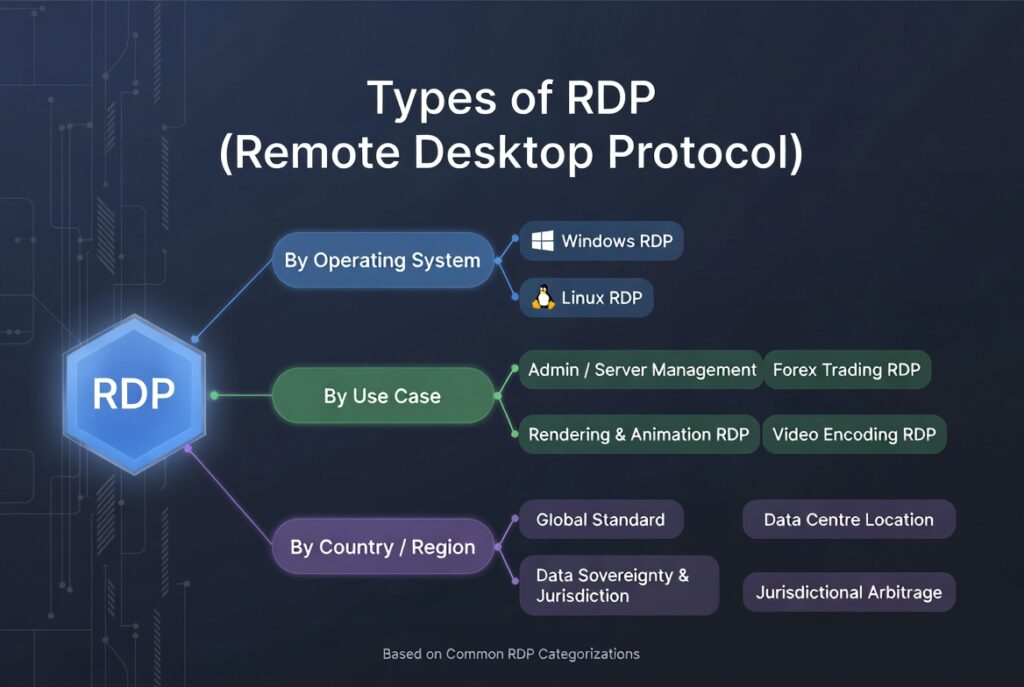
RDP Based on OS
The operating system running on your host server plays a big role in how your RDP environment performs and what it can handle.
RDP Based on Use-Case
Every user comes to RDP with a different goal. Some need it for their professional use or creative work, or some need just a reliable remote office they can access from anywhere.
RDP Based on Country
The location of your servers affects everything from connection speed to legal compliance.
Various Features and Benefits of RDP
RDP is not just a remote access tool, but it is a smarter way to work. Here is what makes it genuinely worth using:
How to Set Up a Secure RDP Server Connection?
Setting up an RDP server may look confusing at first, mainly because many guides miss small but important steps. This often leads users to problems like connection errors or weak security. With my experience of testing different RDP setups, the process itself is not difficult; you just need the right steps in the right order. Follow a clear method, and you can quickly set up a secure and stable connection.
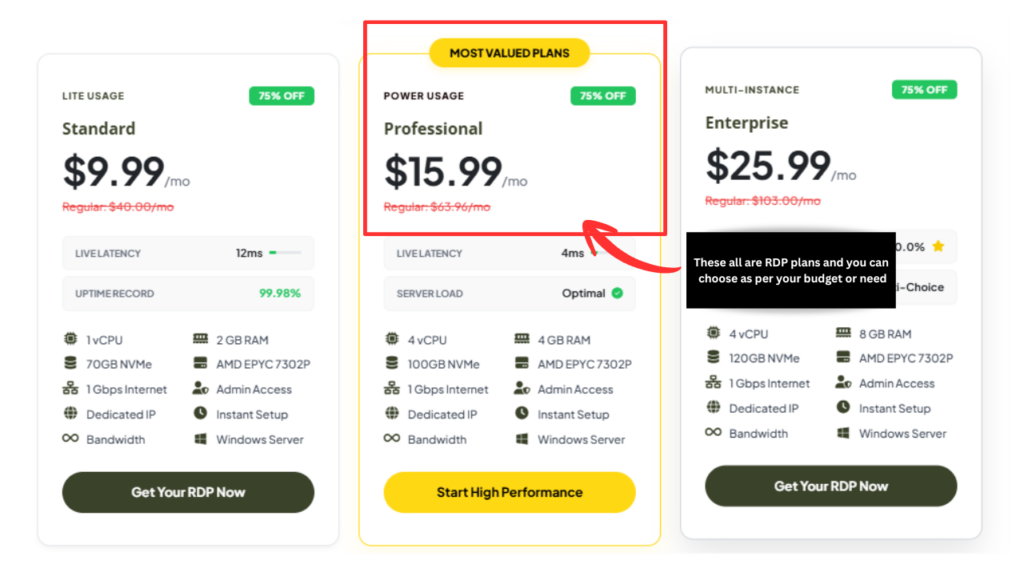
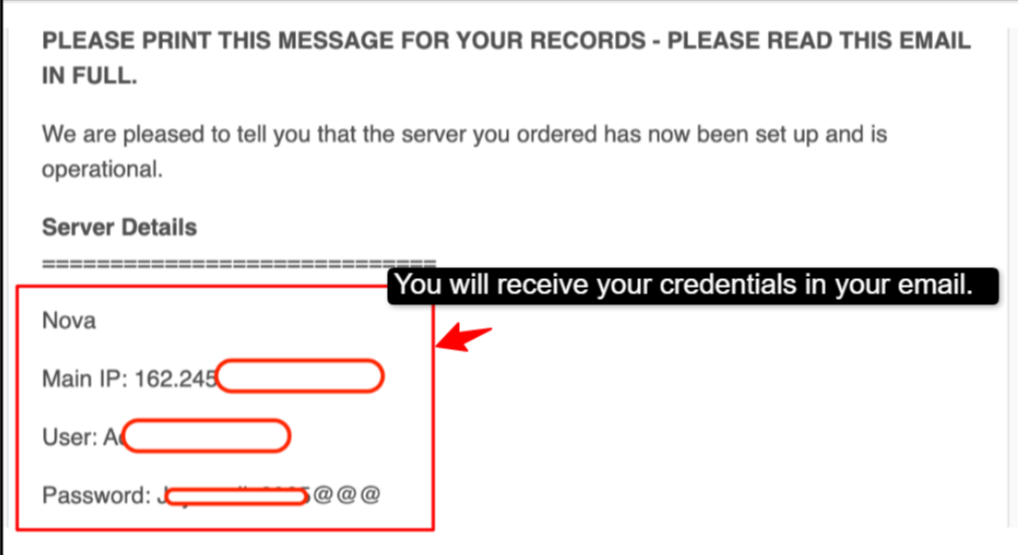
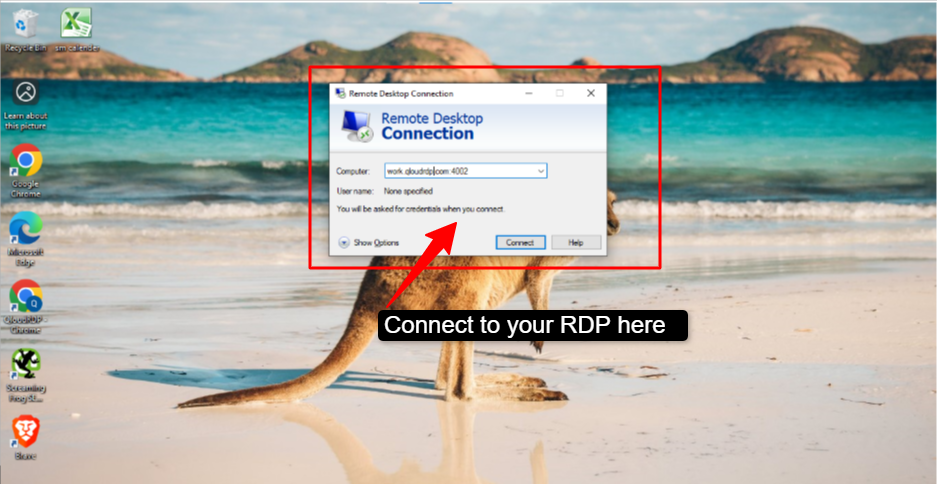
After setup, your RDP will be ready. Now enable Network Level Authentication (NLA) to improve security. It requires users to verify their identity before connecting, preventing unauthorized access and reducing the risk of brute force attacks, keeping your remote system safer.
Why Choose QloudRDP for RDP?
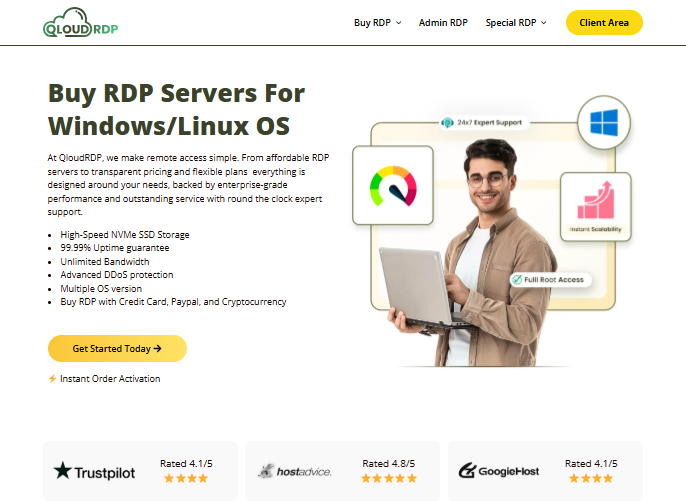
You need to think wisely before choosing your RDP, as it impacts a lot of things like performance, security, and reliability, so QloudRDP is one platform that offers a balanced mix of all the necessary features, like speed, uptime, and accessibility that one could require.
Apart from these, QloudRDP even ensures essential security measures like the NLA, firewall controls, and encrypted connections, and advanced DDoS protections to protect the sessions of its users.
Altogether, QloudRDP is an amazing platform as it comes with a combined performance-focused infrastructure with reliable support.
Conclusion
In the end, I would just conclude that if you even want to work from anywhere with no lagging and experience a smooth working, then RDP is the solution for you. Remote Desktop Protocol (RDP) is going to benefit you as it lets you access and control a computer from anywhere.
It is one of the most powerful tools available for remote work, running heavy applications, and 24/7 automated tasks, all without the need to be physically present. It saves your time, reduces the need for expensive hardware, and allows you flexibility.
By following this step-by-step process that I have given, with real screenshots and clearly labelled instructions, you can now have everything you need to set up RDP quickly, safely, and confidently.
Ready to experience fast, reliable remote performance? Get started with a high-speed RDP today and take control of your work from anywhere.
Further Readings
- 7 Best n8n Hosting Providers for Workflow Automation in 2026
- 5 Best RDP for SEO Automation tools: Run GSA SER 24/7
- Best 3 Providers – Buy Anonymous RDP With Crypto (No KYC)
- 5 Best UK RDP Server Providers For 2026: Best of Choices
- Host 24/7 AI Agents: Best RDP for Autonomous Workflows
Frequently Asked Questions
Why do hackers use RDP?
Hackers usually target RDP because it gives them full control of any system remotely. If they steal or guess login details, they can access files, install malware, or misuse the server; that’s why strong passwords and NLA are important.
Is RDP secure enough for business use?
Yes, if properly configured, it can be used for business. Just use strong passwords, enable NLA, restrict IP addresses, and connect through a VPN.
What is an RDP port?
An RDP port is the network entry point used to connect remotely, and changing or restricting access to it helps in improving security.
What are some best practices to secure RDP management?
You can secure RDP by enabling MFA for an extra layer of protection, changing the default port 3389 to a custom port to reduce attack exposure, and applying account lockout policies. For eg, lock after 3-5 failed attempts to stop brute-force attacks.
Is RDP encrypted?
Why do hackers use RDP?
Hackers usually target RDP because it gives them full control of any system remotely. If they steal or guess login details, they can access files, install malware, or misuse the server; that’s why strong passwords and NLA are important.








1 Comment