

You use Tally on one computer. Your accountant needs data at night, but it’s on the office PC, or your CA wants to check entries before the deadline but can’t visit. So you keep emailing back and forth, helping everyone while hoping your data doesn’t get messed up.
This is exactly the problem big accounting firms, healthcare, or businesses are facing: so much data and just one way to access it. This is where RDP for tally solves your problem.
It lets you and your team open the same Tally accounting data from anywhere, on any device at the same time, so the data stays corrected for everyone. You don’t have to copy files or wait for someone to come to their desk.
Here, we’ll show you exactly how you can set up and Run Tally on RDP with step-by-step guide on the best RDP server so your work becomes faster, simpler, and a lot more organized.
Who Needs RDP for Tally?
As a businessman or a professional, you need quick, secure, and uninterrupted access to your Tally data. It is really important.You can work from anywhere and collaborate with your team in real time. Everyone stays on the same page, which makes managing your accounts smooth and efficient.
Here are some critical users who need Tally.
RDP for Tally has become essential for modern accounting operations, as it gives you immediate access to accounting data from any device. It removes the limitation of accessing Tally from a single location, enabling your entire team to work on financial data securely from anywhere.
You can work flexibly efficiently from anywhere, collaborate on your sessions, and keep your accounting process running smoothly. hassle-free
Why Do They Use RDP?
After seeing the possible users of RDP for Tally, let’s uncover why a remote server is important for them or why they use it.
Using RDP with Tally software, users can easily access their accounting data securely and collaborate with teams while keeping their financial operations running smoothly from any location.
Minimum Specs Needed to Run Tally on RDP
Running Tally on an RDP server isn’t just about having any computer; it requires the right hardware and software setup to keep things running seamlessly. The resources you’ll need depend on several critical factors that work together.
A single user needs far less power than a team of 10+ accessing Tally simultaneously. Large accounting databases require more storage space and faster processing power to retrieve and update records quickly.
Tally’s real-time data entry and calculations are affected by lag. High latency causes delays, making accounting error-prone. The other factor is security, where your financial data is often targeted by threats, so strong encryption and secure RDP connections protect your sensitive data.
These are some of the important key factors you need to consider before you move on to the resources.
| Specifications | Single User | Multi-user |
|---|---|---|
| CPU Cores | 2 cores minimum | 4-8 cores |
| RAM | 4 GB RAM | 8-16+ GB RAM |
| Storage Type | SSD (recommended) | SSD |
| Storage Space | 100 GB | 250 GB – 1 TB |
| Windows Server OS | Windows Server 16 or higher | Windows Server 2022 |
| Internet Speed | 5 Mbps minimum | 10-20+ Mbps |
You should get your RDP right from the start; it will save you from headaches later. The specs you choose directly will impact how smoothly your accounting operations run. Tally works reliably with RDP, but understands the basic needs and prepares your RDP.
Top 3 Providers to Run Tally on Remote Desktop Server
The right RDP provider is crucial for your Tally software, as it directly impacts performance and security. You need a provider that understands the specific demands of accounting software and can deliver consistent and reliable performance.
We’ve identified three providers that qualify as best RDP servers for Tally based on our personal testing.
1. QloudRDP
Best For: Fast, reliable RDP built for seamless Tally performance”
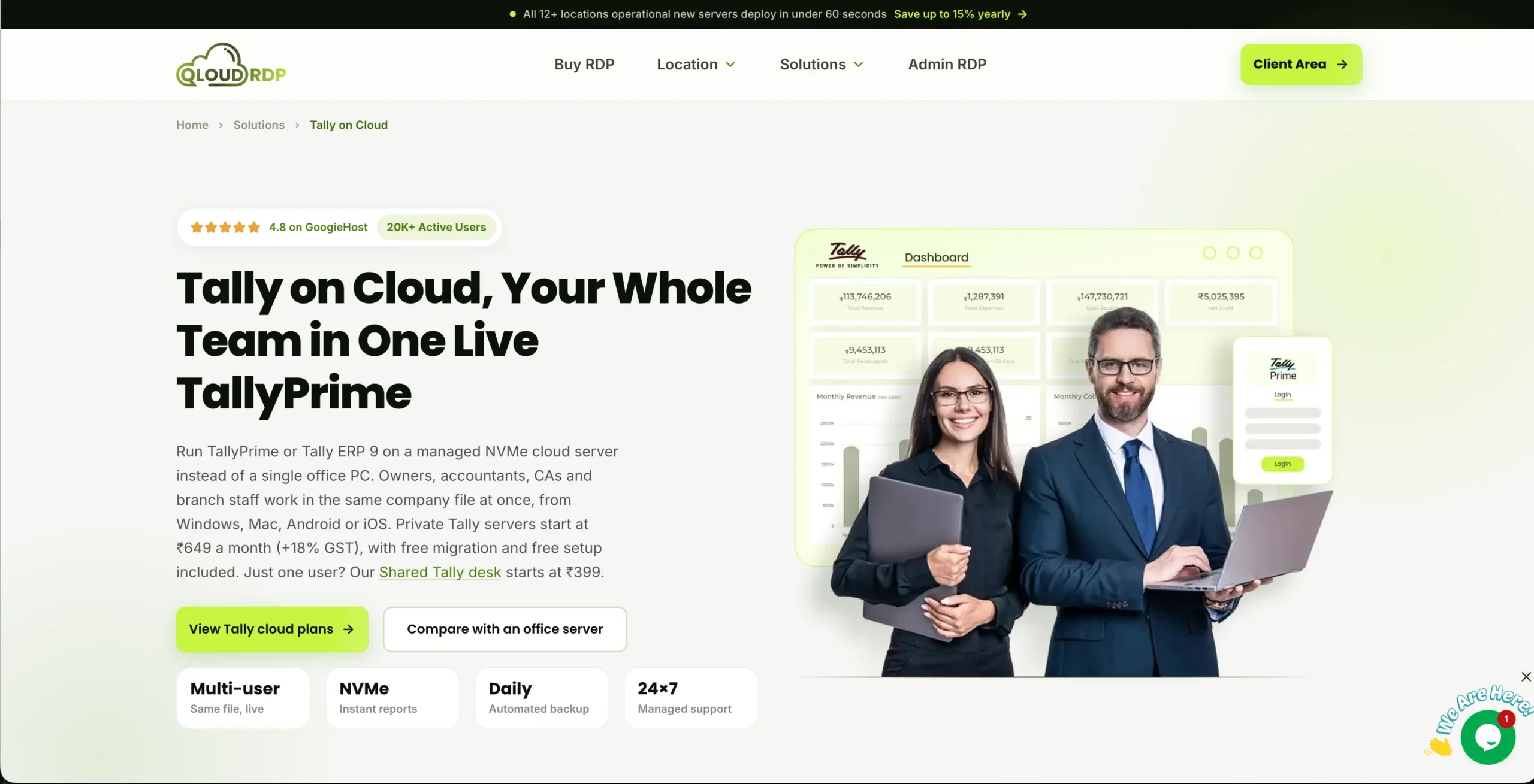
Why Do We Recommend QloudRDP for Tally?
I highly recommend QloudRDP because I’ve personally experienced how well it handles Tally during critical accounting periods. I ran Tally on their platform during month-end closings, those hectic times when multiple users are in and out of the system simultaneously.
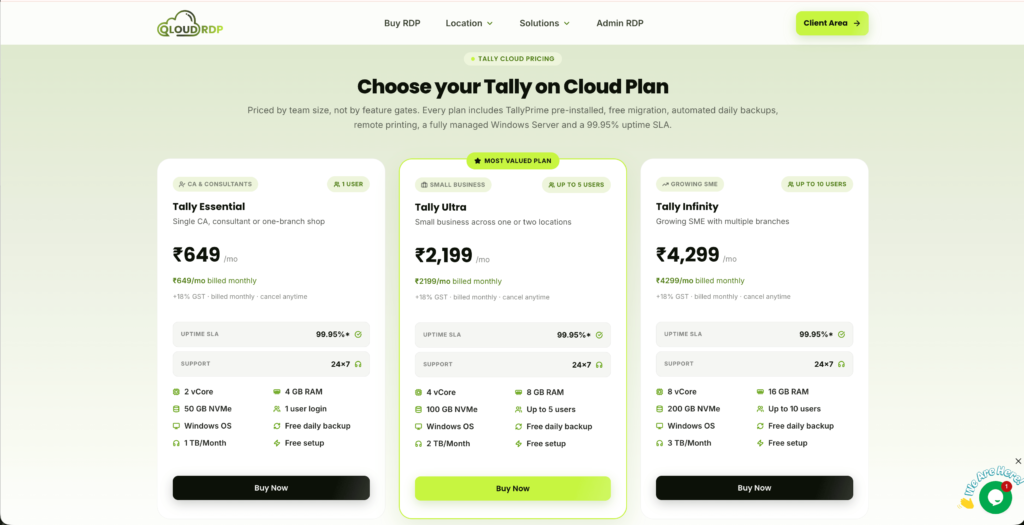
Their support team was amazing; they truly understood my accounting needs and resolved them. Beyond this, I even appreciated how QloudRDP offers multiple payment methods like Paypal, credit card and even via crypto as well. This platform totally delivers the reliability and support you need for your Tally accounting operations.
2. Kamatera
Best For: Scalable Tally on cloud power that grows with your business, making Tally on RDP easier.

Why Do We Recommend Kamatera for Tally?
Kamatera comes as a second recommendation for your Tally operations because of the kind of customization they offer. You can scale your resources as per your needs, and you pay only for those resources you actually use.
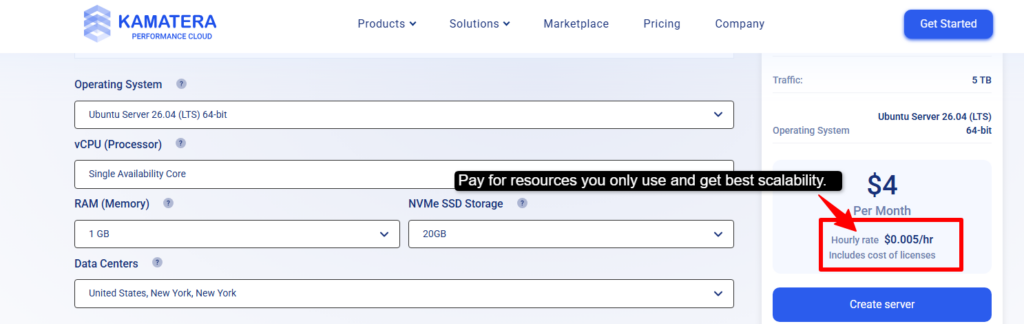
Kamatera’s hourly billing is another shining aspect about this provider. You get their cloud infrastructure, which has multiple data centers. This is a kind of provider that grows as your business grows.
3. UltaHost
Best For: Affordable RDP hosting with high speed and unbeatable power

Why Do We Recommend UltaHost for Tally?
I really liked UltaHost RDP for Tally because it lets you access Tally from anywhere without having to maintain your own server. You can run Tally on a remote Windows desktop and give your team access to accounting data from different locations.
Its dedicated resources help support smooth performance during daily accounting tasks. I also liked that UltaHost offers server security features and managed hosting options, which can reduce the time you spend handling server maintenance. It is a practical option for managing invoices, GST records, financial reports, and other accounting work remotely.
How to Set Up Tally on a Remote Desktop Server?
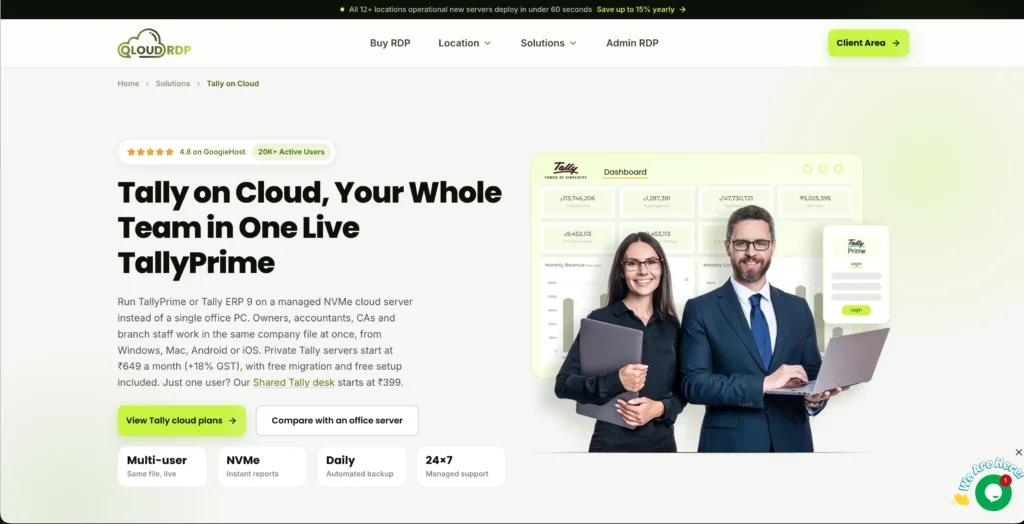
First, you need to buy an RDP hosting plan from a provider. We have taken QloudRDP here since it’s our provider as well as recommended, but you can choose any provider as per your needs and requirements.
Buy and Connect to RDP
Note:
If you want to see in-depth steps of buying your RDP server, you can refer to our next article
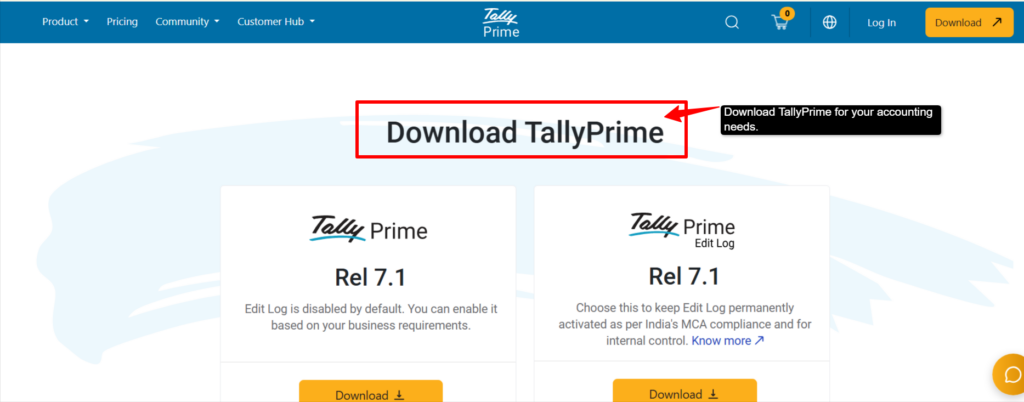
Download and Install your Tally software (TallyPrime)
Note:
There are many tally software options in the market, but Tally Prime is the most in demand and widely used, so we have chosen this one. It’s simple and reliable and works perfectly for your accountants and large enterprises. But you can use it as per your needs.
Now you are ready to use it. If your team needs access, you can create user accounts so that everyone can use the same Tally Prime data and can work together in real-time.
Your Tally software is now running on QloudRDP; you and your team can access it anytime, anywhere, using just the internet and making easy financial reports.
Conclusion
An RDP server makes Tally software accessible from anywhere, and you don’t even have to change your way of working. Tally for RDP Server is a quick and easy way of maintaining your financial records. You can be ready in less than an hour.
Once you install it, you have access to your accounting software from anywhere, anytime, using your internet. Tally Prime is the most trusted accounting software you can use. It handles invoicing, GST calculations and financial reports easily.
If you own any business, any healthcare center or you need to make financial reports time and again , connect to a reliable Tally software and pair it with a secure RDP making the process even better.
A good Tally software gives you the simplicity and the power you need. Start your setup today and take control of your business finances with confidence.
Frequently Asked Questions
Which Tally Software Can Be Run on RDP?
You can use TallyPrime on RDP, as it is highly recommended for newer setups because it’s faster and easier to use. It works quite smoothly on your RDP server, or you can even use Tally ERP as the other option.
What RAM and storage do I need for Tally on RDP?
Depending on your business size and operations, if you are running a small business, you would require around 4 GB RAM and 100 GB storage, whereas for medium to large size businesses you would need around 8-16 GB RAM and 250-500+ GB storage.
How to secure Tally data on an RDP server?
You need to follow certain steps to secure your data, like using strong passwords, enabling two-factor authentication, and setting your automatic daily backups. Choose a provider that gives you strong security.
Which RDP server is suitable for both small and large-scale Tally deployments?
QloudRDP is best for both your small- to large-scale Tally deployments with scalable power, and Kamatera could be your best pick if you have a growing business.
Can multiple individuals use Tally to work remotely at the same time?
Yes, one of the biggest strengths of RDP is that multiple people can log in and use Tally at the same time. Each person gets their own login, and everyone sees the same real-time data. It is best for accounting teams and firms with multiple clients.
Are licensing fees included in the RDP plan, or charged separately?
No, they are not included. You pay for the RDP hosting monthly or yearly based on your needs, and you pay for the Tally Prime license separately(One-time purchase or annual subscription).
💡 Most Loved Article!










6 Comments