

Automation is really important for big companies with large work operations and dedicated IT departments. If you see today, businesses of every size are switching to open-source platforms, which means free platforms to do operations automatically. This in turn reduces manual effort and keeps workflows running 24/7.
And that, there is no need to pay for every task that gets automatically done as the platforms. Like ActivePieces or OpenClaw are open source (Free Of Cost).
But there is one problem that keeps you away from using the full power of automation, and that is infrastructure. Launching your automation engine on your personal computer (like your laptop or on your office computer) would lead to back to back shutdowns and lagging issues.
Why does it happen? It is because your computer’s resources are not enough to run the automation process. The moment your laptop closes, your workflows stop.
This thing is really bad as your laptop crashes or stops the workflow the time it is either shut down or if the power goes off! That’s why we’ve brought a solution for you that lets your automation work uninterruptedly.
We are going to solve your problem completely. Our research team has worked this entire week to get you the right solution so that you can easily run ActivePieces on a RDP. By combining the power of ActivePieces, a Zapier alternative self-hosted platform, with a Remote Desktop Protocol (RDP) server, you get a 24/7 automation workflow that is scalable and even low-cost.
We’ll tell you every step of how to set up a 24/7 self-hosted ActivePieces Automation RDP (Docker-based Activepieces installation on an RDP server), configuring it for always-on operation and maintaining high availability all the time.
By the time you reach the end of the post, you will have a fully operational self-hosted workflow engine running on your own infrastructure.
So, let’s get started right away!
What is Activepieces & Why Self-Host it?
Activepieces is an open-source business automation tool. It is a powerful, no-code tool and the best alternative to Zapier. Built with TypeScript, it enables you to connect apps, build multi-step workflows and deploy AI-powered agents through a clean drag-and-drop interface.
It comes with 330+ ready-to-use connectors, often called pieces, built and maintained by the community.
You can connect popular tools like Gmail, Slack, Google Sheets, HubSpot, OpenAI (ChatGPT), and many more in just a 1-click step. This wide range of integrations helps you handle almost any workflow your business needs, making automation simple for you.
Now the question is: Why to Self Host it? Activepieces offers 5 clear reasons you should run it on your own RDP server:
- Zero Cost Per Execution: No per-task pricing or surprise bills! If you see Zapier (which charges per “Zap” execution) or Make (which meters tasks), self-hosted Activepieces runs unlimited flows at zero cost. You just need to pay only for your server. Means no matter how much volume of automation it performs, it is free.
- Unlimited Flows: Unlimited flows and automations are possible with Activepieces if it runs on RDP. There are no plan-based limits on the number of workflows you can create, activate or run simultaneously on a self-hosted instance.
- Beginner-Friendly, No-Code Builder: No-code is needed to run the automations. It has a completely user-friendly interface. Activepieces uses a simple step-by-step vertical builder that technical and non-technical users can master in seconds.
- Full Data Privacy: Offers complete data privacy and deployment flexibility! Since the entire platform runs on your own server, sensitive details, customer data and workflow logic never leave your infrastructure. You choose where data stays and who can access it.
- MIT-Licensed Open Source: It is a true open source tool under MIT license! If you know about n8n (which uses a Fair Code License with commercial restrictions), Activepieces, on the other hand, is released under the MIT license with no usage restrictions. This makes it suitable for commercial products and white-label deployments.
You see that if you run your automation tool on a RDP, you’re gonna get all the benefits we’ve talked about in the list above.
A group of users emailed our tech team to know what is needed, means what resources are needed before starting the setup process. To this question, our team answered it well that we’ve presented below.
Prerequisites and Requirements
Before beginning the setup process, ensure your resources meet the following minimum and recommended requirements.
Running Activepieces in a production-ready setup along with PostgreSQL and Redis on an RDP server demands specific resources for 24/7 automation uptime. The table below shows each resource to its minimum, recommended specification and the reasoning behind the recommendation:
| Resource | Minimum Requirement | Recommended Requirement | Benefit/Reasoning |
|---|---|---|---|
| RDP Access | Any Windows/Linux RDP. | Ubuntu 24.04 LTS RDP (dedicated) | Linux is ideal for Docker; Ubuntu LTS ensures long-term stability and security patches. |
| Operating System | Windows 10 Pro / Ubuntu 20.04 | Ubuntu 24.04 LTS (64-bit). | Ubuntu LTS is natively optimized for Docker and avoids Windows-layer overhead. |
| Storage | 20 GB free disk space | 50 GB SSD | SSD improves container I/O performance; extra space accommodates logs and database growth. |
| Bandwidth | 10 Mbps | 100 Mbps+ unmetered | Higher bandwidth prevents webhook timeouts and speeds up API-based automation flows. |
| CPU Core | 2 vCPU | 4 vCPU | Additional cores ensure Activepieces workers and PostgreSQL do not compete for resources. |
| RAM | 4 GB | 8–16 GB | Activepieces + Redis + PostgreSQL together consume 2–4 GB; headroom prevents OOM crashes. |
| Security Setup | Basic firewall (UFW) | UFW + SSL (Let’s Encrypt) + Fail2Ban | SSL encrypts the dashboard; Fail2Ban mitigates brute-force login attempts automatically. |
| Software and Runtime Requirement | Docker 24+, Git | Docker 26+, Docker Compose v2, Git, NGINX | Docker Compose handles multi-container orchestration; NGINX enables reverse proxy with SSL. |
Quick note on the OS
Ubuntu 24.04 LTS is the gold standard for Docker-based automation because it ships with the latest Linux kernel optimizations, receives security patches until 2029, has native Docker Engine support and demands less resources than Windows Server.
If your RDP is running Windows, you can still proceed using WSL 2 (Windows Subsystem for Linux) with Docker Desktop, though a Linux RDP is strongly recommended for production workloads.
Step-by-Step Installation Guide on RDP Server
Here, you’ll find the complete setup process explained step by step, so you can follow along easily.
We’ve placed all the commands in separate boxes, making it simple for you to copy and paste them directly into your terminal.
Every command shared here has been carefully tested by our technical team and 100% approved for smooth setup. You can go ahead and use them with confidence to get everything up and running quickly.
Step 1: Setting Up Your RDP Server
If you do not already have an RDP server, you will need to get one from a hosting provider.
Here, we’ve used QloudRDP!
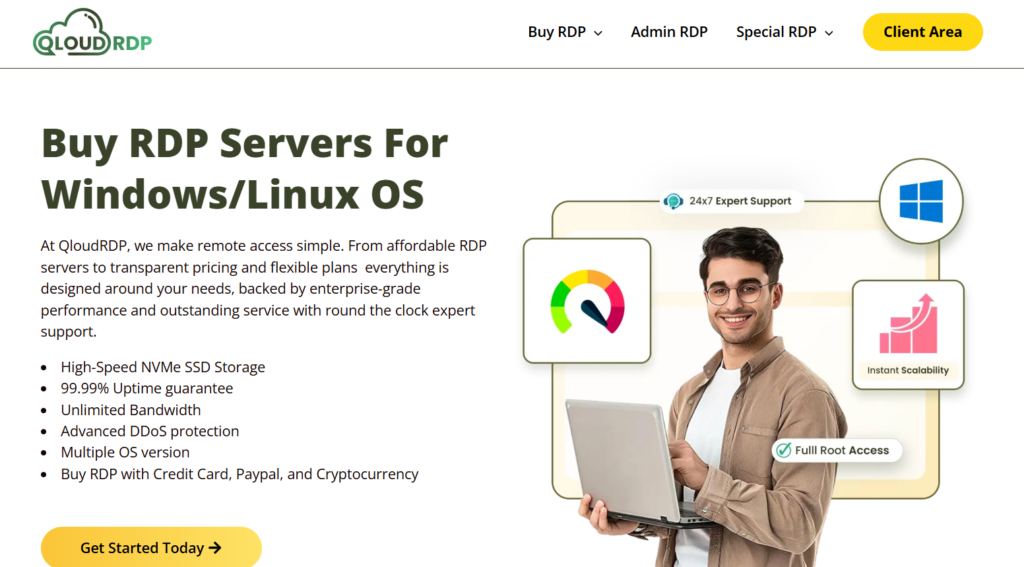
Why QloudRDP?
It is because QloudRDP delivers high-speed NVMe servers, 99.99% uptime, full admin access and strong security. All these resources make QloudRDP the best choice for running AI automation smoothly on RDP.
When purchasing RDP, look for plans that offer dedicated resources (not shared), at least Ubuntu 24.04 LTS as the OS option, NVMe SSD storage, and a guaranteed uptime SLA of 99.9% or higher.
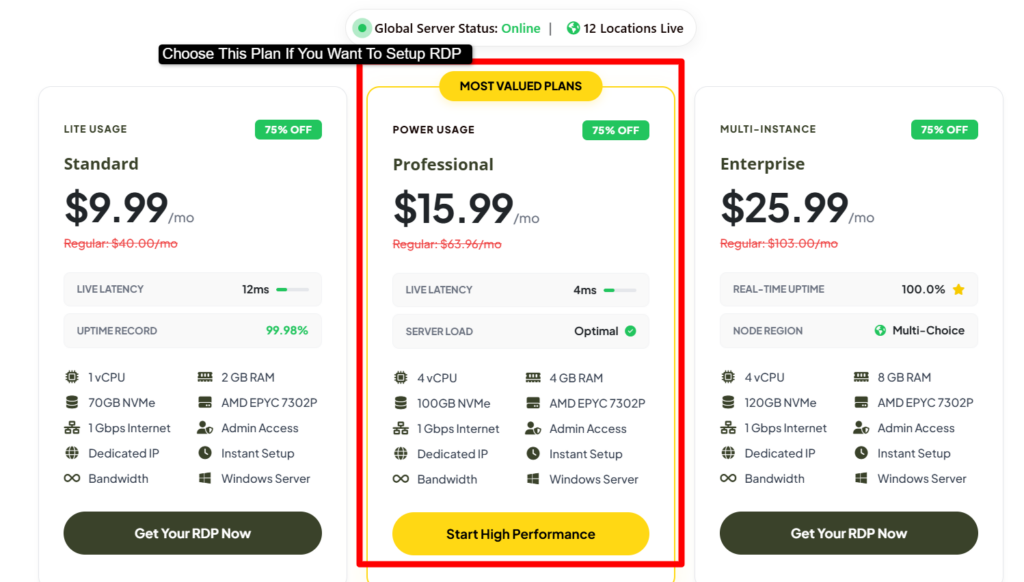
Once your order is confirmed, you will receive login credentials (IP address, username, and password). The team will email you your IP address, username and password.
- Connect to your new RDP server using a Remote Desktop client (Microsoft Remote Desktop on Windows/macOS, or Remmina on Linux).
- If you’re using Windows >> Press Win + R >> Type mstsc >> Enter your server IP and log in with your credentials.
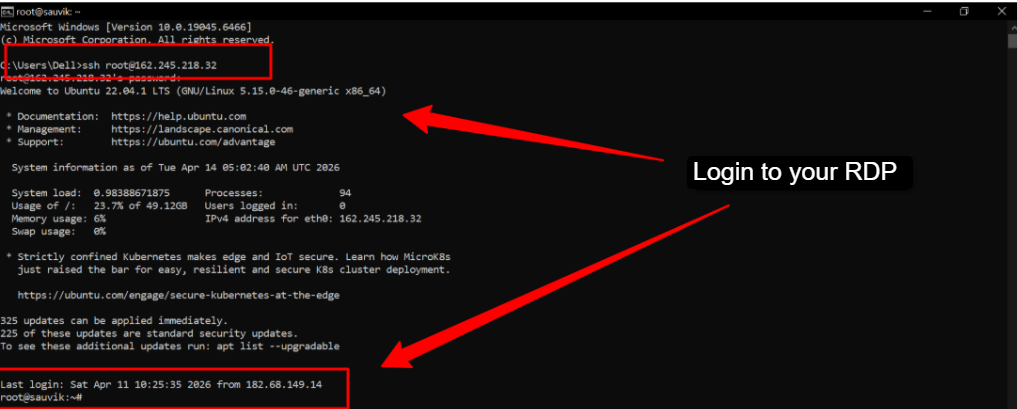
- On Ubuntu RDP >> Open a terminal immediately after login >> Most of the setup is done via the command line (Terminal)
Once connected, perform the following initial hardening steps:
Run This Command:
Update all system packages: sudo apt update && sudo apt upgrade -y
Set the server hostname: sudo hostnamectl set-hostname activepieces-server
Create a non-root sudo user (if not already done): sudo adduser apuser && sudo usermod -aG sudo apuser
Enable UFW firewall and allow SSH: sudo ufw allow OpenSSH && sudo ufw enable
Allow web traffic ports: sudo ufw allow 80/tcp && sudo ufw allow 443/tcp && sudo ufw allow 8080/tcp
Step 2: Installing Activepieces via Docker on RDP
Docker is the backbone of a self-hosted Activepieces deployment. It packages Activepieces, PostgreSQL (database) and Redis (queue manager) into isolated containers that can be started and updated independently.
Here is how to install Docker Engine and deploy Activepieces using Docker Compose for a production-ready setup:
Install Docker Engine and Docker Compose:
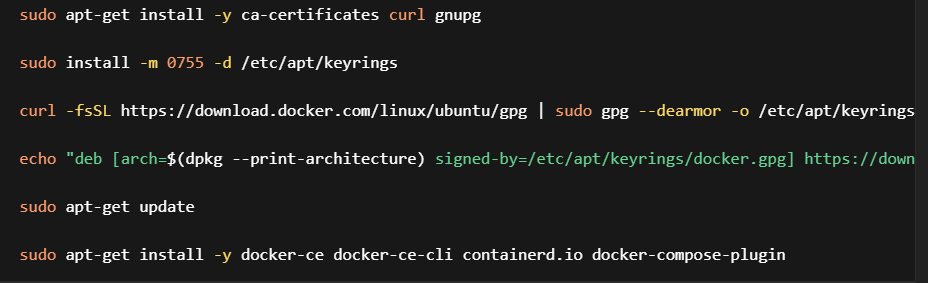
Run This Command:
sudo apt-get install -y ca-certificates curl gnupg
sudo install -m 0755 -d /etc/apt/keyrings
curl -fsSL https://download.docker.com/linux/ubuntu/gpg | sudo gpg –dearmor -o /etc/apt/keyrings/docker.gpg
echo “deb [arch=$(dpkg –print-architecture) signed-by=/etc/apt/keyrings/docker.gpg] https://download.docker.com/linux/ubuntu $(. /etc/os-release && echo $VERSION_CODENAME) stable” | sudo tee /etc/apt/sources.list.d/docker.list > /dev/null
sudo apt-get update
sudo apt-get install -y docker-ce docker-ce-cli containerd.io docker-compose-plugin
Clone the Activepieces Repository:

Run This Command:
sudo git clone https://github.com/activepieces/activepieces.git /opt/activepieces
sudo chown -R $USER:$USER /opt/activepieces
cd /opt/activepieces
Generate Environment Configuration:
Activepieces ships with a setup script that auto-generates secure random values for encryption keys, JWT secrets, and database passwords.
Run it now:

Run This Command:
chmod +x generate_env.sh && ./generate_env.sh
This creates a .env file.
Open it >> Set the AP_FRONTEND_URL to your server’s public IP or domain:

Run This Command:
AP_FRONTEND_URL=http://YOUR_SERVER_IP:8080
Launch Activepieces with Docker Compose:

Run This Command:
docker compose up -d
The first launch downloads all required images (Activepieces, PostgreSQL 15, Redis 7) and initializes the database.
This typically takes 3 to 5 minutes.
- You should see activepieces, activepieces_postgres, and activepieces_redis all in the “Up” state.
- Access the dashboard at http://YOUR_SERVER_IP:8080, complete the admin account setup, and your self-hosted Activepieces instance is live.
Step 3: Configuring Activepieces for Always-On Operation
A raw Docker Compose deployment runs, but it is not yet hardened for true 24/7 automation uptime on an RDP server.
The following configuration steps ensure Activepieces survives server reboots, container crashes, and network hiccups automatically.
Enable Auto-Restart Policies:
In your docker-compose.yml, confirm each service has the restart policy set to unless-stopped. This instructs Docker to automatically restart any crashed container without manual intervention:

Run This Command:
restart: unless-stopped # Add this under each service block
Configure Docker to Start on Boot:

Run This Command:
sudo systemctl enable docker
Set Up NGINX as a Reverse Proxy with SSL:
For Automation use, install NGINX to serve Activepieces on port 443 with a free Let’s Encrypt SSL certificate. This secures your dashboard and allows webhook triggers from external services to function correctly:
Run This Command:
sudo apt install -y nginx certbot python3-certbot-nginx
sudo certbot –nginx -d yourdomain.com
sudo systemctl enable nginx
- Update AP_FRONTEND_URL in your .env file to https://yourdomain.com and restart the stack with docker compose restart.
Persist Data with Named Docker Volumes:
Ensure your docker-compose.yml uses named volumes for PostgreSQL data and Activepieces cache. This guarantees that all flow definitions, credentials and execution history survive container updates or replacements.
Step 4: Building and Deploying Your First Automation Flow
With your self-hosted Activepieces instance running on the RDP server, you are ready to build your first open-source workflow automation.
Log into the dashboard at your configured URL and follow these steps:
For a 24/7 server, scheduled triggers are especially powerful since your RDP never sleeps.
Why use an RDP for 24/7 Automation Uptime?
The most common barrier to reliable automation is not the software, it is the infrastructure it runs on.
When teams try to run Activepieces on a personal computer or office workstation, they quickly discover a set of painful infrastructure problems:
- Sleep and Shutdown Interruptions: Desktop and laptop operating systems enter sleep mode or shut down outside working hours, instantly terminating all active flows and missing time-sensitive webhook events.
- Resource Contention: On a shared local machine, Activepieces competes with browsers, productivity apps, and other processes for CPU and RAM, causing slowdowns and execution timeouts during peak usage.
- Unreliable Connectivity: Home or office internet connections suffer from outages, IP address changes, and router restarts that break webhook endpoints and disconnect the automation engine from external services.
- No Remote Access or Monitoring: Managing a local server requires physical presence. If a container crashes at 2 AM, there is no way to respond remotely without a prior VPN or remote access setup.
An RDP server eliminates all of these problems in one move.
A quality RDP is a remote, always-on server hosted in a professional data centre with high network uptime and guaranteed availability. You connect to it remotely from any device, anywhere in the world, and the server itself never sleeps.
For teams running Docker-based Activepieces installation, the benefits are:
- Reliability and Scalability: RDP servers run in data centres with best-class hardware, high network uplinks and SLA-backed uptime guarantees. As your automation needs grow, you can vertically scale RAM and CPU or migrate to a larger plan.
- Constant Operation: Your RDP server runs 24/7. Scheduled triggers fire exactly on time; webhook listeners never miss an incoming event; long-running flows complete without interruption.
- Remote Accessibility: Manage, debug, and update your open-source workflow automation from any browser or Remote Desktop client at any time. Add new flows or respond to failed executions from your phone, laptop, or tablet.
- Better Security: Professional RDP providers offer DDoS protection, firewall management, and isolated networking. Combined with UFW, Fail2Ban and SSL on your Activepieces instance, your automation engine is significantly more secure than any home server setup.
Why Should I Self Host Activepieces on RDP?
Other than the general benefits of RDP, there are four reasons why the combination of self-hosted Activepieces and an RDP server is the best setup for serious automation users:
- Uninterrupted Workflow Execution: When your automation server never goes offline, your flows never miss a beat. Scheduled tasks fire on time, webhooks are always listening, and critical business processes, order confirmations, lead routing, data sync, execute reliably around the clock without human oversight.
- Dedicated Resources for Peak Performance: Your RDP’s CPU and RAM are dedicated entirely to Activepieces and its dependencies. There is no noisy neighbour effect. Flows execute at consistent speeds even during heavy loads, and you can allocate specific resource limits per container using Docker Compose.
- Unlimited Automation at a Fraction of the Cost: A mid-range RDP plan costs $9.99 to $15.99 per month, a fraction of what Zapier or Make charges for equivalent automation volume. With unlimited flows and zero per-task pricing on your self-hosted Activepieces instance, the cost per automation approaches zero as usage scales.
- Reliable Connectivity With Zero Downtime Risk: Quality RDP providers guarantee 99.9% or higher uptime backed by SLAs. Combined with Docker’s restart policies and automated monitoring (covered in the next section), your Activepieces deployment achieves enterprise-level availability without enterprise-level cost or complexity.
Maintaining 24/7 Uptime: Monitoring and Troubleshooting ActivePieces
Keeping your Activepieces setup running all the time is important so your automations don’t stop unexpectedly. After installation, the next step is to make sure everything stays stable and continues working smoothly.
This means keeping an eye on your containers, checking logs when something feels off, and making small fixes before they turn into bigger problems.
With a few simple checks and the right setup, you can make sure your workflows keep running day and night with no interruptions.
Monitoring and Troubleshooting Activepieces Flows for 24/7 Uptime
Maintaining 24/7 automation uptime requires monitoring at two distinct levels: inside Activepieces (flow-level visibility) and at the server level (infrastructure health).
Effective monitoring lets you catch and resolve problems before they cascade into sustained downtime.
Level 1: Inside Activepieces (Flow-Level Monitoring):
The Activepieces dashboard provides a built-in Runs view accessible from the left navigation panel.
Every flow execution is logged with a timestamp, duration, status (Success / Failed / Running), and a full step-by-step trace of inputs and outputs. This is your first line of defence for diagnosing problems.
Three of the most common failure types you will encounter in production are:
- API credential errors (where a connected service’s OAuth token has expired or been revoked, identified by a 401 Unauthorized error in the step trace)
- Timeout failures (where an external API call takes longer than the configured timeout threshold, often seen in high-latency third-party services)
- Container crashes (where the Activepieces service container exits unexpectedly, stopping all flow execution entirely).
For failed executions, Activepieces allows you to click into any failed run, inspect the exact step that failed, and use the “Retry” button to re-run the flow after fixing the underlying issue.
You can also enable Email Notifications for failed flows from the flow settings panel, ensuring your team is alerted immediately when a critical automation breaks.
Level 2: Server-Level Monitoring (RDP Infrastructure):
Server-level monitoring tracks the health of your RDP’s CPU, RAM, disk I/O, and Docker container states. Use the following commands to monitor resources in real time from your RDP terminal:
For automated alerts, install netdata (a lightweight real-time performance monitor) or set up a simple cron job that checks container health and sends an email if any container exits.
Configure CPU and RAM alert thresholds, if Activepieces consistently uses over 80% of available RAM, it is time to upgrade your RDP plan or optimize your flow concurrency settings.
Best Practices for High Availability
Beyond monitoring, following these five best practices will keep your self-hosted Activepieces running reliably at 24/7 automation uptime for months and years without unexpected failures:
This creates a self-healing alerting loop within the same platform.
Conclusion
Self-hosting Activepieces on an RDP server is the most cost-effective, privacy-respecting, and reliable path to true 24/7 automation uptime for any business or developer.
By combining a Docker-based Activepieces installation with the always-on infrastructure of a professional RDP server, you eliminate per-task pricing, gain unlimited flows, and retain full control over your data and workflows.
The key takeaway is straightforward: your automation engine is only as reliable as the infrastructure it runs on, and an RDP server purpose-built for constant operation is the right foundation. Your next step is to get your RDP server provisioned and start your Activepieces deployment today.
Choose a reliable RDP provider that offers Ubuntu 24.04 LTS, SSD storage, and a guaranteed uptime SLA, the foundation of your 24/7 automation uptime starts there.
Ready to get started? Purchase a high-performance RDP plan today and deploy your self-hosted Activepieces instance in under 30 minutes.
Your first automation could be live before the end of the day.
Frequently Asked Questions
Activepieces vs. n8n: Which one Should You Host?
Activepieces is easier to start with and works great for simple to medium workflows. It has a clean interface and faster setup, which saves time. n8n is more flexible and better for advanced users who need deep control and custom logic.
How Can Self-Hosting Activepieces Streamline My Business Workflows?
Self-hosting Activepieces helps you automate daily tasks like sending emails, moving data, and connecting apps in one place. It reduces manual work, saves time, and keeps your data on your own server. This makes your workflows faster, more secure, and easier to manage as your business grows.
Why Is Ubuntu 24.04 LTS the Gold Standard for Docker-Based Automation?
Ubuntu 24.04 LTS is stable, secure, and built for long-term use. It gets regular updates and works smoothly with Docker, which makes it a strong choice for automation tools. It also has wide community support, so fixing issues and finding help is easier.
Is Self-Hosted Activepieces Different from the Cloud Version?
Yes! The self-hosted version gives you full control over your data and setup. You can customize it, manage security, and run it on your own server. The cloud version is easier to start and does not need setup, but it has limits compared to self-hosting.






2 Comments