

Quick Summary: Protect your Tally data using cloud backup. Choose automatic daily backups for hands-free protection, or take manual backups inside TallyPrime via Gateway of Tally. Save backups to cloud storage for safety. Regular backups prevent data loss from accidental server crashes. Start with either of the methods with the help of this guide.
What would happen to your business if all your Tally data disappeared tomorrow? We know it’s scary, but don’t worry.
Tally stores all your important financial information, like your sales, invoices, and tax details. One computer crash or any virus attack could wipe everything out and destroy your business records.
Cloud backup is the solution; instead of keeping your Tally data only on your local computer, you can store it safely in the cloud. Your data is protected, and you can access it from anywhere, anytime, even using your iPhone.
There are two popular ways to back up your data:
This guide will teach you both methods step by step so you can choose which works best for your business.
Either you prefer automatic backups or manual ones, we’ll make it simple and easy to understand.
Let’s protect your data right now.
- Why Backing Up Your Tally Data on the Cloud Matters
- Automated vs. Manual Tally Backup: Which Should You Use?
- Method 1: Automated Tally Cloud Backup
- Method 2: Manual Tally Backup (Step by Step)
- How to Restore a Tally Backup From the Cloud?
- Best Practices for Safe Tally Cloud Backups
- Common Tally Backup Problems (and Fixes)
- Does Your Cloud Provider Handle Backups for You?
- Frequently Asked Questions
- Conclusion: Keep Your Tally Data Safe on the Cloud
Why Backing Up Your Tally Data on the Cloud Matters
Your Tally data is gold for your business.
It contains years of financial records, customer information and business history. A sudden computer problem, a virus attack, or even a small mistake can delete all your Tally data in seconds. Once it’s gone, it’s gone.
Below are the reasons why cloud backup is important:
Most small businesses keep Tally data only on one office PC or a pen drive. If that device fails or gets stolen or is damaged by anything, then all your accounting data can be lost in minutes.
Cloud backup stores your Tally data in secure, professional data centers with strong physical and digital security. Even if your office faces any disaster, your data remains safe and can be restored quickly.
When you have cloud backup and Tally on the cloud, business owners or accountants can access the same Tally data from the office, home, or your client’s place.
You do not need to send backup files by email, carry your hard disks, or visit the office just to get data.
Many people can easily work on one central, backed-up dataset, which reduces confusion, version conflicts, and repeated work.
GST and invoicing rules require you to maintain automatic, unalterable daily backups of your electronic books. During an audit, officers may ask for backup logs or old records.
If you use cloud backup tools like Tally Drive, you can create scheduled, encrypted backups with proper logs and version history. This makes it easy to show proof of complaints and keeps your past data safe and well organized for years.
If your office computer stops working, you can restore your Tally data from the cloud in minutes, not days. You can go back to a recent backup if data gets corrupted, deleted by mistake, or wrong entries are made.
When you have cloud backup, a broken PC does not stop your work; you simply log in from another device and continue your accounting without long delays.
Over time, cloud backup is not just an option, but it’s considered a smart and necessary part of running a safe and efficient Tally setup.
Automated vs. Manual Tally Backup: Which Should You Use?
Both of the automatic and manual cloud backups can easily protect your Tally cloud backup data, but they work very differently.
Automatic backup is like having a personal assistant who takes a backup of your data every hour without you asking, whereas manual backup is like taking a backup yourself whenever you remember.
Now, let us compare both of the methods so you can decide which one is right for your business.
| Feature | Automatic Backup (Hands- Free) | Manual Backups (On-Demand Control) |
|---|---|---|
| Backup frequency | Automatically, every hour, day, or as per your schedule. | Whenever you decide to take a backup. |
| User Effort | Minimal: set once, and it works automatically. | High: you must remember and do it yourself. |
| Data Protection Level | Very high; the latest data is always protected. | Medium: only data from the last backup is protected. |
| Recovery Time | Very fast, recent backup is always available. | Depends on when the last backup was taken. |
| Restore Options | Easy; many backup versions to choose from. | Limited; restore from the specific date you choose. |
| Best for | Growing businesses, busy owners with critical data. | Small operations & occasional backup needs. |
Either way, pick one and protect your data.
Method 1: Automated Tally Cloud Backup
Automated cloud backups in TallyPrime use TallyDrive to save your company’s data to secure cloud storage on a fixed schedule without any manual effort.
How Automated Cloud Backups Work
Automated cloud backup is like an alarm clock for your data. Once you set it up, it works automatically on a schedule. Here’s how it works step by step:
First, you connect your Tally software to a cloud backup server using your login credentials. This creates an encrypted connection between your computer and the cloud storage services.
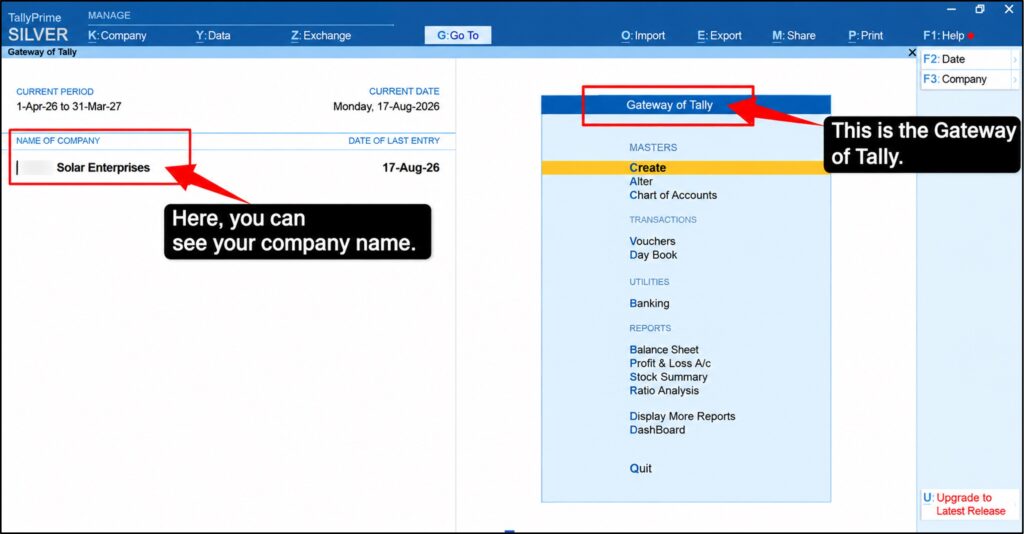
You tell the system when to take backups. For example, you might say, “Take a backup every day at 6 pm.” You choose the time and frequency based on your business needs.
Select your company to back up. >> Choose the company/company data you want to back up. >> Confirm the backup destination path.
Note: In automatic backups, TallyPrime allows you to specify the folder where automatic backups should be saved.
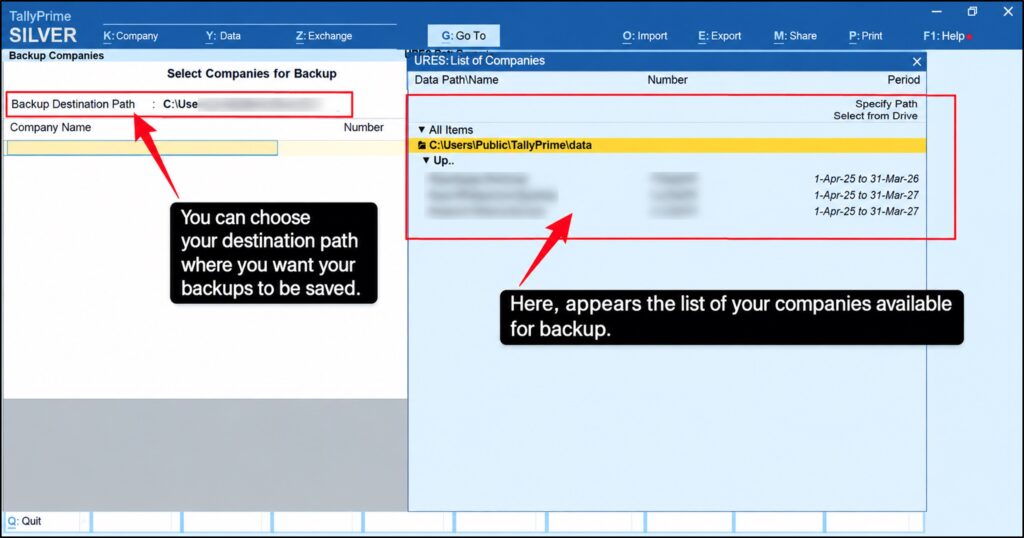
Your Tally data is now stored in a secure data center on the internet. This data center has multiple copies of your data stored in different locations for extra safety.
Each backup creates a new version. So if you took a backup today, yesterday, and last week, you have three versions saved.
This process repeats automatically, according to your schedule. Every day or whenever you set it, your data is automatically protected. You don’t need to remember or do anything.
This is why automated tally backups are so powerful: they remove the human factor. The system never forgets and ensures your business compliance and data integrity are always preserved.
How to Enable & Configure Automated Backups
Setting up automated backups is easier than you think. Just follow these simple steps to get started:
Note: If a scheduled backup already exists, then press Alt + A to add a new one.
That’s it; you have successfully enabled automated backup. Your data is now being protected without you doing anything else.
Setting Backup Frequency & Retention
Backup frequency means how often backups can happen, and retention means how long backups are kept.
These two settings are important because they affect how much protection you get and how much cloud storage space you need.
Backup Frequency
Hourly Backup: Backup happens every 1 hour.
Daily Backup: Backup happens every day at a specific time.
Weekly Backup: Backup happens once per week.
Retention: The period during which the cloud service retains your backup files. For example, if you set retention to 30 days, the system will keep backups from the last 30 days. Backups older than 30 days are automatically deleted to save cloud storage space.
For most small businesses, daily backup with 30-day retention is the best choice, as it offers good protection without using excessive cloud storage or costing too much.
If your business is quite large with many transactions, use daily backup with 30 days to 6 months retention for maximum protection.
Method 2: Manual Tally Backup (Step by Step)
If you take a manual backup of your Tally data, then it’s simple and easy. Unlike an automated backup that requires configuration, a manual backup is done by you whenever you want it.
This process takes only a few minutes.
The Tally backup on the cloud creates a file that contains all your Tally company data, which you can then save to the cloud. Here we’ll guide you through each step of the manual backup process.
Step 1—Open the Gateway of Tally
The Gateway of Tally is the first screen you see when you open Tally. This is where you select which company to work with and what actions to perform.
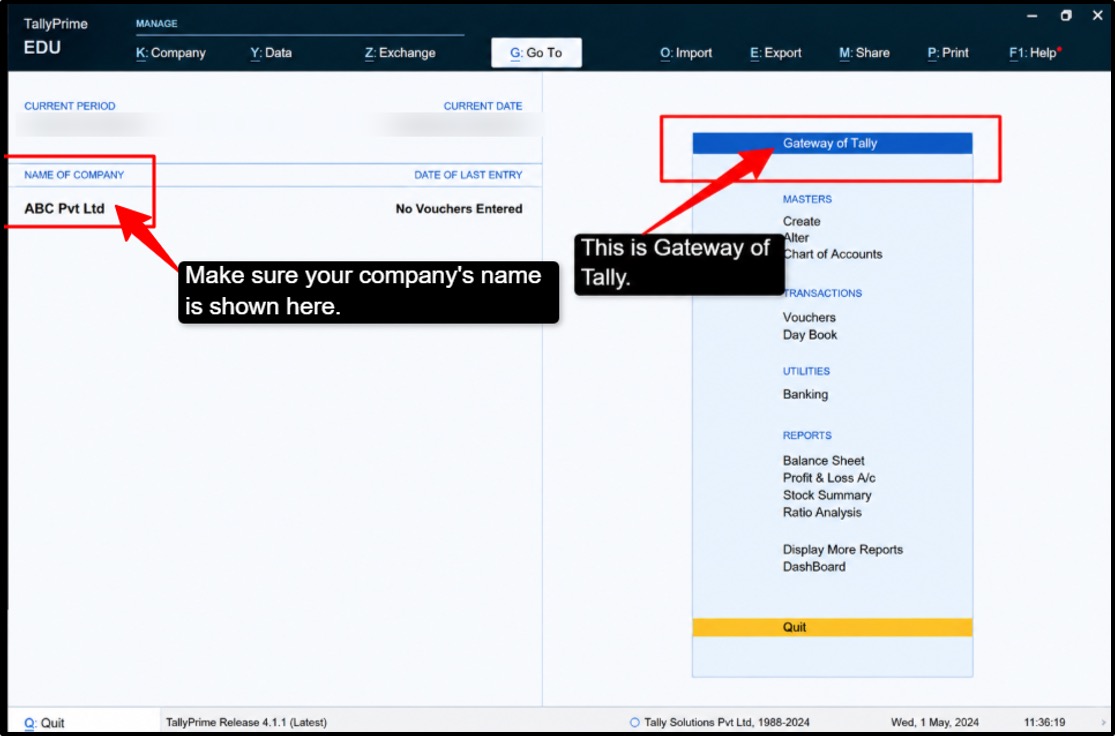
How to open the Gateway:
Important Note:
Make sure you can see your company name clearly on this screen. If your company is not listed, you may need to open it first by clicking on the company name or using the “Open Company” option.
The Gateway is your control room. If you ever get lost in Tally, you can always press Ctrl + Home or the Home key to return to the Gateway from anywhere in the application.
Step 2—Go to F3 (Company) → Backup
F3 is the keyboard shortcut in Tally that takes you to company settings, where the Backup option is located.
How to access the backup option:
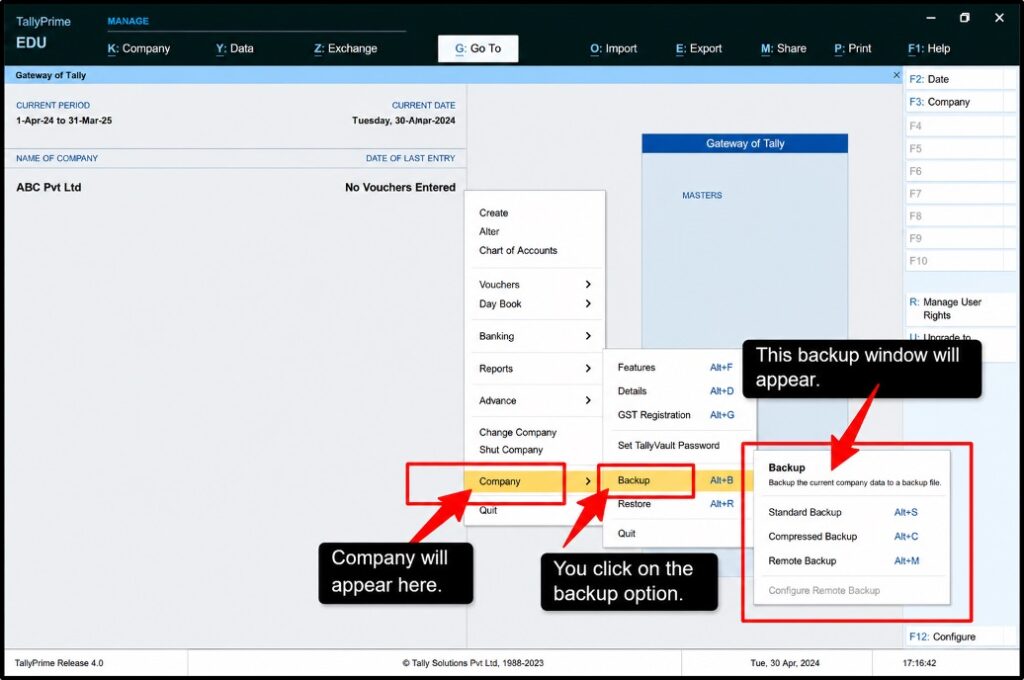
Important Tip: Press F3 anytime you’re in Tally and want to access company-related functions. The Gateway can also show F3 as a shortcut; check the menu display to confirm.
Step 3—Choose Source & Destination Folder
The source is where your Tally data currently is (your computer). The destination is where you want to save your backup file (first on your computer, then upload it to the cloud).
Understand this process:
When you click on ‘Backup,’ Tally will show you two important things:
- Source Folder (Your Tally Data Location)
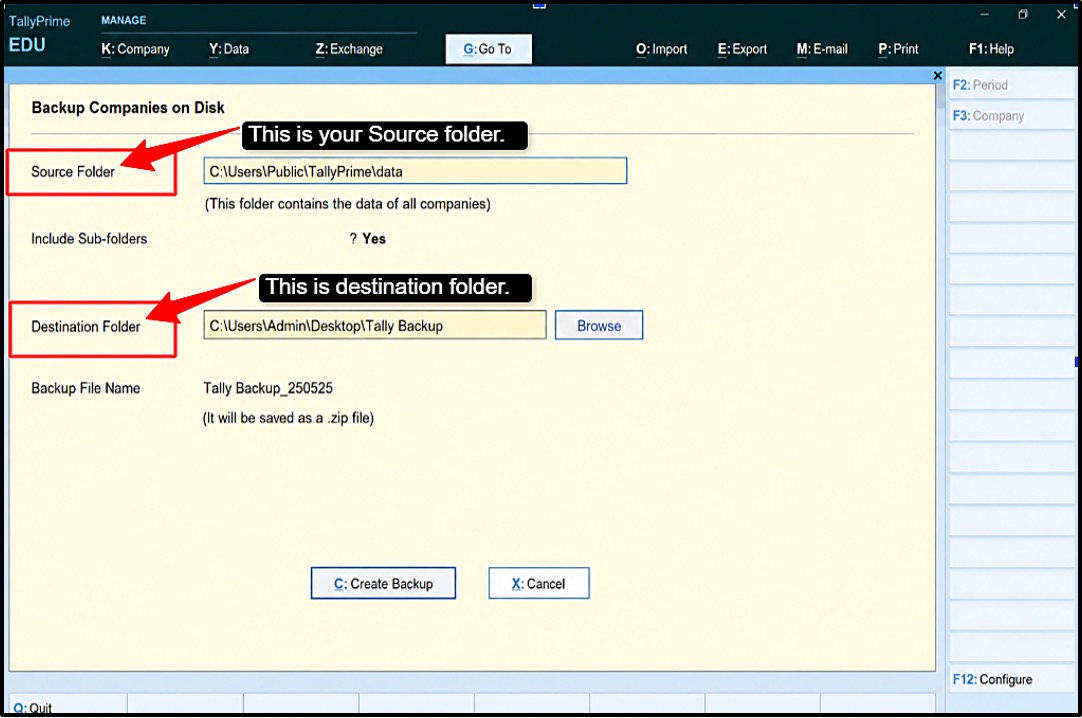
- Destination Folder (Where to Save the Backup)
Step 4—Confirm & Verify the Backup
After you select the source and destination, Tally will create your backup file. Confirming and verifying means making sure the backup was successful and your data is safely saved.
How to confirm the backup:
Verifying the backup was successful:
Important Checks: The backup file exists in your destination folder. The file size is larger than 0 KB. The file appears in your cloud storage after waiting for 2-3 minutes.
Now, you’re done. Your Tally data is now backed up and safely stored. If anything happens to your computer, you can still restore this backup file anytime.
How to Restore a Tally Backup From the Cloud?
Restoring a Tally backup means bringing back your computer data from the backup file you saved in the cloud. If something goes wrong with your data, you can quickly restore it from your cloud backup.
This section shows you exactly how to restore your Tally data step by step.
- Open Google Drive/Dropbox/OneDrive >> Find your Tally backup file.
- Right-click and select “Download” >> The file goes to your Downloads folder.
- Open Tally >> Press the F3 key or click Company >> Click on Restore.
- A restore dialogue will open.
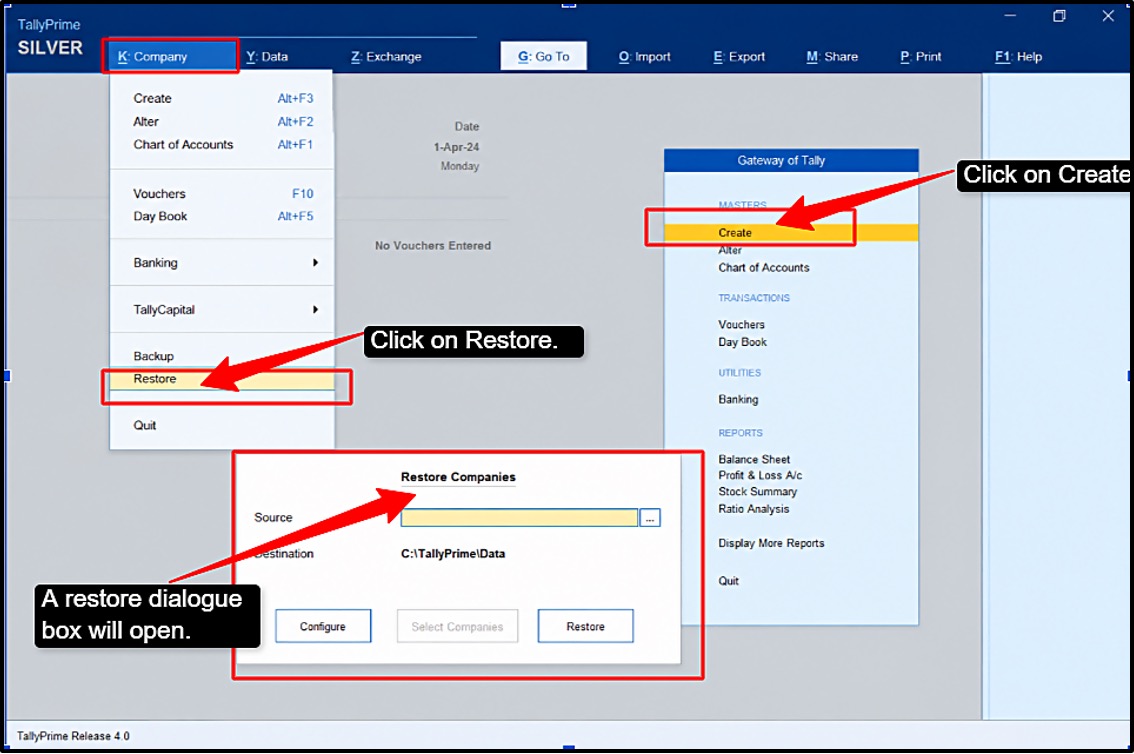
- Find and select the downloaded backup file >> Click the “Browse” button in the restore dialogue>> Navigate to your downloads folder or where you saved the backup file.
- Look for your backup file >> Click on the file to select it >> The file path will now show in the Restore dialogue.
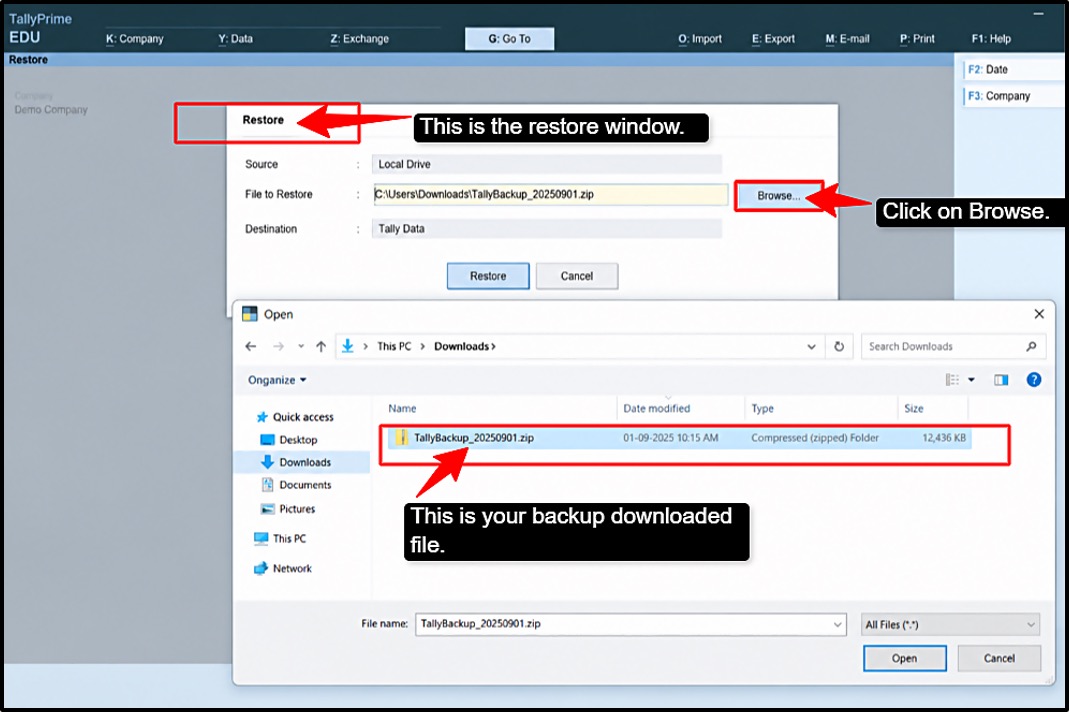
- Click the “OK” or “Restore” button to start >> Tally will show a warning (this will replace current data).
- Click “Yes” to confirm >> Wait for completion >> Do not close Tally during this process.
What you need to restore: Computer crashes or won’t start. The hard drive fails. Virus attacks damage files. Accidental deletion of data. Data becomes corrupted.
Finally, the success message will appear. You will see a message, “Restore completed successfully.” Open your company to verify your data.
Best Practices for Safe Tally Cloud Backups
If you follow the best practices, it ensures that your Tally backup and restore are safe and reliable. Taking backups is only the first step; you also need to protect those backups and test them regularly.
These practices help prevent data loss and give you confidence that your business data is truly protected.
Keep Multiple Backup Copies (3-2-1 Rule)
The 3-2-1 rule is a professional backup strategy used by businesses worldwide. It means that you keep 3 copies of your data on 2 different storage types, with 1 copy offsite.
How the 3-2-1 rule works:
3 Copies for Your Data:
2 Different Storage Types:
1. Copy Offsite:
Verify Backups Regularly
Once you take a Tally backup on the cloud, it’s useless if you never check if they work or not. Verification means testing your backup files to make sure they can actually be restored.
Verification is important because:
Recommended Verification Schedule:
Secure Backups With Encryption
Encryption means converting your backup data into a code that only you can read. Without encryption, anyone who has access to your backup file could see your sensitive financial data.
Encryption matters because:
Important Tips: Write down your password and keep it in a safe place. Don’t share your password with anyone. Change your password every 6 months. Keep your encryption password separate from your cloud login password.
Common Tally Backup Problems (and Fixes)
Sometimes backups don’t work as expected. Every business faces backup issues at some point.
Don’t panic if your backup fails or you can’t restore a file; these are common situations that happen to thousands of businesses every day. This section covers common problems and quick solutions to fix them.
Backup Failed or Incomplete
The backup process can sometimes stop or even show an error message.
Causes:
How to fix:
- Check available storage; free up at least 1-2 GB on your hard drive.
- Close Tally completely, exit all Tally windows, and restart the computer.
- Check the Internet connection; verify the connection is stable if backing up to the cloud.
Corrupted Backup File
The backup file exists but cannot be restored. You get a “Cannot read backup file” error.
Causes:
How to fix it:
- Restore from an older backup; try restoring from last week instead.
- Download the file again; re-download from the cloud (fixes transfer errors.
- Try a compressed backup; use the “Compressed backup” option instead of the standard.
Not Enough Storage Space
You get storage full or the “Not enough disk space” error.
Causes:
How to fix it:
- Delete old backups; keep only 3 months of backups.
- Move old backups to an external drive or archive them to a USB or external hard drive.
- Upgrade your cloud storage; pay for more space and clear your temporary files.
Can’t Find the Backup Location
You took a backup but cannot remember where you saved it.
How to find it:
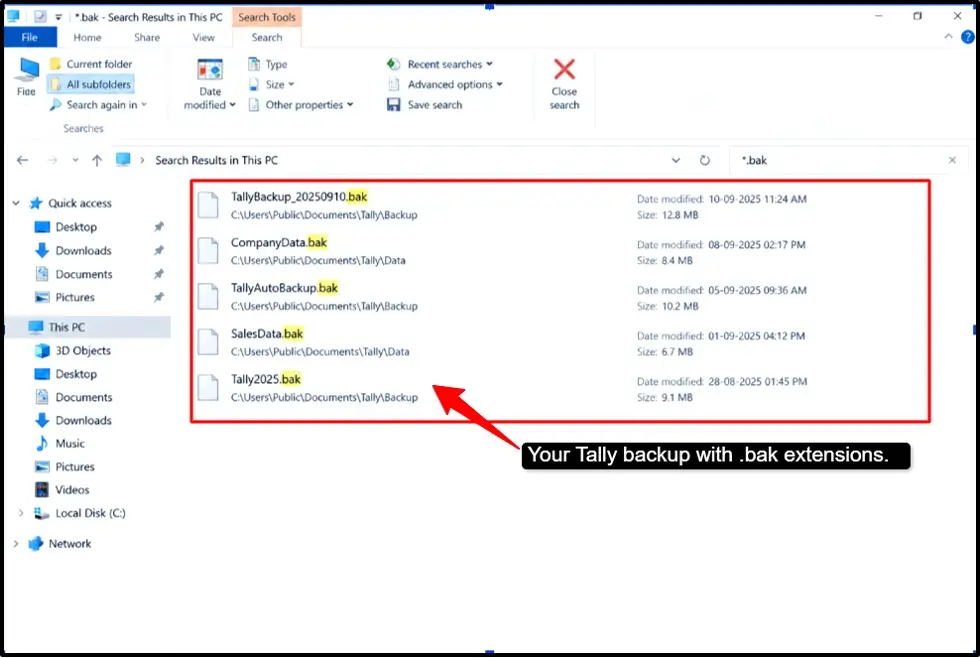
Most backup problems are preventable with a little planning. The businesses that never lose data are the ones that organize their backups from day one.
They use a consistent naming system, keeping your backups in one dedicated folder.
Does Your Cloud Provider Handle Backups for You?
Some cloud service providers offer managed backup solutions where they handle all the backup work for you. Instead of taking backups yourself, these services automatically protect your Tally data every day without any effort from you.
Instead of taking backups yourself, these services automatically protect your Tally data every day.
Managed service providers like QloudRDP and similar services continuously back up your Tally data automatically with applicable restore facilities.
They handle storage, encryption, and recovery. It is a perfect solution for businesses that cannot afford downtime; everything is automatic and monitored 24/7 by experts.
Frequently Asked Questions
How to Take a Tally Backup on Cloud
- You can take a backup of Tally on cloud either automatically or manually.
- Automatic: Open Tally Gateway >> Go to Backup section >> Enable auto backup >> Set frequency >> Set your folder path >> Click Save.
- Manual: Open Tally/File menu >> Click Backup >> Choose folder location & save >> File located with .bak extension.
Is Cloud Tally Backup automatic?
Yes, Cloud Tally backup is automatic only if you set it up. You can choose the auto-backup option. Choose your desired folder location for your backups, and you will have your backup saved there automatically.
How do I restore my Tally data from a cloud backup?
- Follow these steps:
- Download your backup file from the cloud.
- Open Tally and press F3.
- Click on Restore. Browse and select your backup file.
- Click on Ok to start the restore, confirm the warning message, and wait for the restore tally data from cloud to complete.
How often are Tally cloud backups taken?
It completely depends on your setup. You can do it daily, hourly, weekly, or even manually. Small businesses need daily backups, growing businesses need them daily or even twice daily, and large businesses needs it as per their transaction volume.
Can I download my cloud Tally backup to my local PC?
Yes, you can easily download it through your Google Drive, Dropbox, and OneDrive.
Is my Tally backup safe and encrypted on the cloud?
Yes, it is completely safe if you use proper practices. Use strong passwords, enable two-factor authentication, and use a secure internet. Don’t share your passwords ever, and update your antivirus.
Conclusion: Keep Your Tally Data Safe on the Cloud
Your Tally data is valuable; protect it today, not tomorrow. Losing business data can destroy your business.
Cloud tally backup is simple and affordable and gives powerful protection that any business can afford. You have learned two backup methods:
You have discovered common problems and their solutions also. Most importantly, you now know exactly how to protect your business data.
After reading this, you can start today. Just remember, a backup taken today is better than perfect planning tomorrow. Start small and simple, but now. Your future self will thank you when your data is safe and your business is protected.
💡 Most Loved Article!









6 Comments