

Is your RDP actually sized right, or are you paying for idle RAM while your CPU chokes during peak hours?
If you’re using your RDP resources on a guess, it can easily lead to slow performance, app crashes, and wasted money. But don’t worry; here you will understand everything from start to finish.
Here, we’ll give you easy-to-follow RAM and CPU recommendations based on real-world use cases.
You may need 2 vCPU/4 GB for basic browsing or 16+ vCPU/32 GB+ for heavy tasks like automation or multi-user setups.
Use this sizing guide, and choose specs that match your workload. Avoid unnecessary lag and wasted money, and keep your RDP running smoothly for trading, SEO tools, or teamwork.
Let’s start.
- The Number Everyone Forgets: Windows Eats 1.5-2GB Before You Start
- How to Think About RDP Sizing (RAM, CPU, and Storage Do a Different Job)
- How Much RAM & NVMe Does an RDP Need? (By Use Case)
- How Much CPU Does an RDP Need?
- Why “vCPU” Isn’t Always What It Seems (Oversold Cores)
- Does More RAM Make an RDP Faster? (Common Myth)
- How to Check If You Need More RAM or CPU
- Frequently Asked Questions
- Conclusion: How Much RAM and CPU Does Your RDP Actually Need
The Number Everyone Forgets: Windows Eats 1.5-2GB Before You Start
The simple truth is that Windows Server needs about 1.5 to 2 GB of RAM just to turn on and run the basic tasks, even before you open Chrome, Excel, or any other app.
If the plan says 2GB total, but Windows already uses 1.5GB, you are left with only 0.5GB for everything else you want to do.
That is not enough for even light browsing. Once you open a few tabs or you try to run a small tool, your server will run out of fast memory, and it will start using the slow hard drive, which makes it feel a little delayed, and everything crawls.
This is the reason why a cheap 2GB Windows RDP plan often feels frustratingly slow, and for a smooth experience, you should always choose at least 4GB RAM so your apps get real memory and not just the scraps left after Windows takes its share.
How to Think About RDP Sizing (RAM, CPU, and Storage Do a Different Job)
When you are choosing an RDP plan, don’t only look at the biggest number or the price. RAM, CPU, and storage each handle a very different part of your business workload.
So if you want to get all three right, then this is what will make your RDP feel fast and smooth. Here, understand each of the three closely.
RAM : How Much You Can Run at Once
RAM (memory) decides how many apps, browser tabs, or tools you can keep open without facing any slowdowns.
Windows Server itself uses around 1.5-2 GB of RAM just to run, so a 2GB plan leaves almost nothing for your work.
When you have 4GB of RAM, you can comfortably run a browser with 5-10 tabs plus office or trading tools. If you need to do heavier tasks like run multiple browsers, automation bots, or video editing, aim for 8GB or more.
CPU (vCPU) : How Fast Tasks Finish
vCPU (virtual CPU cores) is the part that controls how quickly your apps process data, load your pages, and run your scripts.
When your CPU is slow or overloaded, it can cause laggy sessions or delayed responses, even if you have plenty of RAM. For light use like browsing or basic admin, 2 vCPU is enough.
But if you are involved in trading platforms or compiling code, then choose 4 vCPU or even higher.
Modern CPUs like AMD Ryzen or EPYC also help encode your desktop display faster and reduce RDP lag.
NVMe Storage — Why Disk Speed Also Matters
Your storage type actually affects how fast your Windows boots, your apps launch, and updates install.
NVMe drives are 3-6x faster than traditional or old SATA SSDs because they connect directly to the motherboard (via PCIe), completely cutting the delays during small file read/writes.
This simply means quicker logins, you get smoother multitasking, and your disk does not freeze during updates or backups.
So, always pick NVMe over a standard SSD or HDD for your Windows RDP, especially if you are running databases, bots, or you have frequent file operations.
The right RDP setup is about matching RAM, CPU, and storage to what you actually do.
Start with the baseline, and then you can add enough RAM for your apps, enough CPU for smooth performance, and NVMe storage to avoid disk issues.
This approach keeps your sessions fast and cost-efficient.
How Much RAM & NVMe Does an RDP Need? (By Use Case)
The right amount of RAM and NVMe depends on what you plan to run on your RDP. The choice combines both RAM and NVMe for Windows applications, user profiles, and business data.
The recommendations below give practical starting points, but actual usage can change depending on the software and workload.
| Use Case | Recommended RAM | Recommended NVMe | Suitable for |
| Light browsing | 4 GB | 50-60 GB | One user, basic browsing, email, PDFs, and a few browser tabs. |
| Trading | 4-8 GB | 60-80 GB | One or more trading platforms, charts, and light automation. |
| Tally and QuickBooks | 8-16 GB | 80-120 GB | Accounting, GST, inventory, company files, and small team access. |
| Automation and bots | 6-8 GB | 80-120 GB | Browser automation, SEO tools, scraping, and scripts with background tasks. |
| Business apps | 8-16 GB | 80-150 GB | Office apps, accounting software, CRM, and file management. |
| Rendering and encoding | 16-32 GB or more. | 150-300 GB | Video rendering, media encoding, and other memory-heavy work. |
| Multi-user RDP/RDS | 16 GB or more. | 150 GB or more. | Several active users running office or business applications. |
You can use this table as a starting point.
A single user doing light work may be comfortable with 4 GB RAM, while accounting software, automation, and multi-user access need more memory and storage.
Choose NVMe storage that can hold Windows, your applications, updates, and backups without becoming full.
Note: Microsoft also recommends testing real applications and planning for peak usage instead of relying on one fixed RAM per-user number.
If RAM usage often stays above 80-90%, it is time to upgrade your RDP plan for smoother and more reliable performance.
How Much CPU Does an RDP Need?
The CPU decides how quickly your RDP completes tasks. More vCPUs help when you open several apps, run your scripts, process data, or support multiple users at the same time.
But adding vCPUs cannot fix slow internet or high network latency, so choose a plan based on how many tasks you can run together and if they need continuous processing or not.
Light Tasks (1-2 vCPU)
Choose 1 vCPU for very basic work, such as opening files, checking email, or managing your server.
But 2 vCPUs are a much better starting point for your daily RDP because Windows antivirus scans, updates, and browser activity may run at the same time.
A 2 vCPU plan works well for:
Basic browsing and office work. One light trading terminal. Simple scripts or scheduled tasks. One user with a small number of open apps.
If the CPU stays near 100% when you’re opening apps or switching windows, then upgrading to 2 vCPU or choosing a stronger CPU with better per-core speed can make your session feel more responsive.
Trading and Automation (4 vCPU)
Trading platforms are not always CPU-heavy, but charts, indicators, and price feeds across multiple terminals can add up.
If you have one light MT4 or MT5 setup, 2 vCPUs may be enough. But then for multiple terminals, automated strategies, and browser automation, you need at least 4 vCPUs, which is a much safer choice.
Use 4 vCPUs for:
Several MT4 or MT5 terminals. Trading bots running continuously. SEO tools, data collection, and scheduled scripts. Workloads that must run while you use the desktop.
Pair your 4 vCPUs with at least 8 GB RAM for your browser-based automation. RAM keeps the sessions open, while the CPU processes the instructions and scripts.
Heavy and Multi-Instance (6-8+ vCPU)
Choose 6-8 vCPU or even more when many CPU-intensive tasks run at the same time. This includes parallel browser instances, large scraping jobs, several bots, and software builds.
It also involves data processing with multiple active users. A heavy workload can very quickly use all of the available CPU, making every RDP action feel delayed.
You can use 6 vCPUs when:
6 vCPUs suit a busy single-user setup with several active tools. 8 vCPUs suit around 10 – 20 light browser instances or heavy parallel automation. 12+ vCPUs may be needed for larger automation farms or many concurrent users.
Do not choose CPU by core count alone. You also have to check if your provider offers a dedicated or shared vCPU, the processor generation, and the CPU’s performance under sustained load.
A plan with fewer strong, consistently available cores can feel much faster than a plan advertising more oversubscribed vCPUs.
Why “vCPU” Isn’t Always What It Seems (Oversold Cores)
A plan may advertise 4 or 8 vCPUs, but that number does not always mean you get the same real CPU power. vCPUs can be shared, oversold, or limited by usage rules.
That is the reason two RDP plans with the same vCPU count can deliver very different performance. Let’s understand this in detail.
What to Check: Ask your provider about CPU sharing, dedicated allocation, burst limits, throttling, and processor model before buying.
You should not judge an RDP only by its advertised vCPU number. A reliable 4-vCPU plan with steady performance can be better than an oversold 8-vCPU plan.
A shared CPU may be enough for all your light tasks, but continuous or heavy workloads are much safer on dedicated or clearly guaranteed CPU resources.
Does More RAM Make an RDP Faster? (Common Myth)
More RAM does not automatically make an RDP faster. It mainly prevents slowdowns when your server does not have enough memory.
If your RDP already has enough RAM, then adding more may not improve speed.
The real problem could be:
A slow or overloaded CPU delays apps and background tasks. Slow disk performance affects booting, app loading, and pagefile activity. Shared CPU resources may be throttled when other users create heavy load.
When RAM becomes full, Windows moves some data to the pagefile on disk, which is much slower than physical RAM and can cause freezing or delayed responses.
If all resources look normal, then check your network latency or ask your provider about CPU sharing.
How to Check If You Need More RAM or CPU
Do not just upgrade blindly. Always check your RDP while doing your normal work, especially during busy periods when you run multiple apps, browser tabs, bots, or automation software.
Follow these steps:
Check if RAM is the main issue.
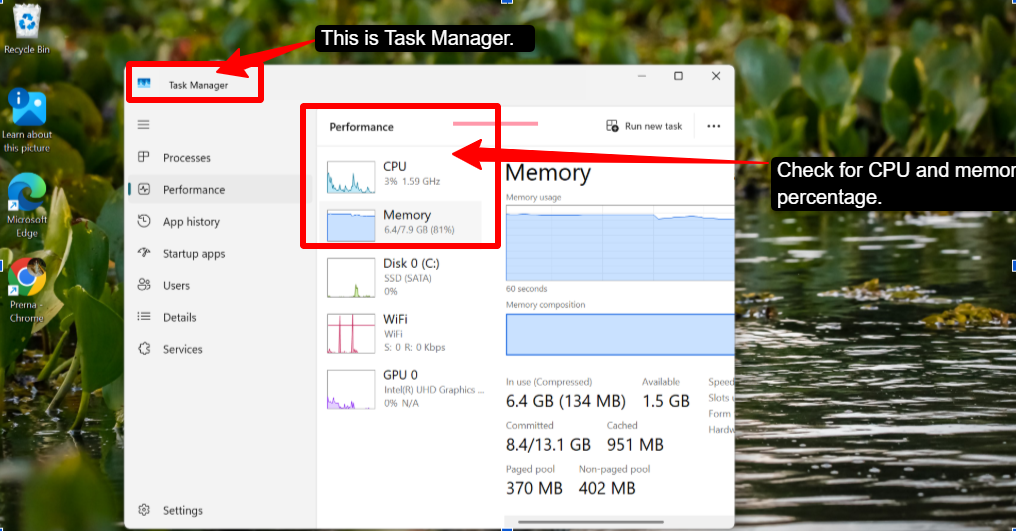
Check if CPU is the problem.
Test during peak usage.
Use this simple rule: Upgrade RAM when memory is regularly full, upgrade CPU when processor usage stays near 100%, and choose faster NVMe storage when disk activity causes delays.
If all three look normal to you, but the screen still lags, investigate network latency or shared and oversold CPU resources.
Frequently Asked Questions
How much RAM do I need for an RDP?
You need 4 GB for browsing, email, and light office work. Trading platforms and business apps usually need 4-8 GB, while automation and multi-user access setups are more comfortable with 8-16 GB or more.
Is 2GB RAM enough for a Windows RDP?
Yes, 2 GB of RAM may be enough to start Windows, but it leaves very little memory for your apps. You may experience slow loading and heavy pagefile use. Choose at least 4 GB RAM for a usable single-user RDP.
How many CPU cores does an RDP need?
A single-user RDP setup requires a minimum of 2 CPU cores, while multi-user access generally needs 4-24+ cores depending on the number of concurrent users.
How much RAM do I need to run trading bots?
A single light MT4 or MT5 terminal may work with 4 GB RAM, but 8 GB is a much safer choice for multiple terminals, charts, and indicators. If your bots use browser automation or run several accounts at once, consider 8-16 GB RAM and at least 4 vCPU.
Does more RAM make my RDP faster?
More RAM will only make your RDP faster if your current remote server is running out of memory.
How much RAM per user for a multi-user RDP?
You can have 2-4 GB RAM per user, but for other heavy tasks like CRM, ERP or browser-heavy work, you should plan closer to 4-8 GB RAM per active user and test the workload before adding more users.
Conclusion: How Much RAM and CPU Does Your RDP Actually Need
The right RDP plan depends entirely on the work you need to do.
For basic browsing and office tasks, 4 GB RAM and 2 vCPU are usually enough. Trading platforms and accounting software may need 8 GB RAM and 4 vCPU for stable performance.
RAM and CPU resource choices should not be made on guesswork or without understanding the different specs and how they cater to different needs.
Also, check for NVMe storage, CPU sharing, and network latency before choosing a provider. More RAM is not going to improve your speed if your RDP already has enough.
Just monitor usage during busy periods and upgrade the resources that create the real issue. This approach helps you control costs and maintain a smooth RDP.
💡 Most Loved Article!





Leave a comment