

Quick Summary: You can install Microsoft’s free “Windows App” from the Google Play Store or App Store to connect to RDP. Open the app, tap “+” to add a PC, and enter your server IP address, username, and password given by your RDP service provider.
Save the connection and then tap it to open your Windows desktop. The basic process is similar on both Android phones and iPhones.
Have you ever needed to use your RDP server while you were away from your laptop? Many users face this problem, but they do not know how to connect to RDP from an Android phone or iPhone.
Connecting to your RDP server from your phone is easy with Microsoft’s free Windows App (formerly Remote Desktop).
Once it is set up, you can easily open and control your Windows server from anywhere using just your Android or iPhone.
Here, you will learn how to download the app, add your RDP server using its IP address, username, and password, and connect in just a few taps. We’ve also added quick fixes in case you run into any errors along the way.
What You Need Before You Start
Before you connect to RDP from your Android phone or iPhone, keep these details ready.
Microsoft says that you need the remote PC’s name or IP address and a user account with a username and password to create the connection. Here are the essentials to keep ready:
Once you have all of these ready, you are ready to add your RDP server and connect from your phone.
If you’re connecting to a normal Windows RDP server, start with the Windows App. It is simple, free, and official.
How to Connect to RDP From Android (Step by Step)
You can connect to a Windows PC or RDP server from Android using Microsoft’s official Windows App.
Your Android phone must run Android 10 or later, and you need internet access, the server IP address, and your server username and password.
Follow this step-by-step process and have your RDP ready.
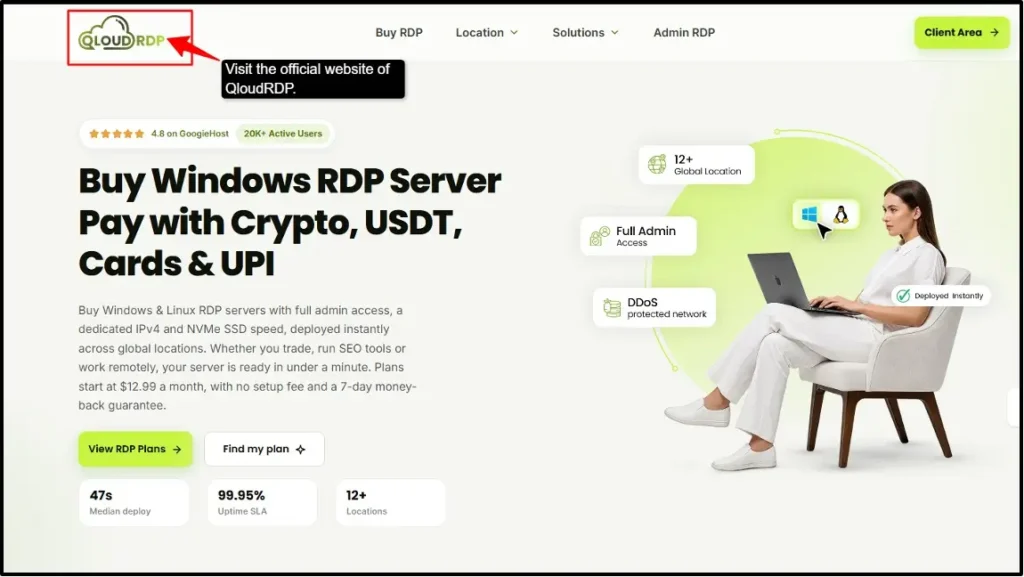
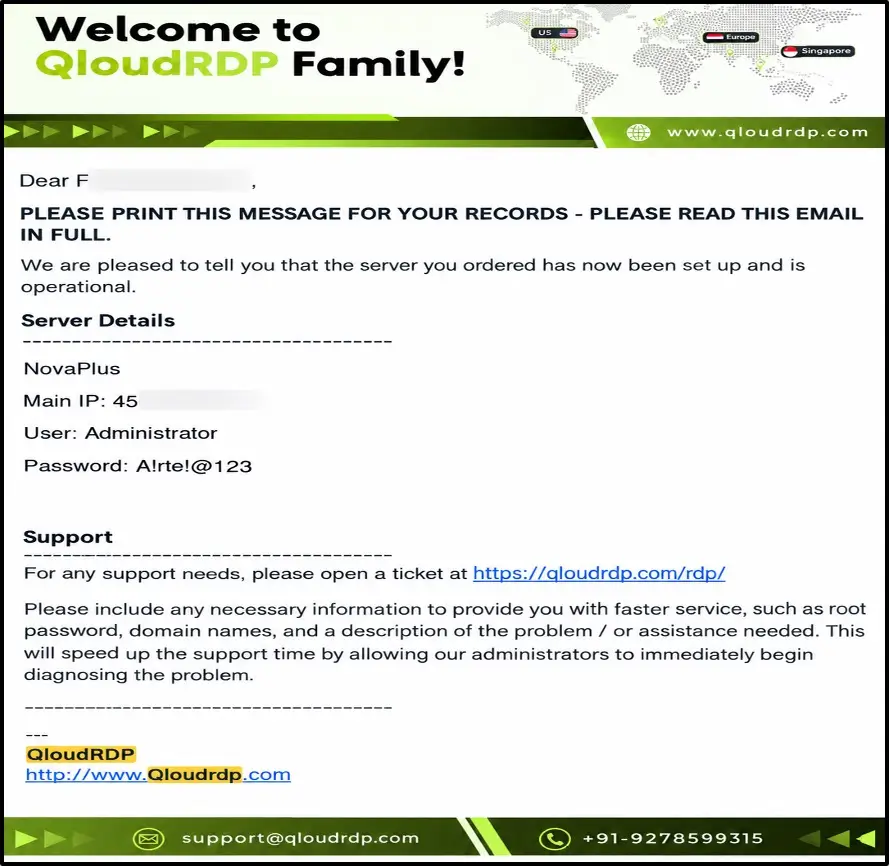
Note: To connect, you’ll need your login details (server IP, username, and password). These are sent to your email once you buy a server. If you have any trouble buying, you can contact the support team at QloudRDP.
Contact details: +91 92785 99315Support email: [email protected]
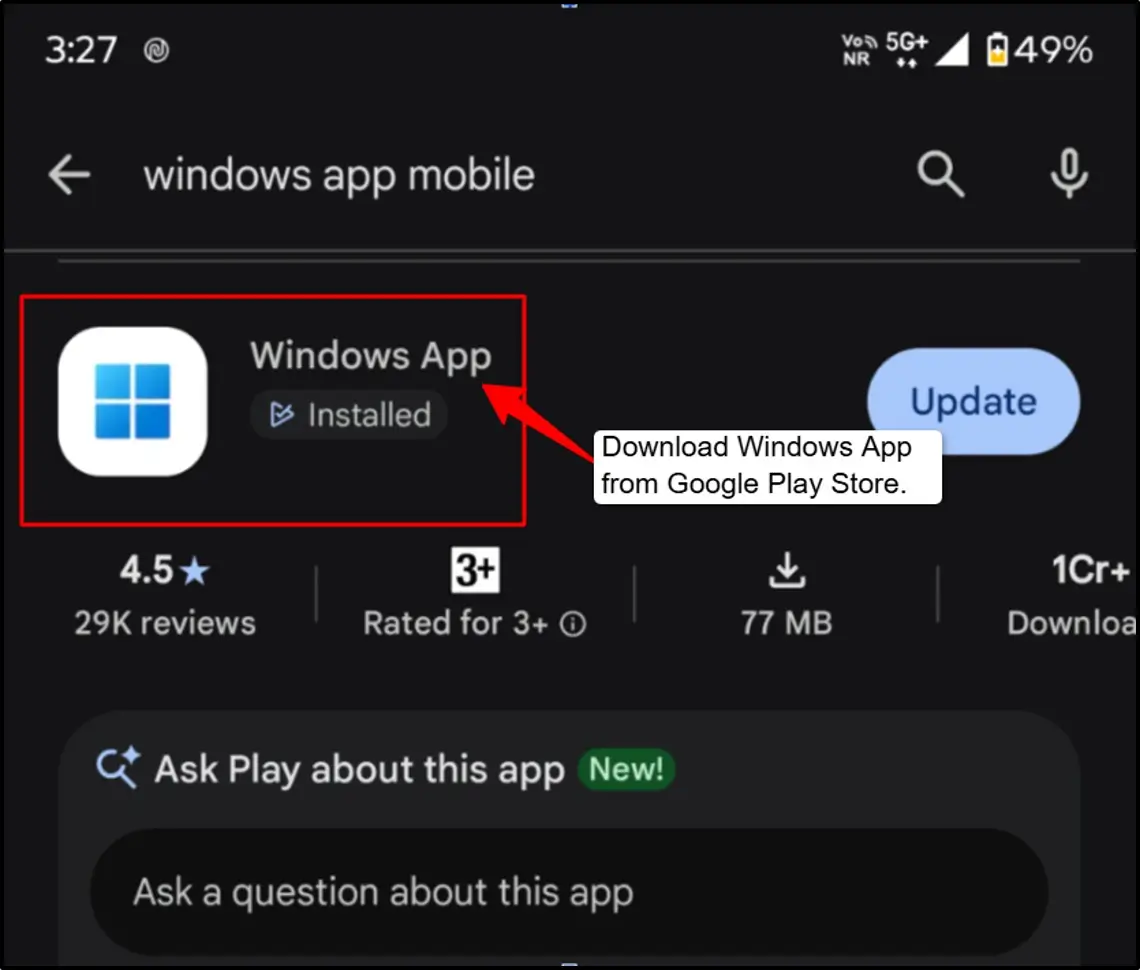
Note: Microsoft says the Windows App is available for Android/Chrome OS and can connect to remote PCs.
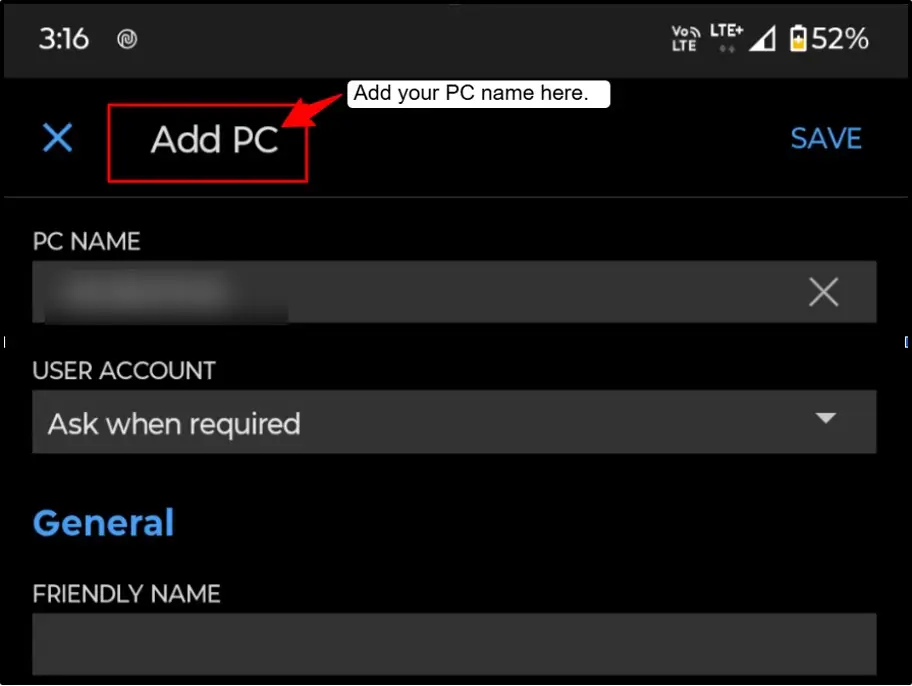
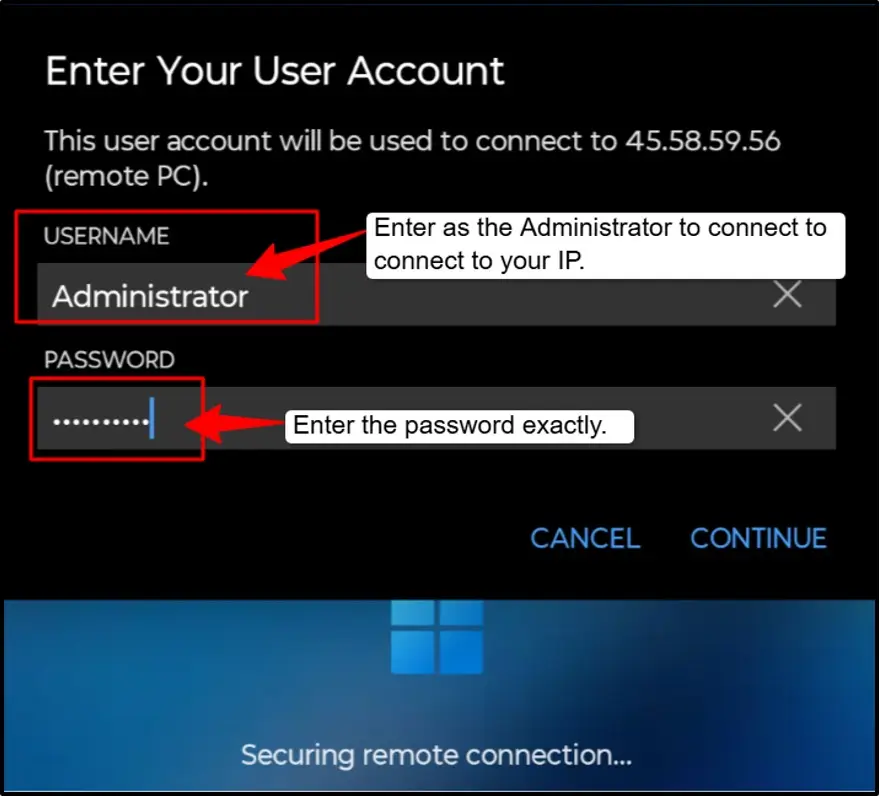
Note: Microsoft says that the PC name can be a Windows computer name, domain name, or IP address, and you can add port information after it.
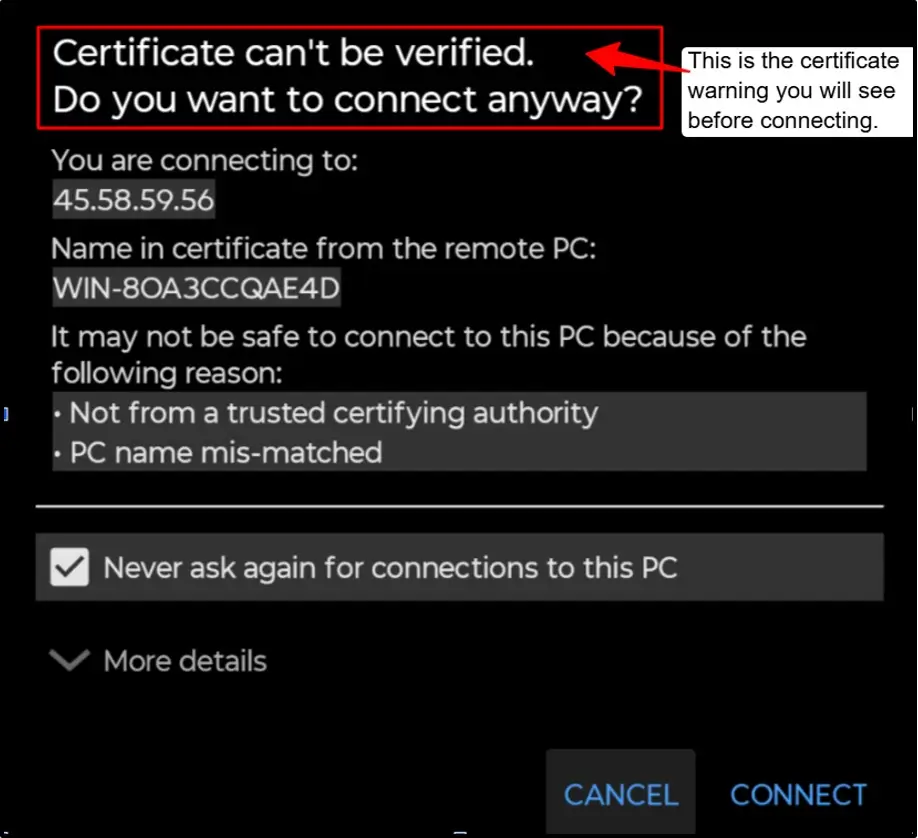
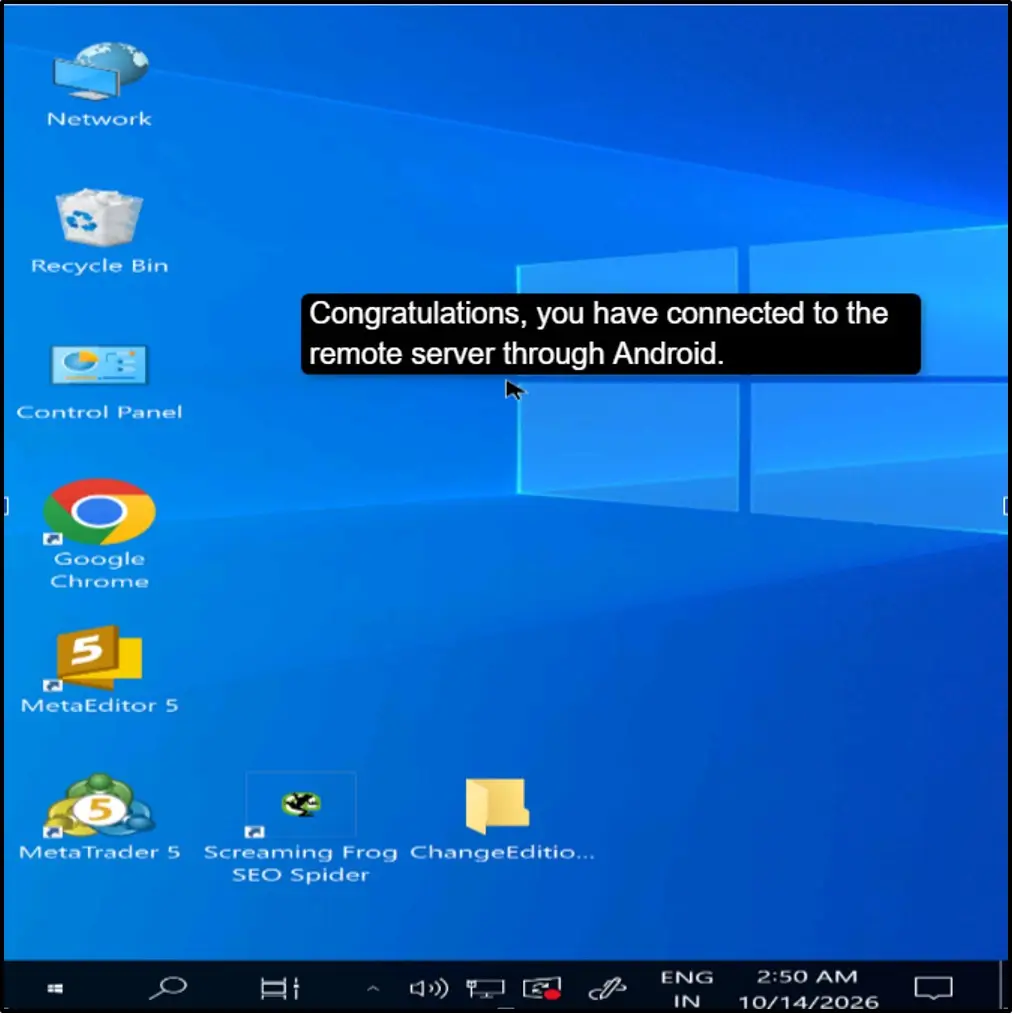
If your connection fails, double-check the IP address, username, password, and internet connection, and also if your provider’s RDP port is open.
How to Connect to RDP From iPhone and iPad (Step by Step)
You can also easily connect to a Windows PC or RDP server from an iPhone or iPad using Microsoft’s official Windows App.
Your device must run a recent version of iOS or iPadOS, and you need internet access, the . Let’s understand the step-by-step process here.
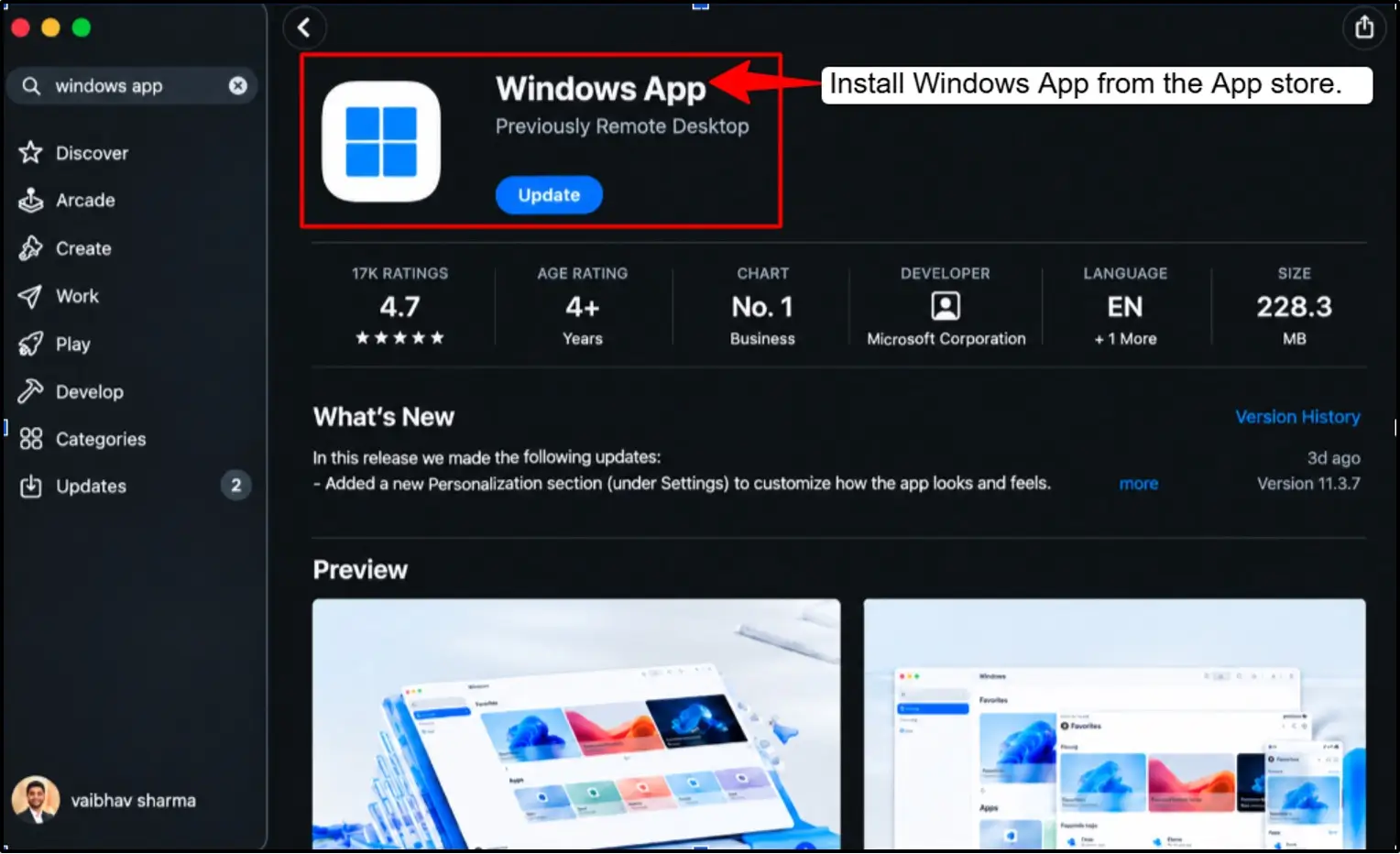
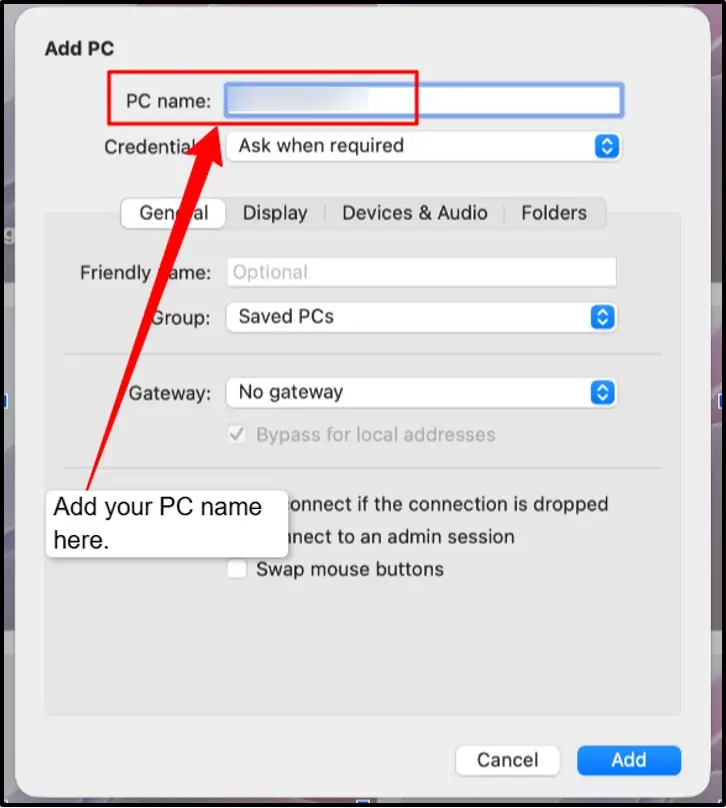

Note: The PC name can be an IP address, hostname, domain name, or Windows computer name.
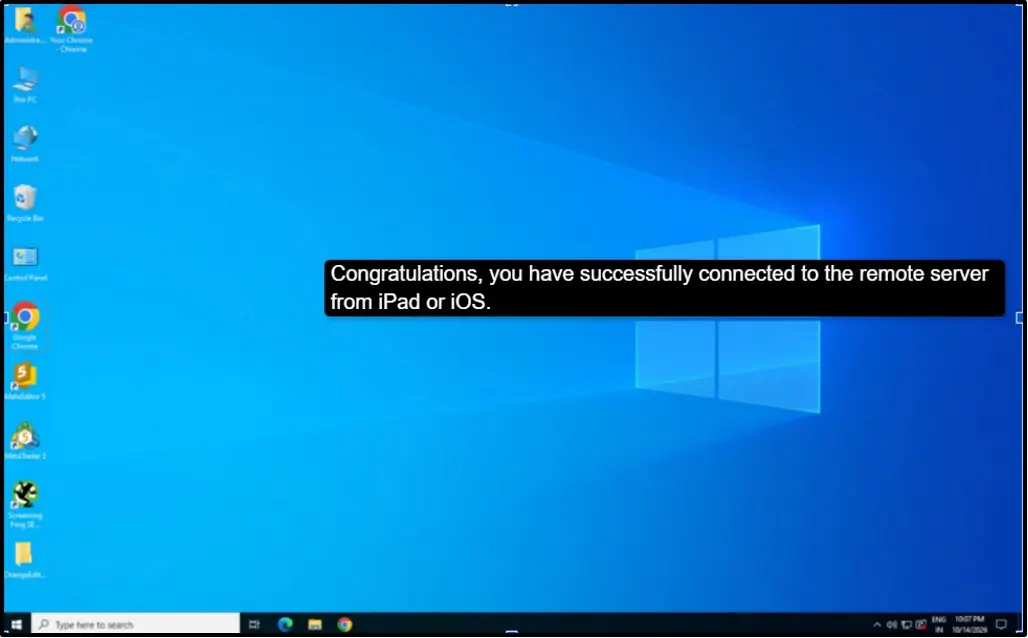
Now, you have connected successfully. If the connection does not work by any chance, check your internet connection, confirm the IP address and password, and make sure your RDP provider has enabled Remote Desktop and opened the correct port.
Common Mobile RDP Errors (and How to Fix Them)
Most of the common mobile RDP problems happen because of a wrong IP address, incorrect login details, or a weak internet connection. Below are some of the most common errors with simple ways to fix them.
“Remote Desktop Can’t Connect”
This error usually means your phone cannot reach the RDP server.
How you can fix it:
Wrong Credentials or Username Format
This error happens when the username or password you enter is incorrect.
How you can fix it:
Certificate Warning (Why It’s Normal)
You may see a message like, “The certificate is not from a trusted authority.” This is again a very common issue when you are connecting to a Windows VPS or RDP server.
By default, Windows creates a self-signed certificate for RDP. Because your phone does not automatically trust this certificate, it shows a warning before connecting.
What you can do:
Slow or Laggy Session on Mobile Data
A slow RDP session is mostly caused by weak mobile signal, high network latency, high display resolution, and other apps using the same bandwidth.
How you can fix it:
Most of these errors can easily be fixed by checking your server IP and your RDP login details. But if you still face problems, then contact your RDP provider and share the exact error message with server IP details.
When you have the correct credentials with a stable network, then you can use your Windows desktop smoothly from your Android phone or iPhone.
Frequently Asked Questions
What app do I use to connect to RDP on Android or iPhone?
You can use the Windows App (formerly Microsoft Remote Desktop) from Google Play or the App Store. Install it, tap the + icon, select Add PC, enter your server’s IP address and your username and password, and then tap on Connect.
Is the Windows App free?
Yes, the app is free to download and use on Android and iPhone. You only pay for the RDP server or Windows PC you connect to and not for the app.
Why can’t I connect to my RDP from my phone?
You can check these in order:
- Make sure the remote computer is on, awake, and has Remote Desktop enabled.
- Re-check the IP address and the port if your provider uses a custom one.
- Confirm your username and password are correct.
- Switch between WiFi and mobile data, as some networks block RDP.
Can I connect to RDP on an iPad?
Yes, the Windows App works on iPad just like on iPhone. Download it from the App Store, add your server details, and connect. The larger screen also makes it easier to work with files and windows.
What is the username for my RDP?
Your RDP username is provided by your RDP provider in your welcome email or control panel. On Windows servers, it is commonly Administrator.
Is mobile RDP secure?
Yes, mobile RDP can be secure, but it depends on how the server is set up. RDP connections are encrypted, and security improves with strong passwords, multi-factor authentication, regular Windows updates, and a firewall that limits access.
Conclusion
You can easily connect to RDP from an Android phone or iPhone using Microsoft’s official Windows App. You only need your RDP server IP address, username, password and a stable internet connection.
Once you add the server in the app, you can open your Windows desktop from anywhere and manage your server directly from your mobile device. Mobile RDP is perfect for quick checks, monitoring bots or trades, restarting software, and handling urgent tasks.
However, it is not the best option for full-time work because the phone screen is small, and typing for long hours can be uncomfortable.
A tablet with a keyboard can be better for your regular work, and a laptop or desktop remains the most comfortable choice.
💡 Most Loved Article!




Leave a comment