

Quick Summary: Your RDP slows down due to a bad internet connection. It even slows down due to background programs and incorrect display settings. But you can fix most of these issues yourself.
Most of the solutions take less than 5 minutes to try and work on Windows, Mac, and mobile devices. We’ve listed here the most common errors you face with 10 proven fixes, so you can have a smooth RDP experience.
Does your RDP freeze or lag when you need it the most?
Your boss needs those files now, but the screen just hangs for 30 seconds or even a minute, or you’re in a video call with a client, but your face freezes mid-sentence.
You type something quick, but each letter appears a second late, making your working hours and quality compromised.
So the real question is how much time you are actually losing with all this and how much money too.
RDP doesn’t behave like this without reason; there are possible reasons that you feel your remote server is not performing the way it’s supposed to. But there’s a fix for everything that’s happening.
Here, we’ve identified the most common RDP errors, and with firsthand experience, we’ve given 10 proven solutions to fix the majority of your performance issues.
Quick Diagnosis: Is the Lag You or the Server?
Before you start fixing things, you need to know where the problem actually is. Is your RDP slow because of something on your computer, or is your remote server overloaded?
So, here’s how to figure it out in 60 seconds.
- If the lag is happening only when you use RDP, the problem is your computer. Check your internet connection, close your unnecessary apps, and restart your PC.
- If your computer is running slow, not just your RDP, then your computer is causing the problem. Restart it, free up your storage, or upgrade your hardware if it’s needed.
- If your RDP suddenly becomes slow after working normally, the server may be overloaded. If this happens, then contact your IT team or RDP provider to check it.
- If your RDP slows down at the same time every day, the server is probably busy. This usually happens during peak hours when everyone is using it. So, wait until traffic is lower or upgrade to a better server plan.
Quick Test
Restart your computer. If RDP is still slow, it’s not your side. If it gets faster, something on your computer is causing it.
80% of the RDP lag sometimes happens on your end, but you just need to start there first. Now that you know where the problem lives, let’s fix it.
Let’s see some of the common issues that make your remote server lag.
Common Causes of RDP Lag
Let’s first understand what’s breaking your RDP. RDP lag never happens for no reason. There’s always a reason behind it; usually it’s something simple.
Sometimes it’s multiple things working together to slow it down. Given here are the most common causes we see, and one of these is probably your problem.
1. High Network Latency or Distance from Server
Network latency is the time it takes for data to travel from your computer to the remote server and back. If the server is physically far away, that journey takes longer. A server in your city might take 20 milliseconds, or a server in your country would take 100 milliseconds.
Every action you do follows this path: you click, the server gets it, it responds, and you see the results. If latency is high (over 100ms), every action feels delayed.
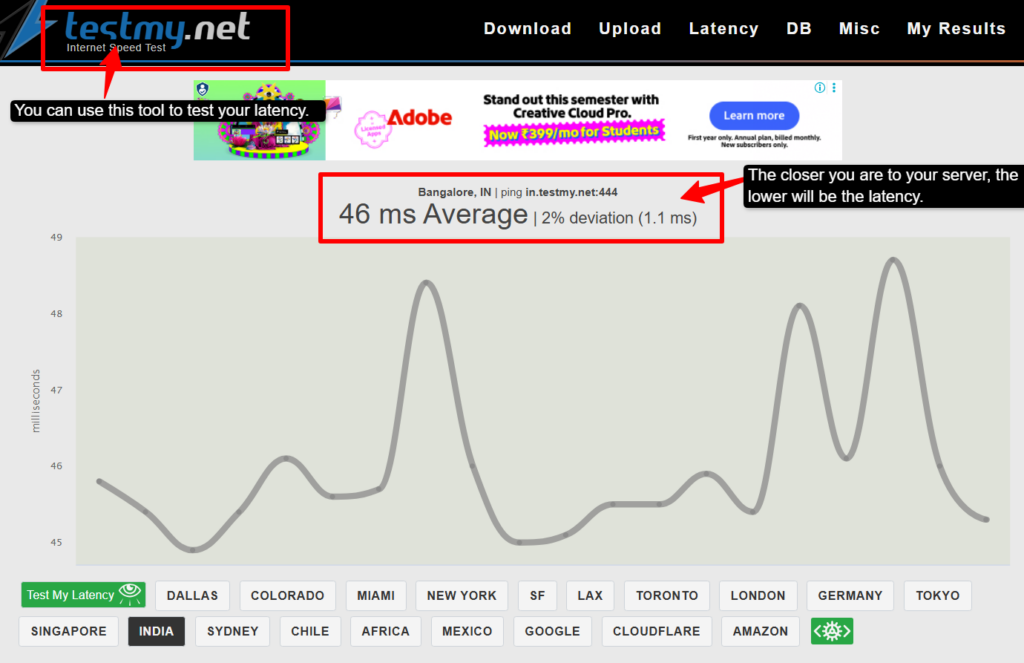
You can use “testmy.net” latency tool and check latency for your server location. Test your latency; if it’s over 100 ms, distance is your problem, which you can’t fix. But now you know what’s causing the lag.
2. Limited Bandwidth / Unstable Internet
Your internet connection has a bandwidth limit. RDP constantly sends video data to your screen, so you need consistent speed. If your bandwidth is under 3 Mbps, RDP will freeze and stop. But the unstable internet is actually worse.
Your connection keeps dropping; RDP disconnects and reconnects every few minutes. Each connection then can cost you 3-5 seconds, and if that happens 20 times a day, you easily lose an hour of work.
Switch to wired Ethernet for your stable internet, as cable connections are fast and stable.
3. Overloaded Server
Your remote server is handling multiple users simultaneously.
If fifty people connect at the same time, that server is overloaded. It’s running out of RAM and CPU capacity. Low RAM means the server can’t handle all the sessions smoothly, and a low CPU means processing is hindered. Everyone on a shared server means you’re all getting slower service.
This can happen during peak hours when everyone is working.
4. Heavy Display Settings
Your RDP sends video data of your screen constantly. High resolution (1920×1080) means more pixels traveling over your connection.
Deep colour (32-bit) means richer information but massive file sizes. Visual effects and animation mean constant updates. All this data travels through your bandwidth. Wallpaper and shadows add unnecessary updates, and your server works twice as hard for visual polish.
Try to keep the resolution low and switch to a lower resolution.
Note
Disable visual effects. The display looks plain, but your RDP runs smoothly.
5. Corrupted User Profile or Background Processes
Your Windows user profile stores all settings; if it’s corrupted, Windows spends resources fixing it instead of helping RDP work fast.
But your main problem is background programs.
You probably have fifty browser tabs consuming 8GB RAM. Windows Update might be running with antivirus, which might be scanning, or your Spotify must be playing. Each of these background processes takes RAM and CPU that RDP needs.
So, now you know the common reasons why your RDP is running slow; maybe it’s distance, the internet, or your background programs. Whatever it is, the good news is that most of these problems have quick fixes. Some take thirty seconds, while some take 5 minutes.
Let’s start with the 10 proven RDP solutions that we have experienced. After facing these issues and solving them we’ve come up with these proven fixes.
How to Fix a Slow RDP?
If you’ve ever stared at a laggy remote desktop session wondering why your connection feels like you’re browsing from 2005, you’re not alone.
RDP slowness can happen for dozens of different reasons, from network issues to client settings or server-side problems. But most of the fixes are straightforward, and you don’t require IT expertise.
Here are the proven fixes.
1. Lower Display Resolution & Colour Depth
You don’t realize this, but every single pixel you see on your screen has to be transmitted from your server to your computer.
If you’re pushing 4K or even full 1080p with 32-bit colour across a network, you’re trying to stream a video, and it takes massive bandwidth.
Here’s the real thing: 1920×1080 at 32-bit colour uses three or four times more bandwidth than 1366×768 at 16-bit. The work is the same, but with different performance.
How to fix it:
In your RDP settings, go to Display >> Choose the lower resolution, then >> Click on Advanced to set the colour depth to Medium (16-bit).
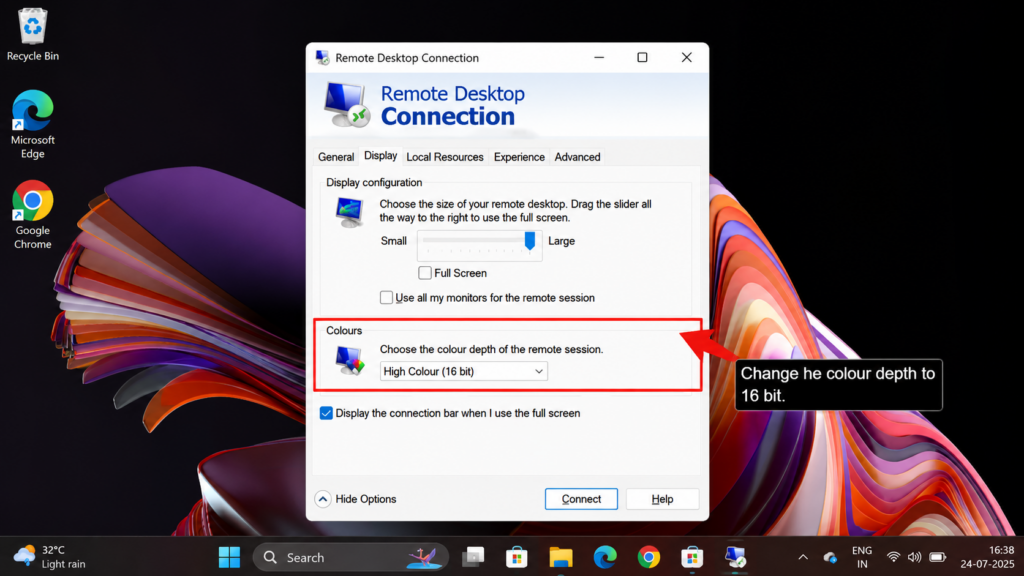
Doing this, you’ll instantly notice much smoother performance, especially over slower connections.
2. Disable Visual Effects, Wallpaper & Animations
Animations, visual effects, and wallpaper look nice but affect your remote server’s performance. These are some of the display features that eat up your bandwidth.
Every animation frame has to be encoded and sent across the network, and every wallpaper pixel that changes has to be retransmitted. You can easily disable all these effects.
How to fix it:
On your remote server, right-click “This PC” >> Select “Properties” >> Click on “Advanced system settings” >> Go to the “Performance” section >> Click “Settings” >> You’ll see a checkbox for “Adjust for best performance” >> Hit that, and it disables everything at once.
3. Set Connection Speed to “Modem” / Detect Automatically
Your client might be configured to assume you’re on a 56k modem, which means it’s compressing graphics aggressively and sending low-quality updates, or it might be set to a specific speed that doesn’t match your actual connection.
This mismatch causes RDP to either over-compress (making things look blurry) or under-optimize (wasting bandwidth).
How to fix it:
Open your remote desktop >> Go to the Experience tab >> Look for “Connection speed” >> Select “Detect connection quality automatically.”
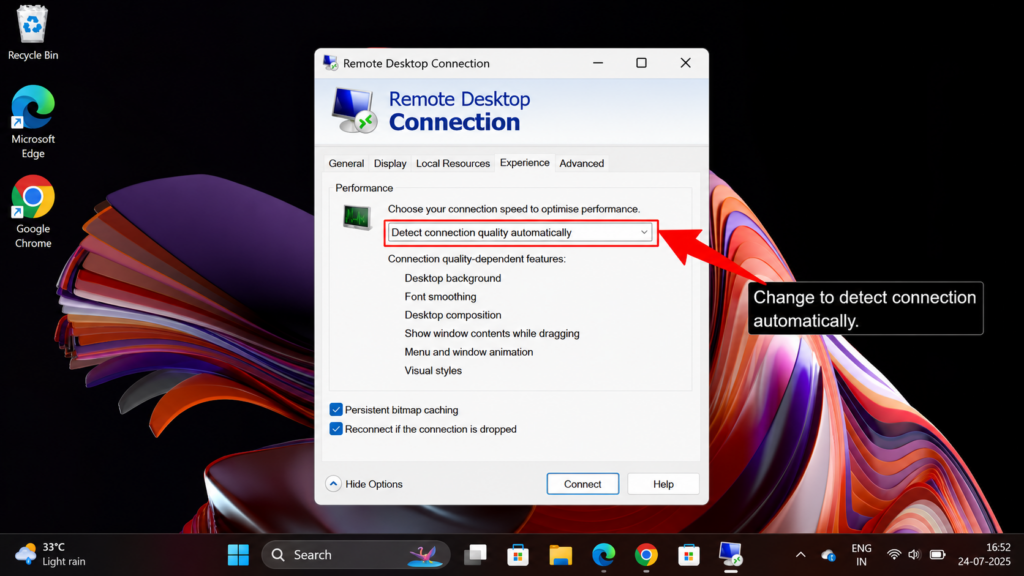
Now, your RDP will actually pay attention to your real network instead of guessing. Save it and close your connection, and then reconnect.
4. Turn Off Bitmap Caching & Font Smoothing
Bitmap caching sounds like a good idea: save copies of pictures so you don’t have to send them again. But over a remote desktop, it causes problems as the saved copy and the real copy don’t match.
Font smoothing makes text look prettier but slows things down. These features were made for computers right next to each other, not computers far apart.
How to fix it:
Go to the “Experience” tab in your RDP>> Uncheck “Persistent bitmap caching”>> Then open your RDP file in Notepad and add this line: allow font smoothing: i:0 >> This action turns all the features off.
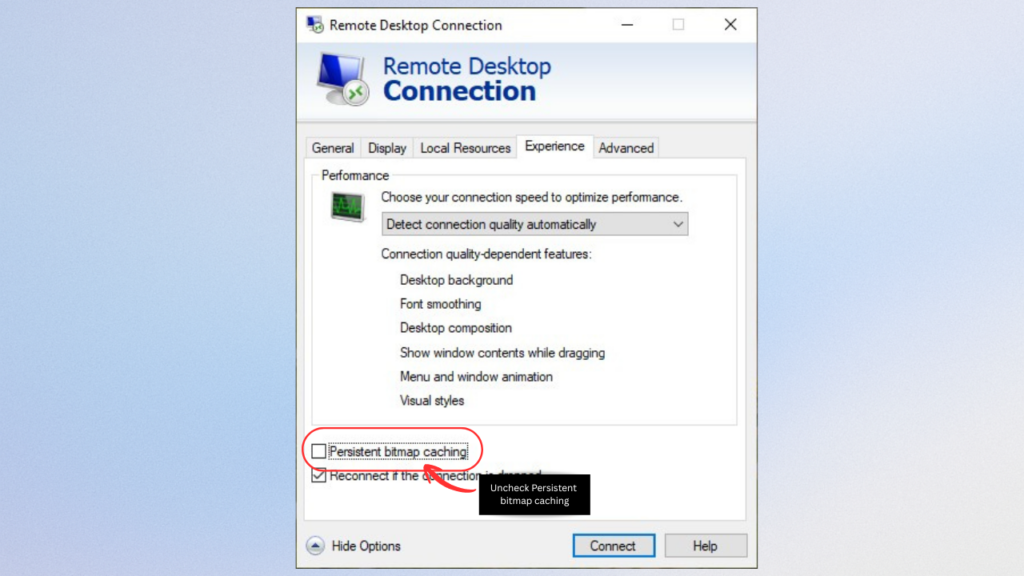
Your text looks less pretty, but everything will be faster, as your RDP speed is more than anything else.
5. Update Your RDP Client to the Latest Version
Remote Desktop is part of Windows. Microsoft fixes problems and makes it faster all the time. If you haven’t updated in months, you’re using old software with bugs, so it’s time to switch since the newer version works better.
How to fix it:
On your Windows 10 or 11>> Go to Settings >> Click “Apps & Features” >> Search for “Remote Desktop” and update it if there’s a newer version.
If you use Mac or Linux >> Open the Microsoft Store >> Update Remote Desktop here. The update takes a few minutes.
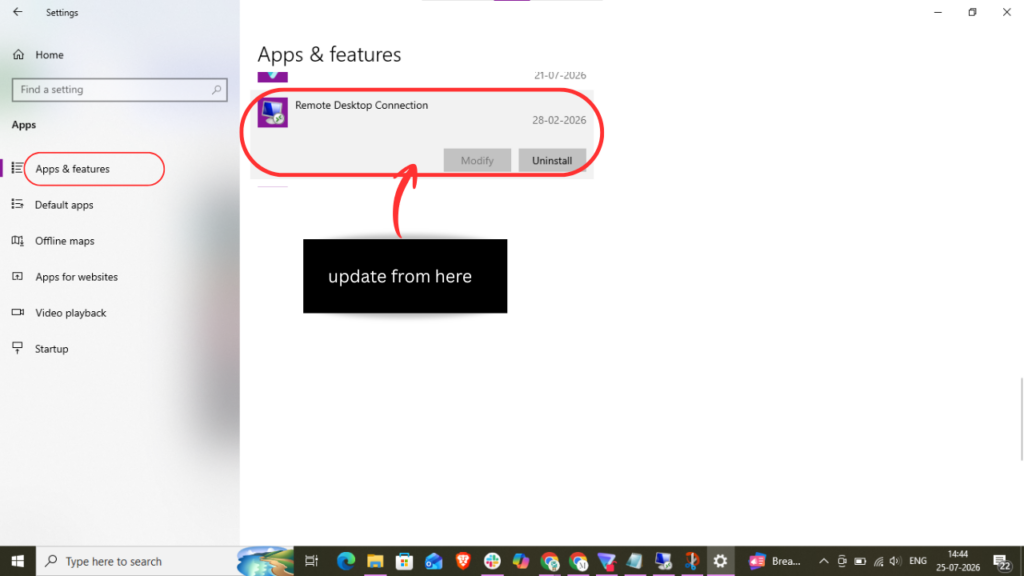
After you update, connect again. You might notice it works better because you fixed your old bugs. This is very simple and helps many people.
6. Check & Free Up Server RAM/CPU
Sometimes your computer is fine, and your internet is fine too. But the server you’re connecting to is busy doing other things. Your requests get stuck in line waiting for the server to finish other jobs.
You can easily fix this issue.
How to fix it:
Open Task Manager on your server. Look at how much CPU and RAM it’s using. If it’s above 80%, the server is too busy. Check what’s using all the power.
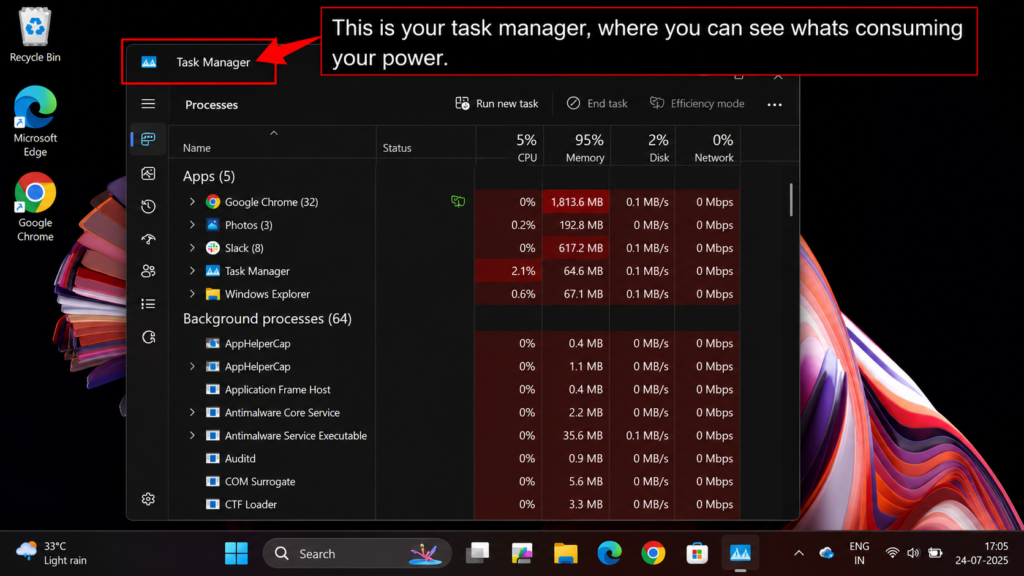
Sometimes it’s updates that are running, or an antivirus scan or something else in the background.
Stop those things if you can and ask an admin to restart your server. If the server is too slow, nothing else will help, because the problem is at the source.
7. Test & Improve Your Internet Connection
Before you blame your remote server, check your internet. It might be the problem.
How to fix it:
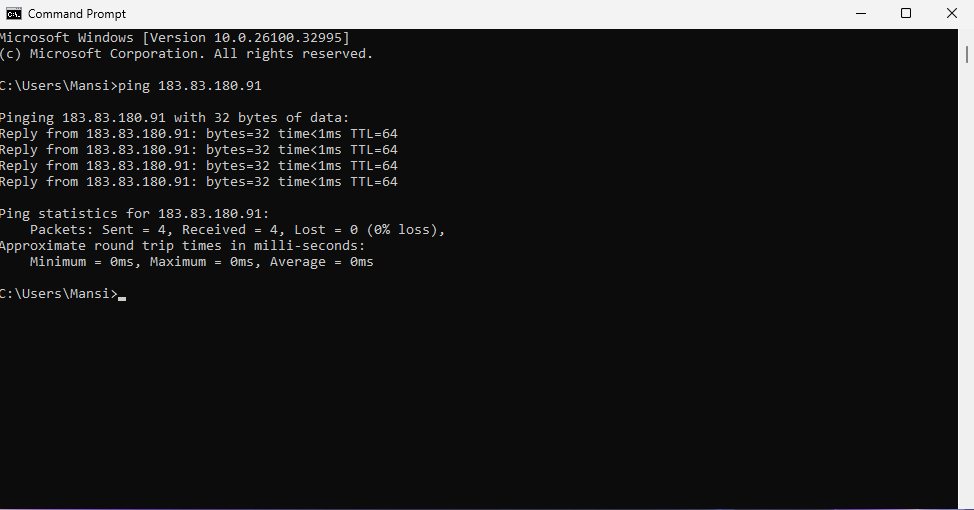
Open Command Prompt and type “ping {your-server IP} “Enter” Now, see how long it takes. If it takes more than 100 milliseconds, your internet is slow or far away.
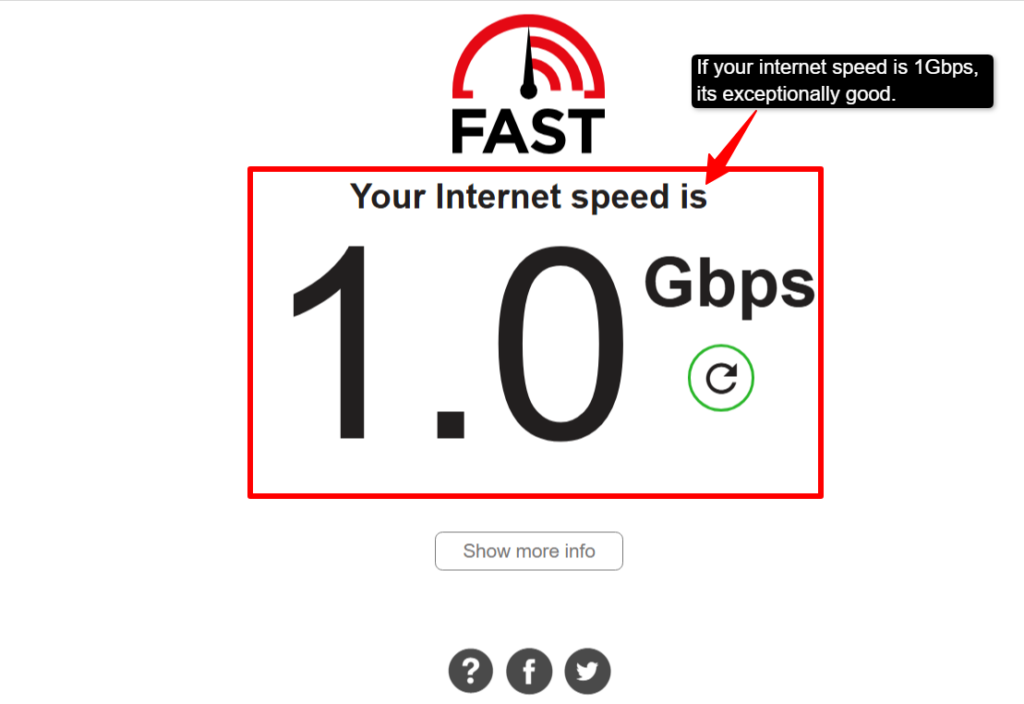
You can run a speed test at fast.com. At least you need 5 Mbps for your basic tasks, and 10 Mbps+ is recommended.
If you’re using WiFi, plug in an Ethernet cable right now.
WiFi is slow and unstable for your remote server. Wired internet is much better. If your ping is high, call your internet company, as something is wrong with your connection.
Once you have a fast and stable internet, your remote desktop usually works great. You might find the problem was always your internet, not the Remote Desktop.
8. Enable H.264/Compression for Screen Data
This is a new technology that makes pictures smaller before sending them.
It works as Netflix does for videos; it sends a compressed version that’s faster but still looks good. This can cut your internet usage in half. It’s just like driving twice as fast using the same road.
How to fix it:
Navigate to Computer Configuration>> Administrative Templates>> Then, go to Windows components>> Remote Desktop Services>> Remote Desktop Session Host, and then move to its session environment.
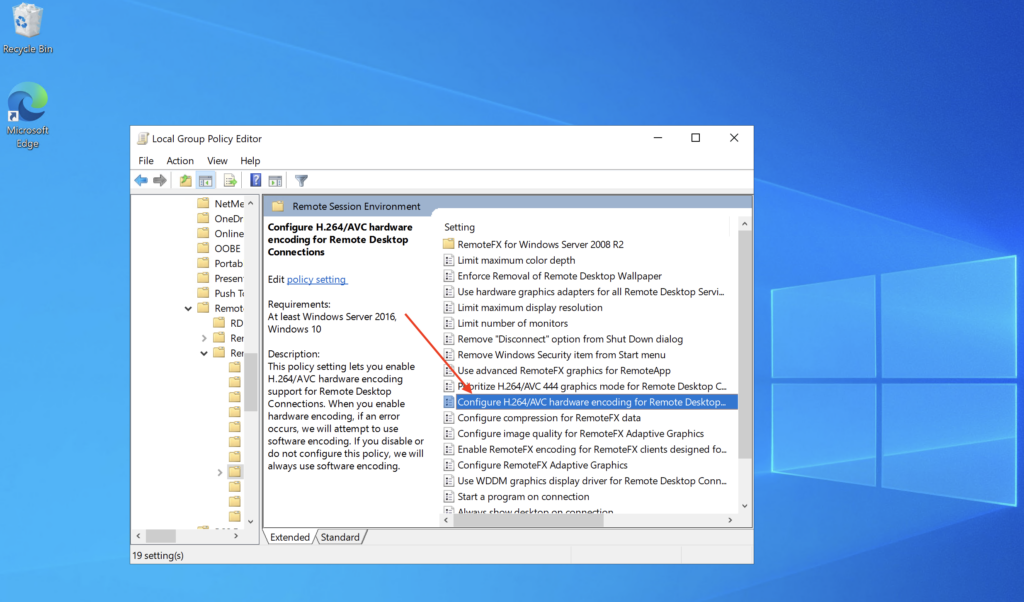
After following these many steps you need to Open and set the following three policies to Enabled:
- Use your hardware graphics adapters for all your remote desktop services sessions (look if a dedicated GPU is available).
- Pritorize H.264/AVC 444 graphics mode for your remote desktop connections
- Configure your H.264/AVC hardware encoding for your remote desktop connections.
9. Fix or Recreate a Corrupted User Profile
Your user profile is like your personal folder on the server. It stores all your settings and files.
Sometimes it gets broken or full of junk. When this happens, everything slows down. It’s like having a messy garage, where everything takes longer to find.
How to fix it:
Ask an admin to create a new user account on the server. Try remote desktop with the new account.
If it’s fast, your old profile was the problem, and you can move your important files to the new account and use that one instead. A fresh profile is like a clean slate where everything works faster.
10. Choose a Server Location Closer to You
If your server is on the other side of the world, that’s a problem. Information has to travel far, and that will take time. It’s like mailing a letter; the further it goes, the longer it takes. Even the fast internet has limits.
How to fix it:
If you can use different servers in different locations, test them all. Open your Command Prompt and ping each one or you can use the tools available. Use the location which is closest one. If you use cloud services like AWS, you can pick the location near you, not the default one.
Try these fixes one by one. Most people fix their slowness with just one or two changes. Usually it’s turning off animations or lowering the picture quality.
Test each one and see what works for you. If you try these and it’s still slow, your internet or server might be the problem.
But these steps fix the problems 90% of the time.
When It’s Not You, It’s Your RDP Provider
Sometimes you’ve done everything right, but your RDP is still slow. Your internet is fast, and your computer is even clean with optimized settings, but it’s still laggy. It simply means that the problem is your RDP provider or the infrastructure.
Your server might be overloaded, as the provider’s infrastructure might be poor. It might not have enough bandwidth or resources to handle users properly.
In this case, you should look for providers that offer NVMe SSD storage, dedicated (not shared) resources with low-latency locations like USA RDP, and a 99.9% uptime guarantee.
Providers like QloudRDP specifically design their infrastructure to avoid these issues. You get dedicated resources with NVMe storage and low latency designed to avoid any of the issues.
They offer multiple server locations with optimized routing. If you’re stuck with a bad provider, switching is often the fastest solution.
Don’t waste your time anymore fighting bad infrastructure.
How to Prevent RDP Lag in the Future?
Don’t wait for more problems to arise; let’s set things up right for you.
The best way to fix lag is to never have it in the first place. This means getting the right equipment and you pick the right provider along with planning.
Here’s a table where you select the right specs as per your task, so you don’t regret it later and face unnecessary issues.
| Use Case | CPU | RAM | Storage |
|---|---|---|---|
| Light – Basic usage (basic browsing, email or docs) | 1-2 vCPU | 2- 4 GB RAM | SSD Type |
| Medium – Office apps, light Excel analysis, or multitasking. | 2-4 vCPU | 4-8 GB RAM | SSD/NVMe Type |
| Heavy – ERP, accounting tools, or large databases. | 4-6 vCPU | 8-16 GB RAM | NVMe |
| Power/GPU – Design-heavy apps or video rendering | 6-8 vCPU | 16-32 GB RAM | NVMe RAID |
Refer to this table and choose your specs wisely as per your requirements. You should know what specs to choose as per your task.
We have given all possible errors with fixes for any error from the RDP end or anything else, but if you only have the wrong specs, then none of these errors really matter.
Conclusion:
You know how to fix RDP lag. But here’s the most important thing: diagnose first before you fix. Don’t just try random things and hope it works. Check your internet, check your server’s CPU/RAM, and check how many people are online.
Once you know the real problem, the fix becomes simple. You can fix all of these yourself. Turn off animations. Lower your resolution and update your remote desktop client. Most importantly, pick a close server location; all of these issues fix 90% of the problems.
But if you’ve tried everything and your provider is still consistently slow, the problem is your provider, not you. Switch to a properly resourced provider, like QloudRDP, that delivers multiple server locations with lower latency.
You get a smooth RDP experience with instant setup and a 99.99% uptime guarantee.
Frequently Asked Questions
Why is my RDP suddenly so slow today?
Your remote desktop server might be slow due to low bandwidth, higher latency, resolution issues or an overloaded server CPU/RAM. It could also be due to background programs or because of your wrong display settings. Check your bandwidth, as it accounts for the maximum percentage of your RDP being slow.
How much RAM do I need for smooth RDP?
You need 2-4 GB RAM for smooth RDP performance. This RAM only works well with light tools or an easy workflow. If you need it for some heavy tasks, then you need to upgrade your RAM.
Does RDP speed depend on my internet or the server?
Both equally. Your internet controls how fast information travels to you. The server controls how fast it can respond to you. If your internet is 2 Mbps, your RDP will be slow, or if your server has only 1 GB of RAM, then again your remote desktop will be slow. You need both to be strong.
Why does RDP lag only during peak hours?
It lags mostly during peak hours because many people are using the server at the same time. When 10 people use a server built for 3 people, it gets slow. The solution is to either buy a bigger server, upgrade your internet or spread out when people work.
What is a good ping/latency for RDP?
A good ping/latency for RDP is under 50 milliseconds. 50-100 is acceptable, but you’ll notice delay. If you go above 150, then RDP becomes too slow. If your ping is high means your server is far away. Move to a closer server.
Can changing server location fix RDP lag?
Yes, completely. If your server is far away, pick a closer one. If your server is in London and you’re in New York, switch to a New York server, resulting in smooth RDP performance.











Leave a comment