

It’s Monday morning. You open your n8n, and your workflow has not run in 6 hours. There is no error, no alert. Just a blank dashboard you see. This is exactly where most people realize their VPS setup was never production-ready to begin with.
Over 230,000 people use n8n worldwide, and 68% of them run it on their own server, as we found from the Canvas business model report. N8n does not fail because it’s a bad tool, it fails because n8n VPS hosting comes with specific configurations that nobody warns you about, like database upgrades, a wrong webhook URL, or port issues.
N8n is not the problem. Your setup is.
Here, we are going to take you through the 5 most common reasons why n8n stops working on a VPS, from misconfigured webhooks to the wrong database or service downtime. We will show you exactly how to fix each of the 5 reasons so your workflows run reliably.
Why does n8n fail in production?
Production is where everything gets real and where most of the n8n setups regularly fall apart. The moment real workflows with live webhooks and actual data volumes hit your server. Here is exactly what goes wrong:
What are the 5 main reasons why n8n is not working?
N8n is a powerful automation tool, but in production, even small mistakes can turn into big problems quite fast. Most people assume their workflow is running fine until they receive complaints.
N8n can fail in production for very common and predictable reasons, like:
| Common Reasons | Root Causes | Solution |
|---|---|---|
| Large workflows time out. | Too many nodes in one workflow, long-running API calls. | Split large workflows into smaller sub-workflows. |
| Updates break everything. | Update n8n without testing. | Always test updates in a staging environment before production. |
| Service Down | The process gets crashed. | Restart your n8n service. |
| API Error | Invalid or expired API keys | Update your credentials. |
| Network Restriction | Requests start failing. | Adjust your firewall settings. |
None of these is a permanent problem. Every single issue can be fixed; you only need to know exactly what to look for, and that’s what we will explain in the rest of the blog.
Problem with n8n not working on VPS?
If your n8n has stopped working on your VPS, you are not dealing with a random technical glitch. These are the five specific problems that hit almost every self-hosted n8n setup. Each one has a clear cause and a clear way to fix it.
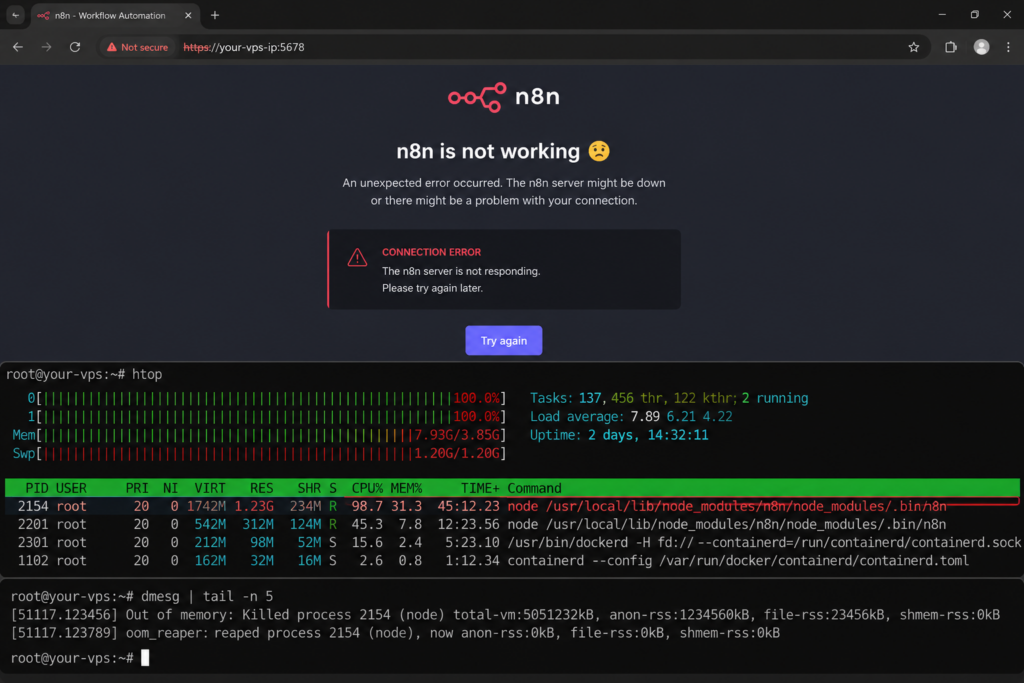
Problem 1: Server Runs Out of Memory
Why it happen
N8n, Docker, and your OS all your workflows share the same RAM, so multiple workflows fire at once, filling your memory, and n8n crashes mid-execution.
How to Fix It
Upgrade from a minimum of 4 GB RAM to 8 GB RAM if you run AI workflows. Add a swap file as a backup buffer so your server doesn’t crash instantly when memory spikes.
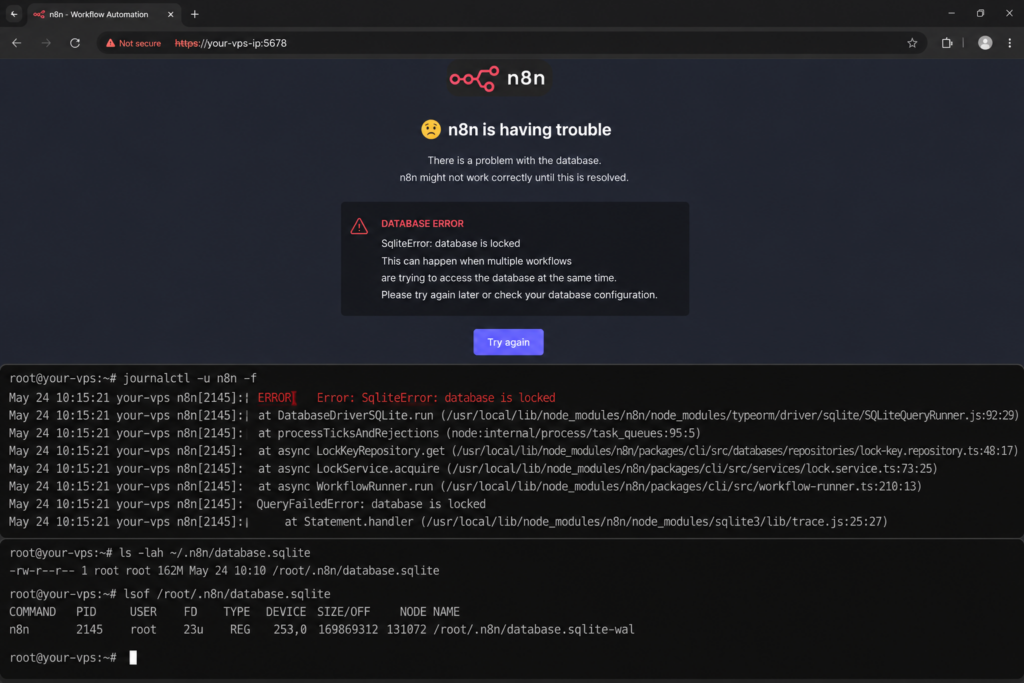
Problem 2: Database Keeps Crashing
Why it happens
N8n uses SQLite by default, which can only process one workflow at a time. Production requires multiple workflows running, so it can lock up, slow down, and corrupt your data.
How to Fix It
Switch to PostgreSQL immediately. It handles multiple concurrent workflows without locking. Update your .env file with PostgreSQL credentials and restart n8n.
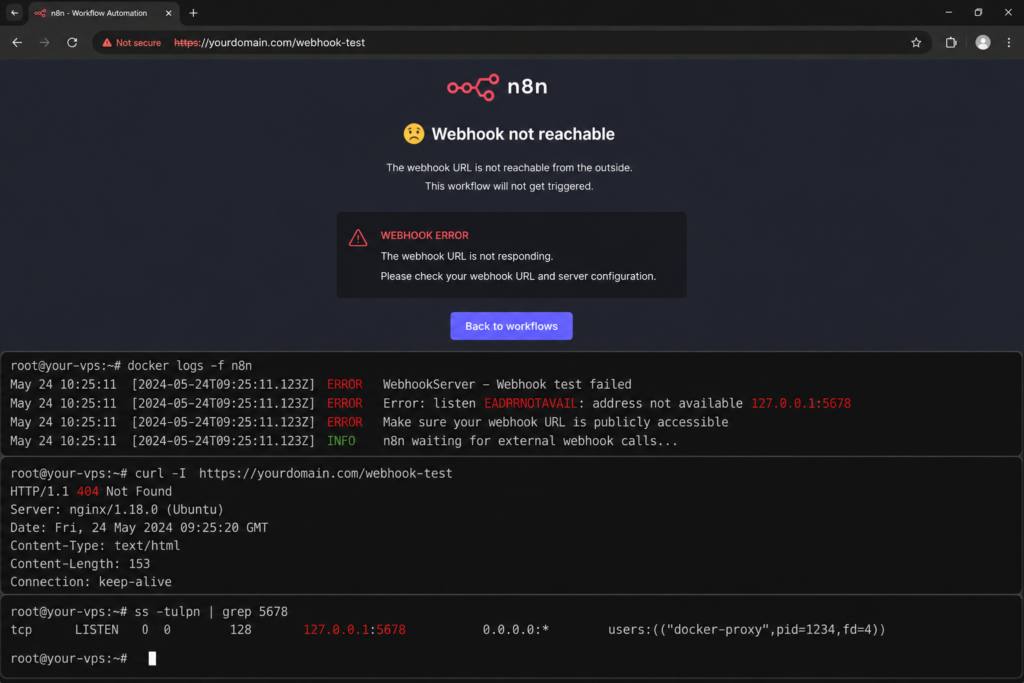
Problem 3: Webhooks Stop Firing
Why it happens
N8n is running on localhost internally, but your webhook URL is either missing or wrong, so external services fire the webhook, it hits a dead address, and your workflow never gets triggered.
How to Fix It
Set your exact public domain in both the webhook URL and web host in your .env file, and make sure SSL is configured through NGINX.
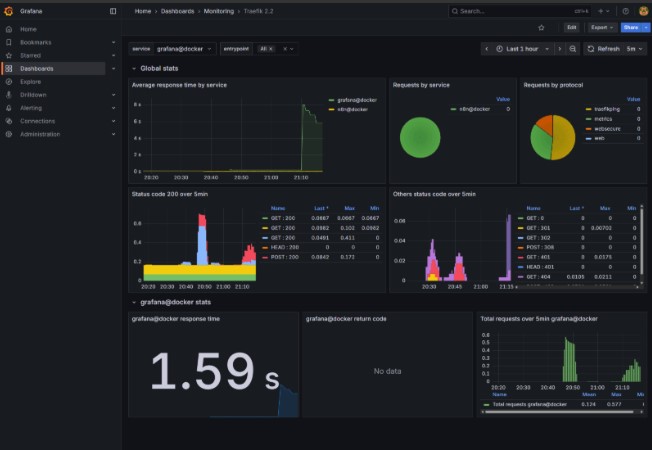
Problem 4: CPU gets throttled
Why it happens
Shared CPU VPS gives you borrowed processing power, so when your server gets busy, or other users on the same host spike their usage, your CPU gets throttled.
How to Fix It
Move to a dedicated CPU plan. Shared and burstable CPU plans are built for low-traffic websites.
Problem 5: Default Port is Blocked
Why it happens
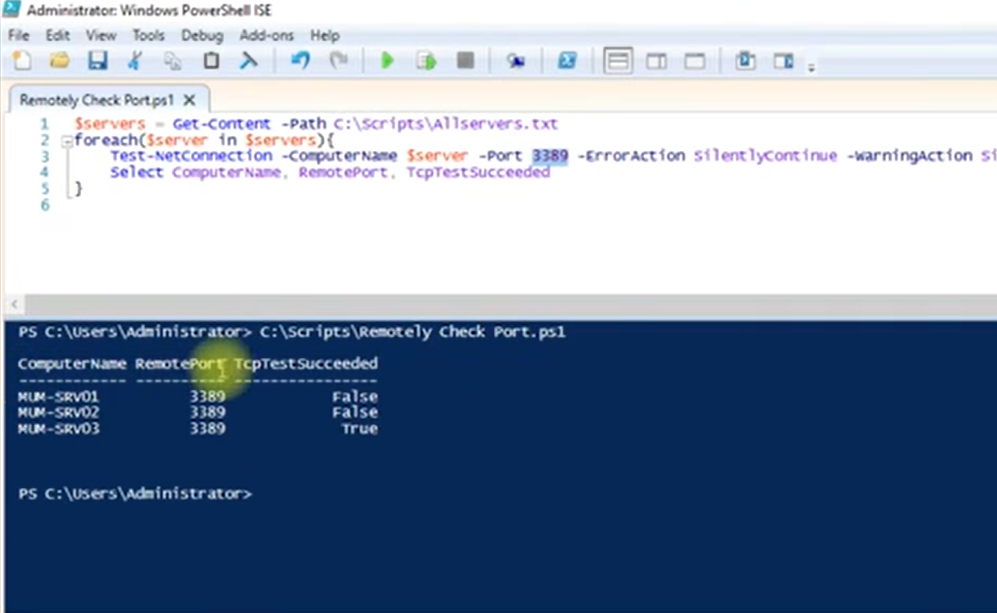
N8n runs on port 5678 by default. Most VPS providers block non-standard ports by default, so if your port 5678 is blocked, n8n simply cannot be reached.
How to Fix It
Open port 5678 in your VPS firewall settings. Set up an Nginx reverse proxy, so n8n runs on standard port 443 with SSL. This way, no custom ports need to be open at all.
Quick Fix Table
| Problems | Causes | Solution |
|---|---|---|
| Server runs out of memory. | VPS has less than 4 GB RAM; n8n, Docker, and OS all share it. | Upgrade to 8 GB for production. |
| Database keeps crashing. | SQLite is set by default; it cannot handle multiple workflows at once. | Switch to PostgreSQL immediately. |
| Webhooks stop firing. | WEBHOOK_URL is misconfigured. | Set the correct n8n_Host and WEBHOOK_URL in your .env file. |
| CPU gets throttled | Running on shared CPU plans that slow down. | Switch to dedicated CPU cores on your VPS plan. |
| Port Blocked | Port 5678 is closed or firewalled. | Open the port and check. |
Apart from these, there have been other issues also relating to n8n on VPS, but these five issues have been the most common and biggest ones to address. We exactly know where n8n breaks on a VPS, and more importantly, we know how to fix it.
None of these problems requires you to be a server expert. Every single fix above takes less than 30 minutes to implement. Just know exactly what you are dealing with. Fix these issues, and n8n will run fast and reliably on your VPS without any silent failures.
Let’s move forward and understand why it is recommended to use an VPS for your n8n automation tool and what difference it can make in your experience.
Why choose VPS for n8n instead of a local machine for better performance?
You can definitely choose VPS for your n8n instead of your local machine because it provides a superior level of performance for your n8n automation tool, which you cannot experience with your local machine.
VPS brings you better reliability and performance. An VPS server stays 24/7 and ensures your n8n workflow automations can go on without any interruptions. It has faster network connectivity, making it all easier to manage and monitor your n8n automation environment as your requirements grow.
Key Benefits of Choosing VPS for n8n
A VPS (Virtual Private Server) is one of the smartest infrastructure choices you can make when you want to run n8n.
If you choose the best VPS server for n8n, it will give you the perfect balance of affordability and control, plus it comes with a superior level of reliability that your n8n needs to run smoothly without interruptions.
Problems with the local machine and how VPS solves each in table form
| Basis | Local Problem | VPS fix |
|---|---|---|
| Uptime | Shut down after hours. | Always-on 24/7 |
| Webhook Delivery | Webhooks fail if the local machine is off. | The VPS server is always listening, so no webhook payload is missed. |
| Schedule triggers | Scheduled workflows don’t fire if the local PC is powered off at trigger time. | Hosting n8n on VPS that never sleeps. |
| Resource sharing | Running n8n with local apps slows executions. | VPS provides dedicated resources. |
| Auto-start on crash | If n8n crashes locally, it needs manual restarting. | Auto-restart n8n instantly. |
| Internet Reliability | Home/office internet outages cut off mid-execution. | VPS operates with zero downtime. |
N8n runs best on VPS and removes every hindrance that you could face on your local machine. If you want a reliable and continuous workflow, then switch and run your n8n on RDP now.
Done fixing VPS failures every week? Run n8n on QloudRDP dedicated CPU, PostgreSQL-ready, port 5678 open by default
Key Ways to improve n8n VPS Hosting Performance
Poor n8n performance doesn’t always mean something is broken; it usually means your setup has not been optimized for real workloads.
Slow executions and delayed triggers with timeout errors, all these signs mean your n8n needs attention. Here is exactly what to check and fix.
Quick Troubleshooting Table
| Key Area to check | What needs to be verified | Quick Fix |
|---|---|---|
| Workflow Execution | Workflow is active, and triggers are properly configured. | Enable the workflow toggle and retest. |
| Credentials | Verify API keys and OAuth connections. are valid | Re-authenticate credentials. |
| Node configurations | Ensure input/output mappings are correctly set. | Use the “Execute Node.” |
| Webhook URL | The webhook URL must be correct. | Copy & paste the fresh webhook URL. |
| Error Logs | Look for failed execution logs in the n8n history. | Identify the broken node & fix data mapping. |
Use this table as your first stop whenever something feels off with your n8n setup. Most performance issues trace back to one of these five areas only. The goal is not just to troubleshoot your problems faster but to build a workflow environment so well-configured that problems rarely surface in the first place.
Conclusion
N8n is only as reliable as the infrastructure it runs on. A VPS gives you the stability and control that local machines simply cannot match, and it ensures that your workflow runs 24/7 without any interruptions.
From always-on uptime and dedicated resources to a secure, isolated environment and easy scalability. A VPS for your n8n removes every hindrance standing between you and seamless automation. The setup is straightforward with manageable costs.
It does not matter to which industry you belong; from creators to growing businesses, a VPS is the smartest foundation for your n8n stack.
Choose VPS for your n8n setup today, and stop worrying about downtimes or missed webhooks. Your automation deserves better infrastructure, just like VPS.
You May Also like:
Frequently Asked Questions
Why is n8n not opening in the browser?
This usually happens when the n8n Docker service is not running. It could be because of stopped container issues, meaning as your n8n runs in Docker, ensure it is active with a green light.
Why is my self-hosting n8n workflow not executing properly?
Your self-hosted n8n workflow is not executed properly, most likely because of a credential issue or a misconfigured node. If you face this issue, open the failed execution log and identify the exact node that broke. Re-check the API credentials and data mapping attached to it.
Why is my n8n workflow just slow?
The main reason for the n8n error is that your VPS may be under-resourced, so you should check CPU and RAM usage, because if it is consistently high, then you should definitely upgrade your plan. You can also split large workflows into smaller sub-workflows using the Execute Workflow mode to reduce the load.
How do I fix the 503 Bad Gateway error for the n8n application
A 503 Bad Gateway means your reverse proxy (Nginx/Caddy) cannot reach sites. You should first confirm that n8n is running; after this, verify that your configured proxy is pointing to the correct port (default: 5678) and restart the proxy service.
Why is the n8n webhook not working?
If you face this issue, check that your webhook URL is set to the correct production URL, not localhost. You also need to ensure that port 443/80 is open on your VPS and your domain’s SSL is valid. Now, test the webhook using a tool like Postman to confirm it is receiving requests.







Leave a comment