

You have your RDP ready. You know it runs 24/7 and never sleeps, giving you dedicated resources. But then you face problems using your RDP for SEO automation. Running the GSA Search Engine Ranker properly can actually make a huge difference in your rankings.
GSA SER is one of the best link-building automation tools available. It builds your backlinks and submits to hundreds of platforms without being manually involved.
Everything is done while you sleep and with no crashes or slowdowns. None of your campaigns will stop because your personal machine ran out of RAM.
Most of the RDP users do not know where to start with GSA SER. Which settings to configure? You even need to understand how to connect the proxies properly. Most of you either never set it up or set it wrong and then wonder why you are not getting results.
Here we will fix everything, from showing how you can install and run GSA Search Engine Ranker on RDP step by step, so your server starts building backlinks instantly.
What is a GSA Search Engine Ranker?
GSA Search Engine Ranker, also known as GSA SER, is a fully automated link-building software used specifically by SEO professionals to build backlinks. It is one of the most powerful link-building tools available today.

It automatically finds relevant websites and creates accounts. It even submits your content to hundreds of thousands of platforms like blogs, forums, and article directories. GSA SER is used by several SEO professionals, like freelancers managing client campaigns and agency owners running multiple projects at once.
Why is GSA SER used with RDP for SEO automation?
Now, first, let’s understand the various reasons why this tool is used with RDP for SEO automation:
Essential GSA SER technical Requirement
We now come to the major technical requirements that you should have for running GSA Search Engine Ranker:
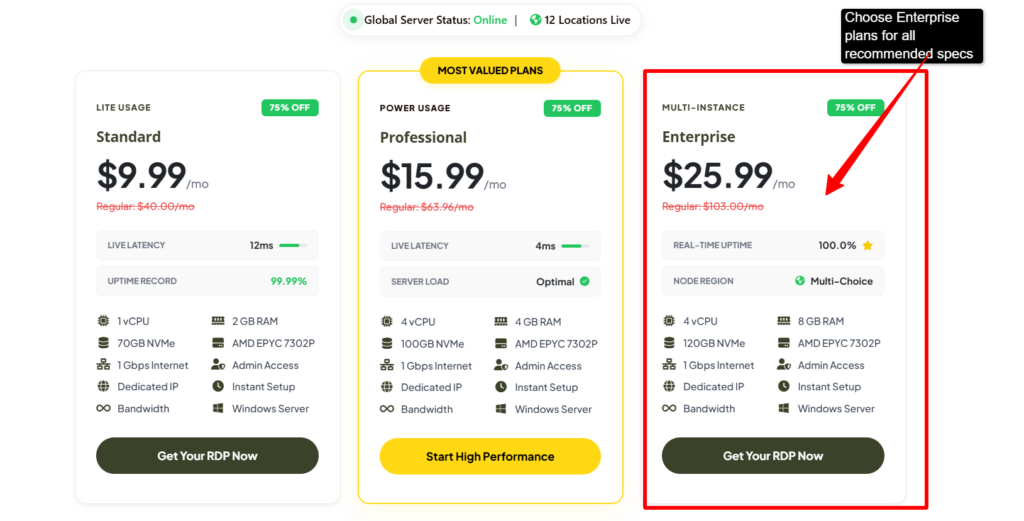
Here in the table below I have mentioned the minimum and the recommended specs for an RDP to run this powerful automation tool safely.
| Hardware Specifications | Minimum Requirements | Recommended RDP Specification for GSA SER |
|---|---|---|
| CPU | 1 Cores | 4+ Cores |
| RAM | 4 GB RAM | 8 GB to 16 GB RAM |
| Storage | 30 GB free space | 100 GB+ NVMe SSD |
| OS | Windows 7 | Windows 2022 |
You can clearly understand how you can run your GSA Search Engine Ranker with the minimum and recommended requirements.
Step-by-Step Guide to Run GSA Search Engine Ranker on RDP
If you have been looking for a reliable way to run your GSA SER without slowing down your personal computer, go for an RDP server. We have chosen QloudRDP since it gives a powerful Windows server in the cloud that stays online 24/7, so your link-building campaign can go non-stop.
Here we will tell how easy and navigable the steps are for how you can run your GSA Search Engine Ranker on your SEO RDP for automation.
Note: We have used Windows RDP plans for setting GSA Search Engine Ranker because it runs only with the Windows version.
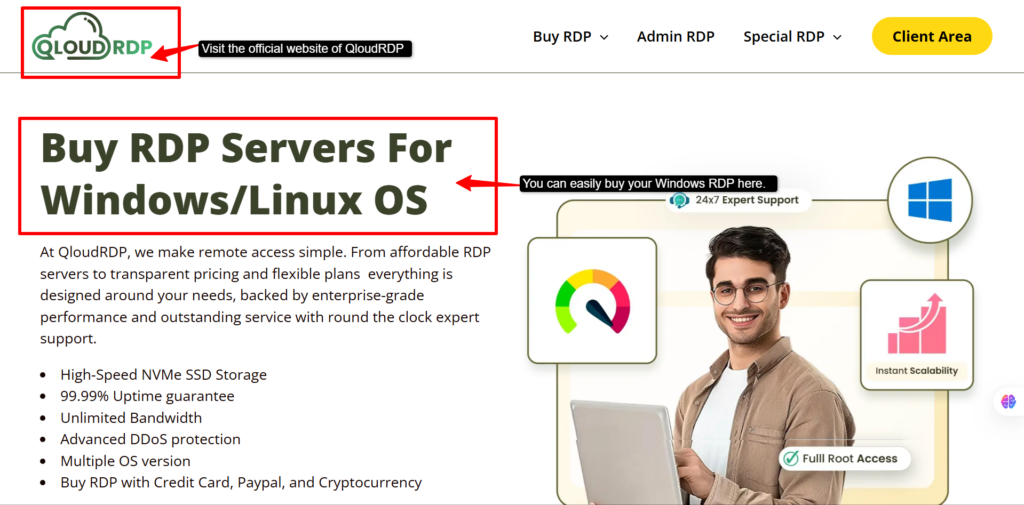
Note: We have shown this step for the Enterprise plan because it has all the recommended specs that you need to run your GSA Search Engine Ranker smoothly.
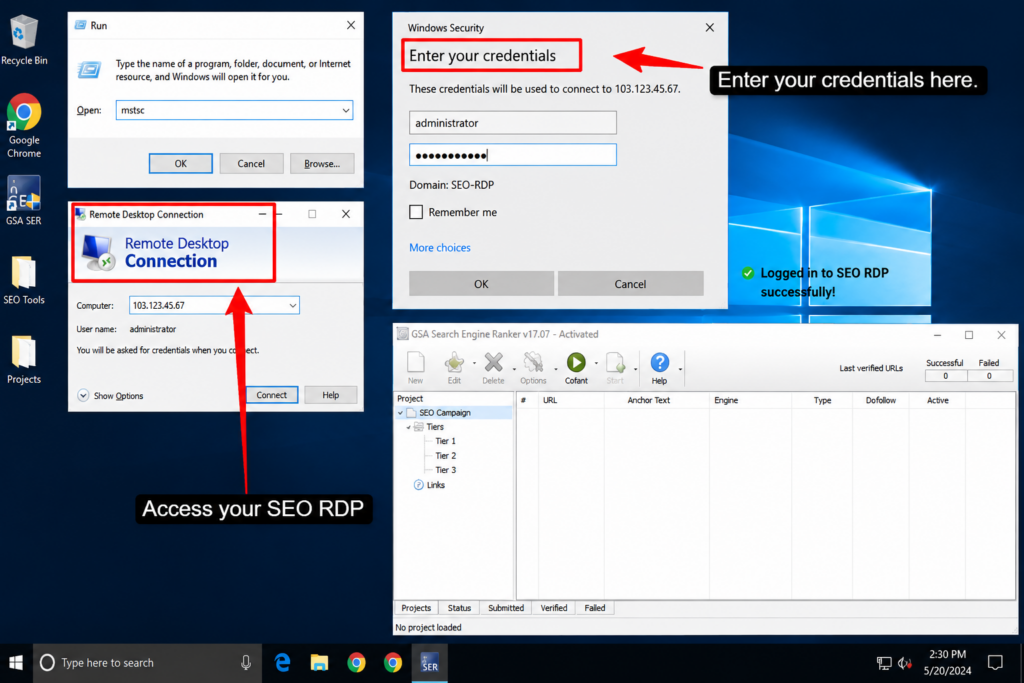
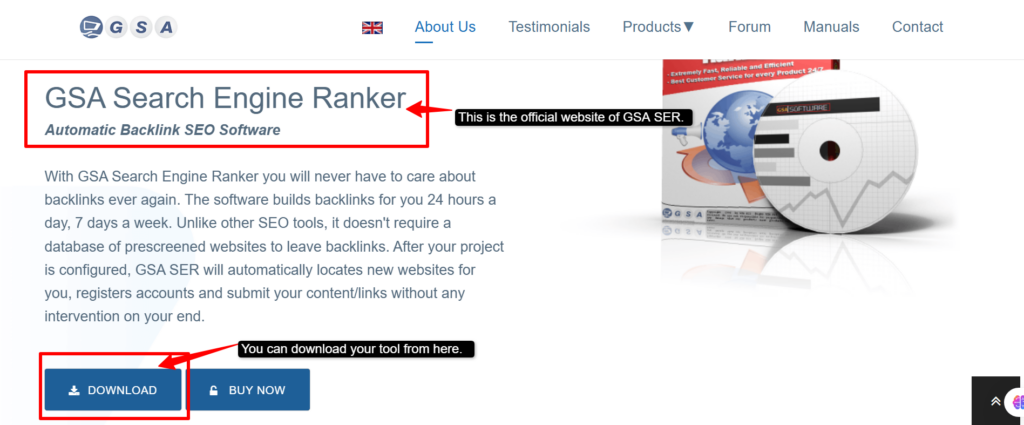
Open GSA SER >> Go to Options >> Proxies; paste your private proxies here (aim for 50-100) >> Click Test to remove dead ones. Proxies stop your server’s IP from getting banned.
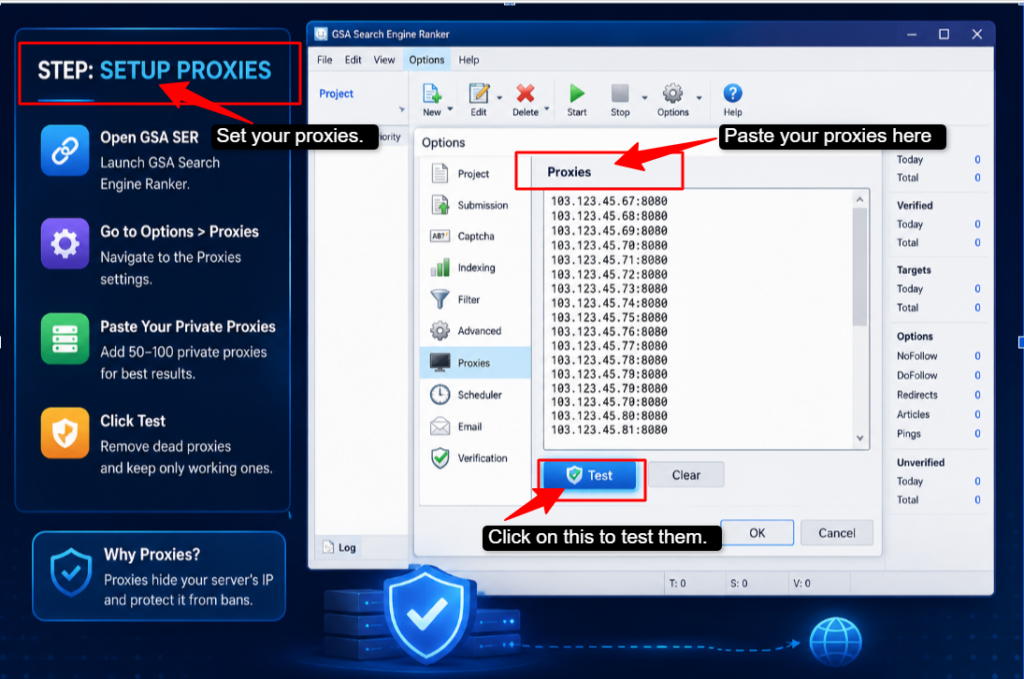
Note: Avoid Using Free Proxies instead of Private/ semi-dedicated one as they have higher chances of getting ban and kill submissions
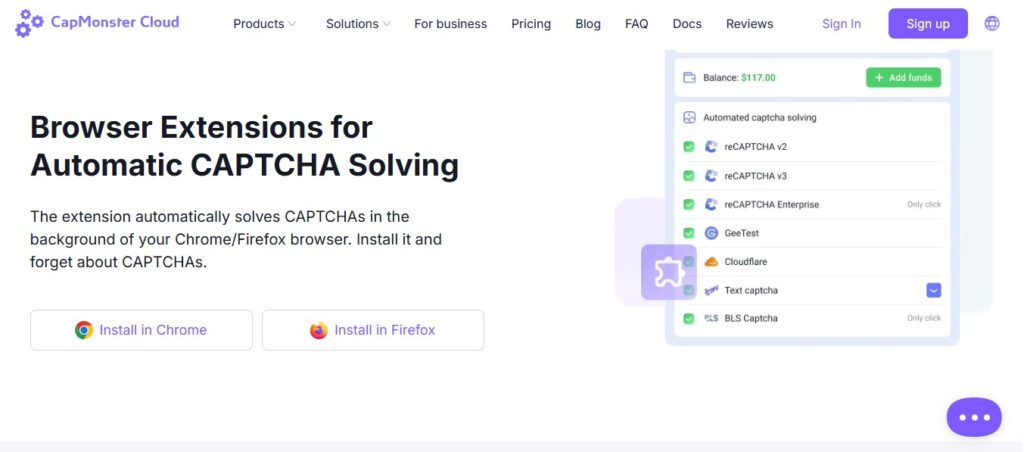
Go to Options >> Captcha and connect a service like CapMonster using your API key. This will let GSA SER automatically solve the captchas it encounters while submitting links.
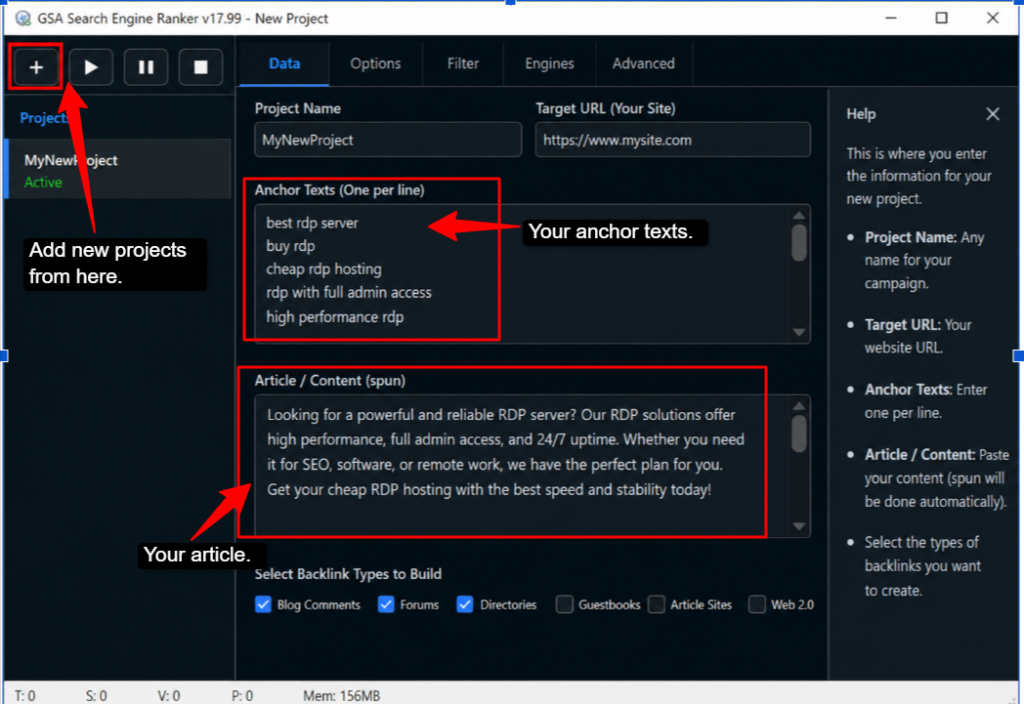
Click the “+” button to create a new project >> Enter your website URL,>> anchor texts,>> paste in your article content,>> select the types of backlinks you want (blog comments, forums, or directories).
Go to Settings >> Set threads to 100-150 based on your plan’s power >> Right-click your project and hit “Start.” Now you will see the submissions happening in real time.
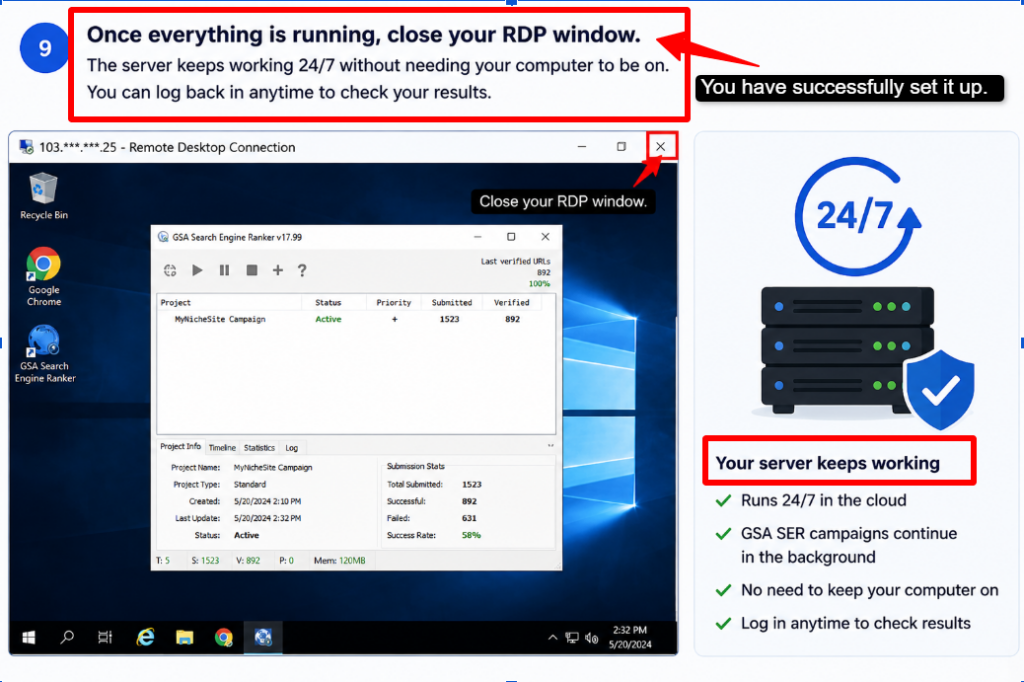
Once the setup is complete, GSA Search Engine Ranker will run continuously on your SEO RDP. It will allow you to automate link-building tasks without relying on your local computer.
Everything here runs in the background while you can focus on other things. Give it a try and see the difference a dedicated SEO RDP can make.
Best Practices for 24/7 backlinking to run GSA Search Engine Ranker on RDP
If you wish to automate your link building without slowing down your personal computer, the best way is to run GSA Search Engine Ranker on an SEO RDP. Here are the best practices to get the most out of it:
Following these best practices will make sure your GSA SER campaigns run smoothly on your RDP without any unexpected crashes or slowdowns.
Conclusion
GSA Search Engine Ranker is an essential tool and one of the most effective ways to automate your backlink building and grow your website’s rankings without manual effort. If you understand the basics like backlinks, proxies, and CAPTCHA solvers, the whole process will be much easier than it looks. Running your GSA SER on an RDP is a very practical way to automate your SEO campaigns.
With an RDP server, you get benefits from its dedicated Windows environment that is designed to handle automation tools. If you want to know more about providers that can help you run your GSA SER tool, you can refer to our article regarding the best RDP providers for SEO automation.
Hopefully, the problems you were facing have been addressed. If you follow the steps mentioned in this article, you will be able to set up and run your GSA SER successfull.
GSA SER’s Related FAQs
Do I need to buy dedicated proxies and CAPTCHA solvers for my SEO RDP, or does the server handle that?
No, RDP does not provide you with any dedicated proxies or Captcha Solvers because these are additional tools you need to set up yourself to keep your GSA Search Engine Ranker campaigns running without getting blocked or stuck. The RDP only provides you with the computing power and Windows environment.
Can I safely close the Remote Desktop window on my local computer while GSA SER is running?
Yes, you can safely close it. Closing the Remote Desktop window only disconnects your local computer from the server; it does not shut the server down. Everything running on it, including the GSA Search Engine Ranker, continues working normally in the background until you log back in your Windows session.









Leave a comment