

Quick Summary box: Here, you will learn how to detect unauthorized RDP access by checking active sessions, especially by checking Windows Event Viewer for Event ID 4624 with logon type 10. You will discover how to stop any intruder immediately. You’ll also learn how to stop a suspected intrusion and strengthen your RDP security to reduce the risk of future attacks.
Have you ever noticed strange login sessions you didn’t initiate? You see unexplained file changes or missing data; you feel like your RDP might have been breached.
Remote Desktop Protocol (RDP) is considered to be a very valuable technology for remote work and system administration, but it is often a prime target for cyberattacks.
Unauthorized access can easily lead to data theft, ransomware deployment, and complete system compromise.
This guide will help you identify important signs of unauthorized access; you will learn how to spot if someone broke in.
Look for login attempts you don’t remember, programs running by themselves, and files that changed on their own.
We’ll show you how to check your computer’s activity log to find out what happened.
Apart from this, you’ll even learn here how to keep your hackers out by using strong passwords and turning off Remote Desktop when you don’t need it.
Let’s start.
- Warning Signs Someone Accessed Your RDP
- How to Detect Unauthorized RDP Access (Step by Step)
- How to Tell If It Was a Hacker or Just Your Provider
- What to Do If Someone Already Has Access (Immediate Steps)
- How to Prevent Unauthorized RDP Access (Long-Term Fixes)
- Does Your RDP Provider Protect You? (What to Expect)
- Frequently Asked Questions
- Conclusion: Secure Your RDP Before It’s Too Late
Warning Signs Someone Accessed Your RDP
Seeing and understanding the problem early is the best defense you can have.
Hackers who break into your remote desktop don’t always announce themselves. They work quietly, stealing data or planting harmful software.
The sooner you spot them, the faster you can kick them out and protect your information. Here are the most common warning signs that tell you someone has broken into your system.
Login Activity
Suspicious Files & Programs
System Behaviour
Files & Data
Network Activity
Quick Action: Check your Windows Event Viewer for login events, review your Task Manager for strange processes, and scan your system with antivirus software immediately.
Don’t panic if you find any of these warning signs.
If you spot any of these signs, disconnect your computer from the internet right away to stop the hacker from causing more damage.
Change your passwords from a safe device and contact your IT support team. Just stay alert always.
How to Detect Unauthorized RDP Access (Step by Step)
If you find that someone broke into your remote desktop, then you need to check specific places on your computer. Windows keeps detailed records of every login, every program that runs, and every connection that is made.
You don’t need to be a computer expert to find these clues; we have given each step here so you can easily spot unauthorized access quickly and take action before more damage is done.
Check Active Sessions Right Now (Task Manager › Users)
You can easily check your active sessions.
Open your Task Manager by pressing Ctrl + Shift + Esc. Click on the “Users” tab at the top, and you’ll see all the active sessions on your computer.
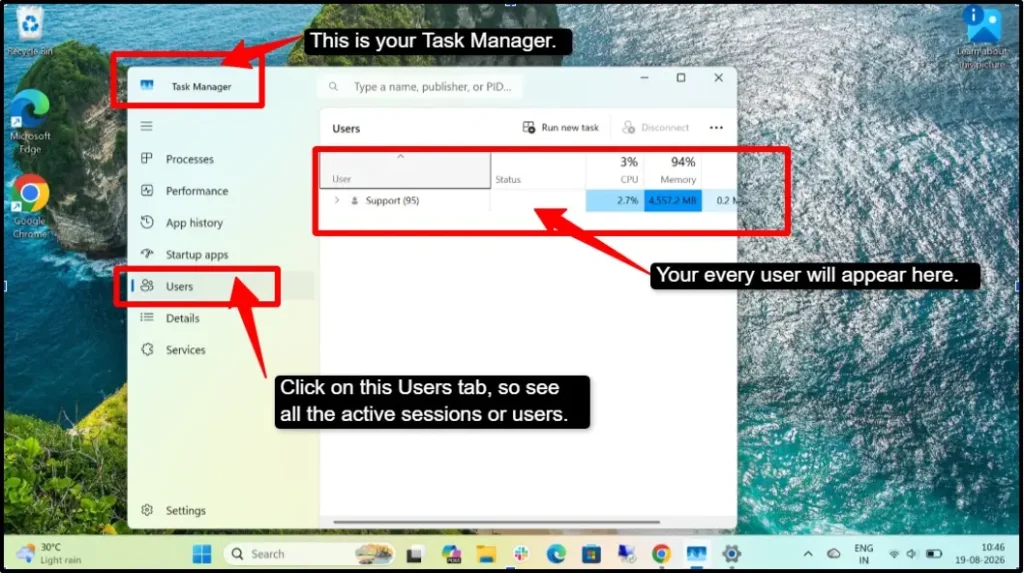
If you see a username you don’t recognize or a session running when you weren’t even using your computer, then someone else has logged in.
How to fix this issue? Just right-click on the suspicious session and select “Sign Off” to disconnect them immediately.
Open Windows Event Viewer & Find Login Events
This is yet another way you can detect unauthorized access. It is deep inside Windows settings where all activity is recorded.
Press Windows Key + R, type eventvwr.msc, and press Enter.
Now you can navigate to your Windows logs >> Security. This log will show you every single login attempt to your computer.
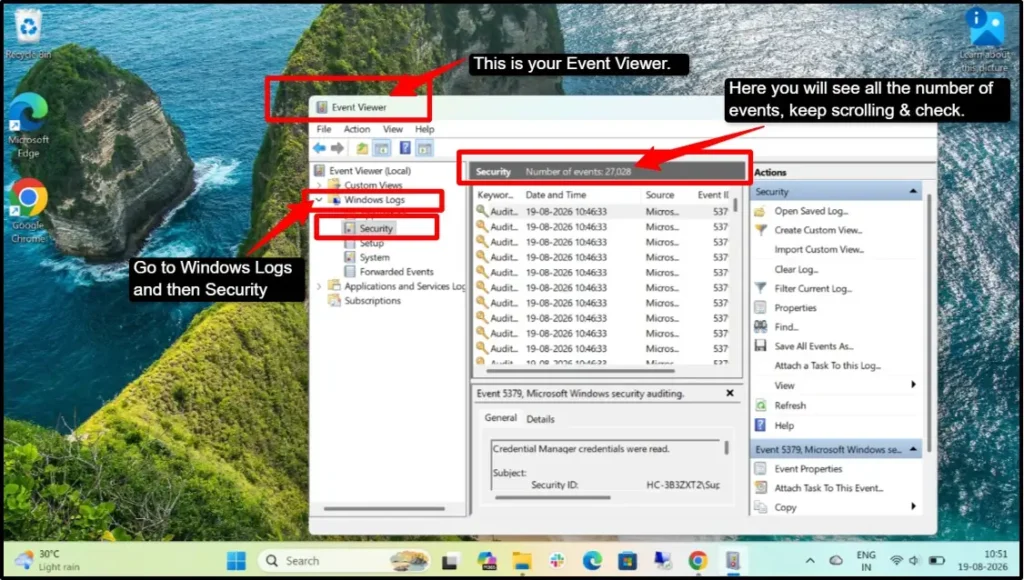
It can be long, so be patient while scrolling and look for recent entries that seem unusual or that occurred when you were not using your computer.
Look for Event ID 4624 (Successful Login) + Logon Type 10
You need to look inside the Security log in the Event Viewer when you click inside it and select “Filter Current Log.”
A window will open with filter options, so in the “Event ID” field, type 4624. If you see 4624 with Logon Type 10, then it simply means that someone successfully logged in through Remote Desktop or Terminal Services.
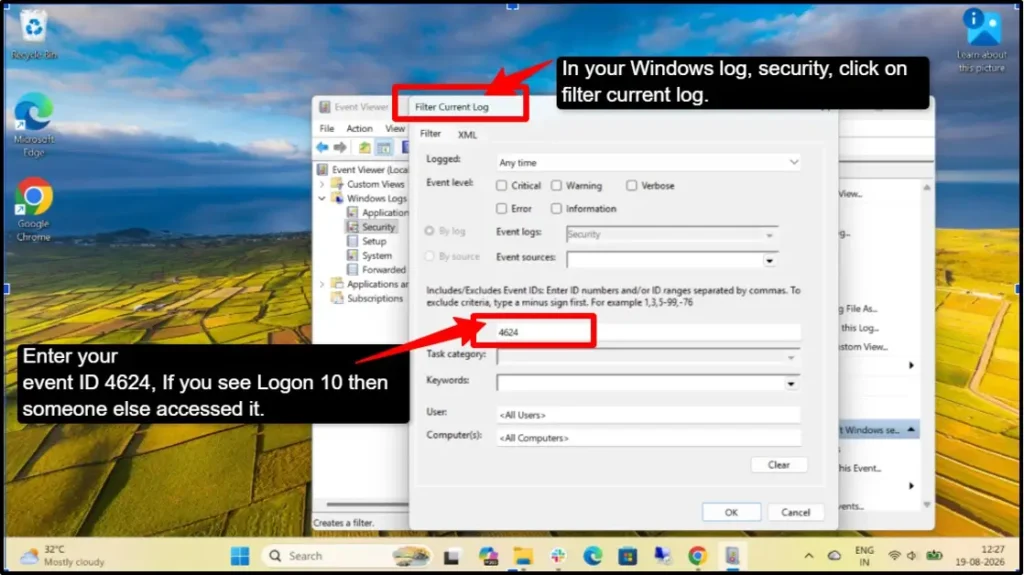
Logon Type 10 specifically means a login has happened through Remote Desktop or Terminal Services.
So, if you see 4624 with Logon Type 10 at a time you don’t remember logging in, then it might be possible that someone else accessed your computer remotely.
Check the account name, or you can even check the login time and source details to see who accessed the server. Check the IP address column to see where they logged in from.
Check Event ID 4625 for Failed Login Attempts.
You need to see the same security log in Event Viewer; follow the same process you followed earlier for 4624. Type 4625 in the “Event ID” field, and click on ok.
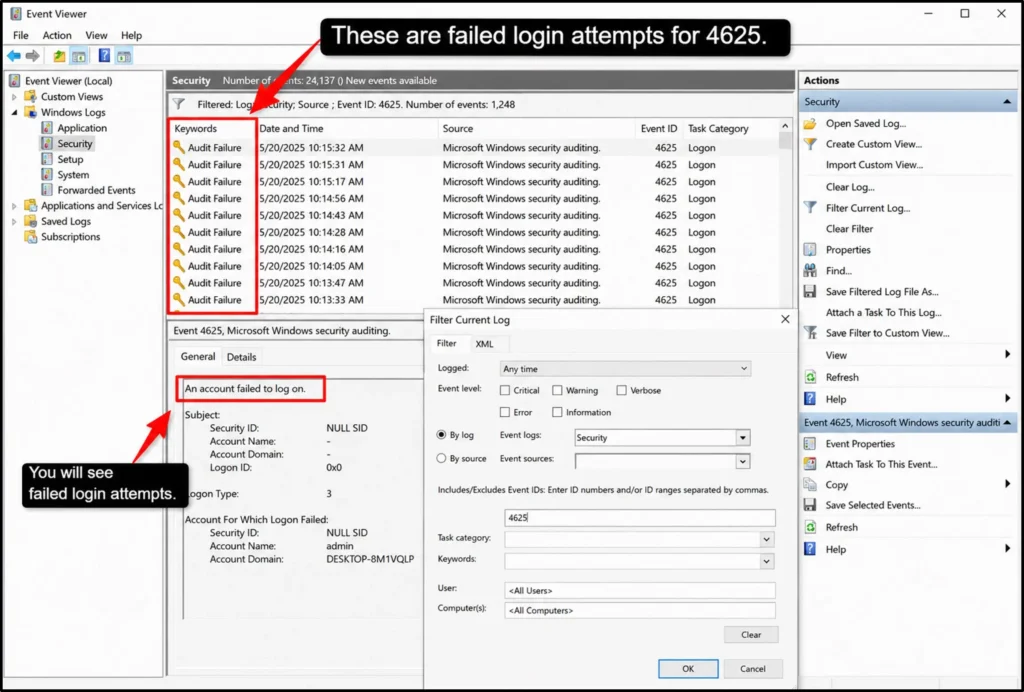
Now this will show you failed login attempts, like when someone tried to get in but used the wrong password.
Many failed attempts in a short time mean hackers were trying to break your password.
This could be a serious warning sign that your computer is under attack.
Review Terminal Services Logs (Event IDs 21, 23, 25).
You need to look in the Applications and Services Logs folder in the Event Viewer, where you will find these IDs that show remote desktop activity, like
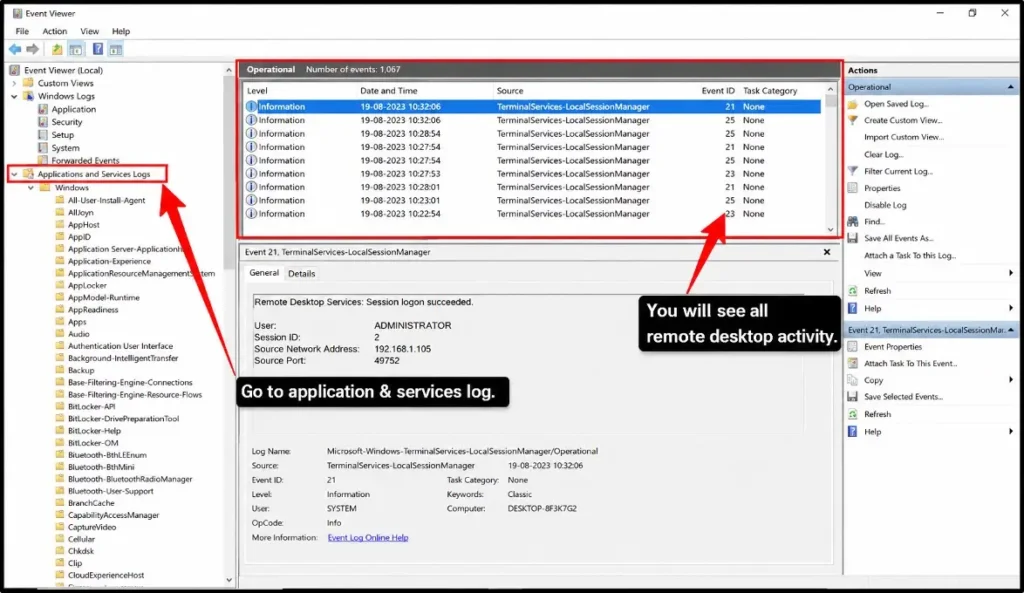
Follow this path: Event Viewer >> Applications and Services Logs >> Microsoft >> Windows >> TerminalServices-LocalSessionManager >> Operational.
You need to look for sessions you don’t remember starting or ending at unusual times. Multiple sessions from the same IP address could mean someone gained access.
Check for Unfamiliar IP Addresses & Off-Hours Logins
In the Event Viewer logs, find the “Source Network Address” column. Here, write down any IP addresses that you do not recognize.
You can also search online for “IP address lookup” to see where these IPs are located.
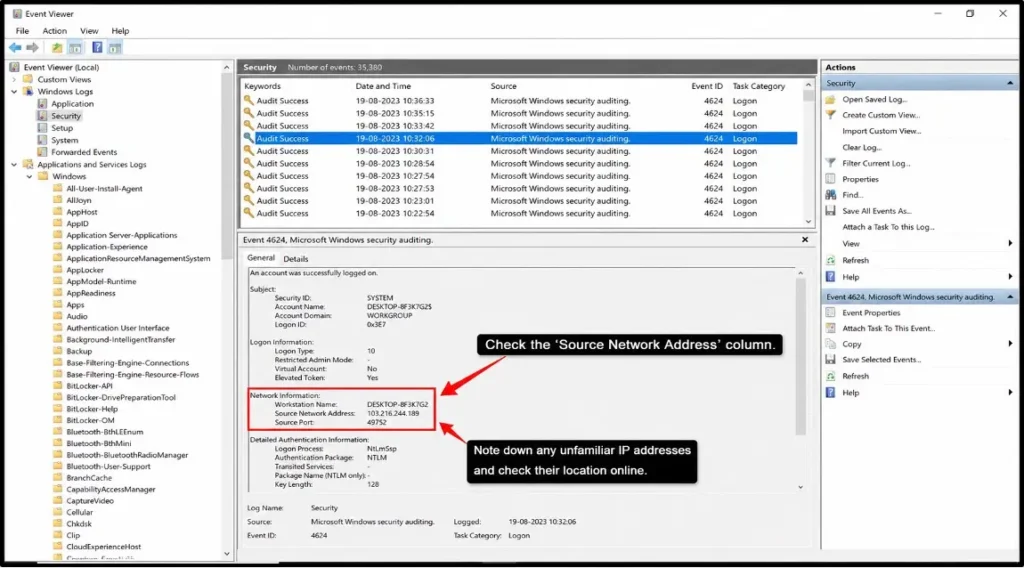
If logins have occurred at 3 AM from Russia or China and you live in the USA, it is possible that someone broke in. Whenever you see off-hours logins from unknown locations, always treat this as a major red flag you cannot ignore.
You now have the ways to find out if someone broke in or not. These simple steps reveal the truth about who accessed your computer and when they did it.
Once you know the problem, you need to stop it from happening again. Read on to learn how to prevent future unauthorized RDP access and lock down your computer.
How to Tell If It Was a Hacker or Just Your Provider
Every login that you don’t remember is not necessarily from any hacker; sometimes your IT support team, remote service provider, or even your system administrator logs in to fix your problems.
The key is to know the difference between real work and suspicious activity. Here’s how to tell them apart.
Signs It Was Your Provider or IT Support
You first need to contact your company’s IT department or service provider.
What to check:
- Call your IT support team: You can ask directly, like, “Did anyone from your team log in to any computer between (date and time)?”
- Check your email: Look for emails saying, “We logged in to fix…” or “Remote support session scheduled for…”
- Ask about scheduled maintenance: Many of the companies just do updates at night, like around 2 AM to 4 AM, and your provider should have informed you about this.
- Check for support tickets: If you opened a ticket asking for help, your provider may have accessed your computer to fix it.
Signs It Was Your Hacker (Not Your Provider)
Just go back to your Event Viewer logs that you checked already.
- IP Address Origin
- Timing of Access
- You see other unusual activities
- Multiple Times
Quick Decision TableAsk yourself these questions:
Did I contact my IT support or provider asking for help?Did the login happen during business hours (8 AM-6 PM)? Did the login come from my country or company location? Were my files and programs left untouched?
If you’re able to find answers to all these questions, you’d probably understand who is responsible. If it was your provider, just stay calm and ask them to send the documentation of whatever they did, but if it was the hacker, then disconnect from the internet immediately.
What to Do If Someone Already Has Access (Immediate Steps)
If you’ve found unauthorized access, time plays a very critical role here. A hacker inside your system can steal data, plant malware, or erase everything in minutes.
The longer they stay connected, the more damage they can cause. Your first goal should be to disconnect the affected computer from the internet/network to contain possible ongoing access. Then, follow these steps in order, starting right now for you.
Disconnect Active Unauthorised Sessions
If a hacker is currently logged in, they can see everything you’re doing and can also cause more damage while you’re working.
The Users tab can show other signed-in Windows sessions, but it does not reliably show all attackers or remote access.
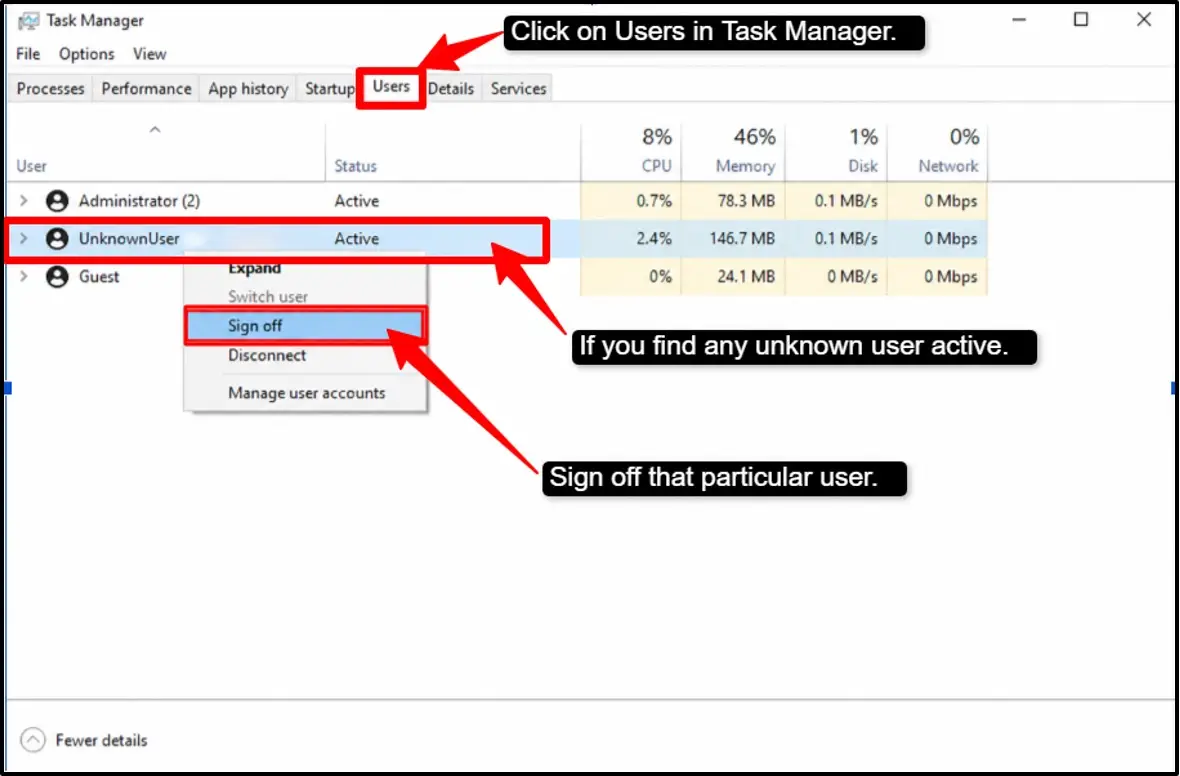
How to do it:
Just continue with all these unfamiliar sessions, one by one. Signing out a session may end that session, but it does not guarantee the attacker has lost access; malware, remote-access tools, stolen passwords, or other persistence may remain.
Important Tip: Write down the username they used. You might need this information later.
Change All Passwords Immediately
If they got in once, they probably have your password. Changing it locks them out permanently. Change your password somewhere safe or on a different computer (not the one that was hacked).
How to do it:
- Change your Windows/Admin password
- Change passwords for all your important accounts.
When your account is hacked, act quickly. Create new, unique, or strong passwords with at least 16 characters, mixing uppercase, lowercase, numbers, and symbols, and use a password manager like Bitwarden or 1Password to store them safely.
Turn on two-factor authentication (2FA) on all important accounts like email, banking, and work systems by using an authenticator app instead of text message codes, since text codes are easier to hack.
Most importantly, change all your passwords on a different computer or phone, not the one that got hacked. If your device has malware, hackers can see every password you type.
Check for Unknown User Accounts
Attackers may create accounts or change permissions to retain access. For this particular case, you need to look in your computer’s user account settings.
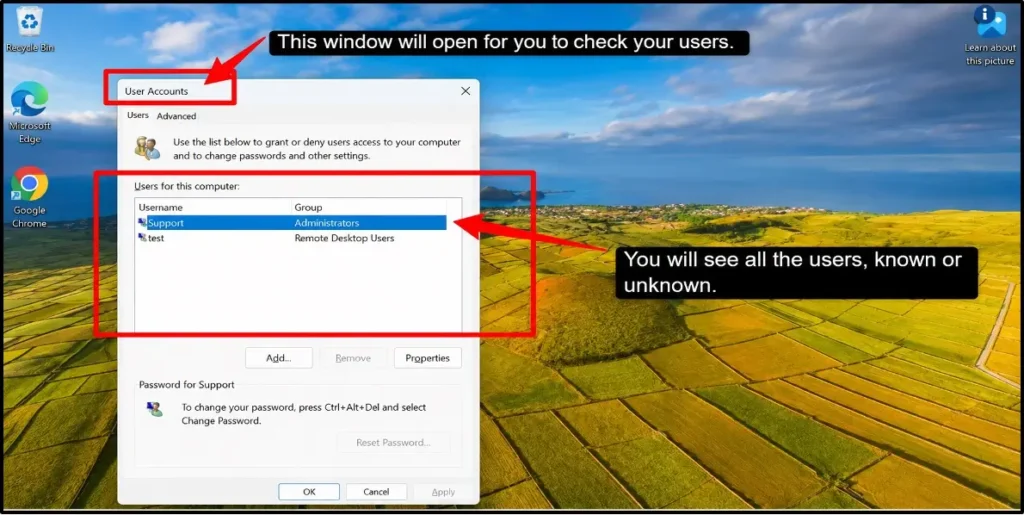
How to do it:
What to look for:
How to delete a suspicious account:
Do not immediately delete an unfamiliar account. First, document and verify it to ensure it is not required by Windows. After confirming that the account is unauthorized or unnecessary.
Repeat the process for each verified account. Do not delete built-in or system-managed accounts merely because their names are unfamiliar.
Scan for Malware, RATs & Backdoors
Hackers often leave behind malware, hidden programs that let them come back even after you have changed your password.
RAT means “Remote Access Trojan,” which is a program that lets hackers control your computer even after they log out. You have to look for this in your entire computer’s hard drive.
How to scan for it:
A clean scan does not prove the device is safe. If compromise is credible, back up essential personal files cautiously and consider a clean Windows reinstall or professional help.
Review What Was Changed or Stolen
You need to know what damage was done so you can protect the information. For this you need to look for your recent files, applications, and system settings.
How to check it:
You can make a list of certain things and then check if anything has been missing, changed, or stolen. You can very well stop the immediate threat by following such steps.
By changing passwords, removing backdoors, and scanning for malware, you take their access away. But these are just immediate steps; a hacker who got in once will try again unless you fix the weakness they exploited.
How to Prevent Unauthorized RDP Access (Long-Term Fixes)
If you’ve ever discovered unauthorized access to your computer, immediate action is important.
Just to stop the threat is only half the battle that you can cover, but to completely and truly protect yourself, you need to strengthen your RDP security so hackers cannot break in again.
The steps given below are long-term fixes that will make your computer much harder to attack.
By following these practices, you take back control and ensure that your remote desktop stays secure.
Enable Multi-Factor Authentication (MFA)
Multi-factor authentication means you need two or more ways to prove who you are before accessing your computer.
Even if a hacker steals your password, they cannot get in without the second factor, which is usually a code from your phone or an authentication app.
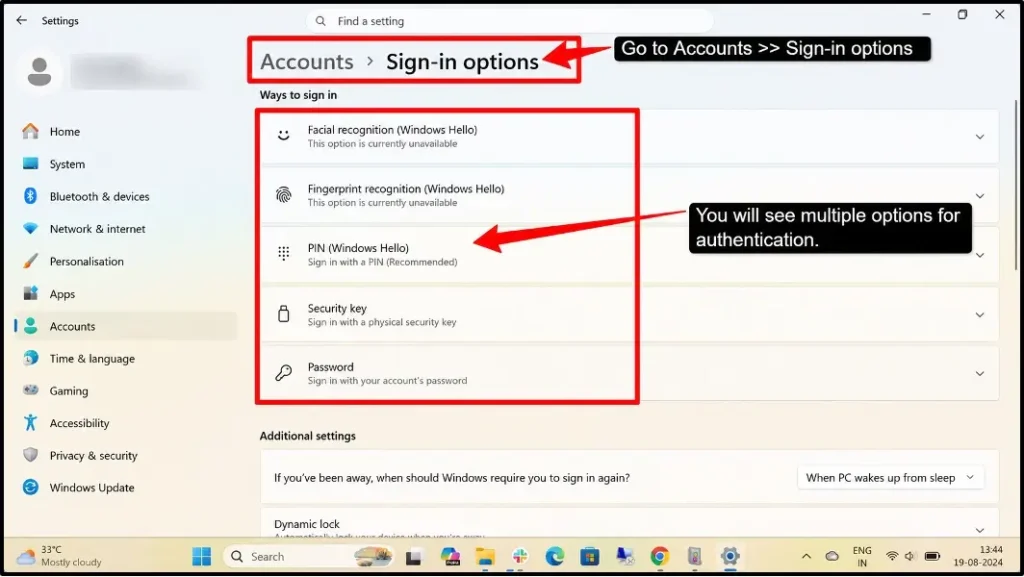
To set this up:
Go to Settings >> Accounts >> Sign-in options >> Security key or use Windows facial recognition or fingerprint. You can also enable MFA on your RDP gateway or VPN service. This is one of the strongest defenses against unauthorized login.
Use Strong Passwords or Certificate Authentication
A strong password should be at least 16 characters long and must contain uppercase letters, lowercase letters, numbers, and special symbols.
You should never use birthdays, names, or dictionary words that hackers can guess easily.
Another better option is certificate authentication, which uses digital certificates instead of passwords. This method makes it nearly impossible for attackers to break in, even if they have powerful computers trying to guess your password.
At this point, ask your IT administrator about setting up certificate-based authentication for your RDP connection.
Enable Network Level Authentication (NLA)
Network Level Authentication (NLA) requires users to authenticate before they even connect to the remote desktop.
This stops attackers from accessing your login screen in the first place, which prevents them from even attempting to guess passwords.
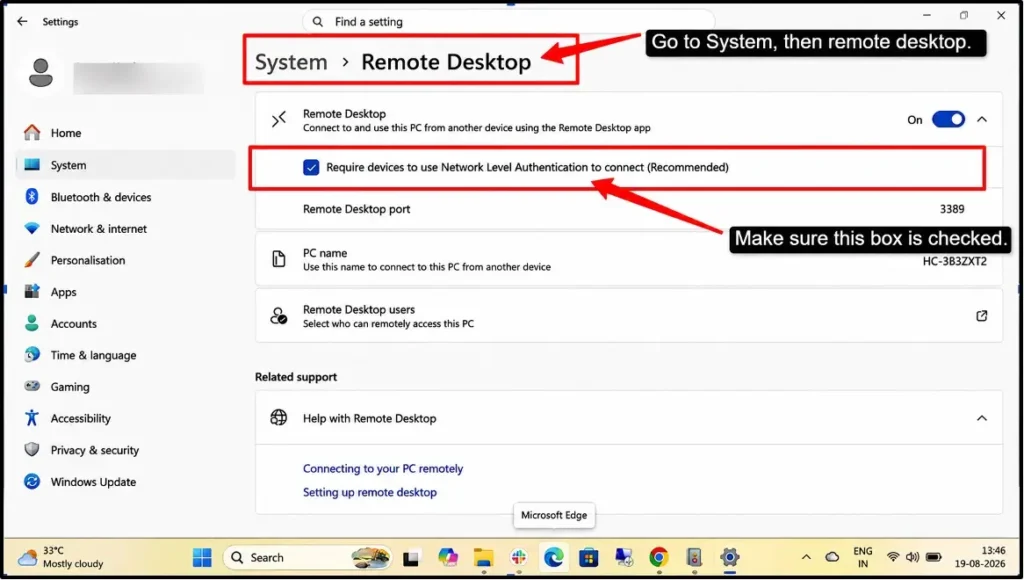
To enable NLA, go to Settings >> System >> Remote Desktop and make sure “Require the computer that is connecting to me to use Network Level Authentication” is checked. This is simple but powerful protection.
Change the Default Port & Restrict by IP
By default, RDP uses port 3389, which hackers know well and scan constantly. Simply changing your port to something random like 5555 makes your computer much less of a target since automated attacks won’t find it easily.
The actual security defenses that matter are strong authentication (long passwords), multi-factor authentication (2FA), firewall restrictions that block access from unknown locations, and keeping your system updated with security patches.
If you want to add an extra layer, you can restrict RDP access to only your home or office IP address through Windows Firewall Advanced Security. This way, even if a hacker discovers your new port and password, they cannot connect from anywhere else in the world.
Just remember that changing ports should never replace important security measures like MFA and strong passwords with firewall rules.
Enable Account Lockout After Failed Attempts
Enable account lockout so your account automatically locks after multiple wrong password attempts. If you have Windows 11, it defaults to locking after 10 failed attempts for 10 minutes.
On older versions or domain group policy, configure this through Windows Security Policy depending on your setup. This stops hackers from guessing your password since they will get locked out quickly.
Go to Settings >> Accounts >> Sign-in options and set account lockout to activate after ten failed attempts. This means after the wrong password tries, the account locks for 30 minutes. Most hackers will give up at this point and move to easier targets.
Set Up Login Alerts for Off-Hours Access
Configure your computer to send you an alert whenever someone logs in from a remote location or at unusual times. This way, if a hacker gets in, you will know immediately and can act fast.
You can set this up through Windows Event Viewer to use third-party security software that sends alerts to your phone. When you receive an unknown location, you can immediately disconnect that session and change your password.
The reality is simple: hackers are always looking for easy targets. By putting these defenses in place, you make yourself a difficult target. They will likely move on to computers with weaker security.
Remember, security is not something you do once and forget, because it is something you need to maintain regularly.
Change your passwords every three months, keep your Windows updates current, and stay alert to strange activity.
Your computer is valuable, so it deserves protection.
Does Your RDP Provider Protect You? (What to Expect)
Your computer security is an ongoing responsibility that requires consistent attention and updates. Simply setting up protections once is not enough; you must maintain them regularly to stay safe from changing threats.
Key Maintenance & Provider Requirements:
Choose providers that combine MFA, session monitoring, and DDoS protection; for example, one provider like QloudRDP that includes all of these features to defend against unexpected logins and attacks.
Never choose the cheapest RDP provider; good security always costs more but projects your business far better than saving a few dollars. If you invest in proper security now, it will help you prevent costly damages later.
Frequently Asked Questions
How do I know if someone is using my RDP right now?
Open Task Manager >> Click the Users tab. You will see all the active sessions on your computer. If you see a username you don’t recognize or a session running when you are not using your computer, someone else logged in.
What is Event ID 4624 and Logon Type 10?
Event ID 4624 means someone successfully logged into your account. Logon Type 10 means they logged in using Remote Desktop (RDP). If you see Event ID 4624 with Logon Type 10 at a time you don’t remember logging in, then it could be unauthorized remote access. Check the IP address column to see where they logged in from.
Can someone access my RDP without me knowing?
Yes, it is possible. Hackers or anyone can easily access your RDP while you are using your computer, and you might not notice if they are quiet. This is why monitoring is important. Always check RDP login history and your active sessions regularly, and enable login alerts so you get notified the moment someone accesses your RDP from an unusual location or time.
How do I kick someone off my RDP session?
If you find an intruder, go to Task Manager >> Users tab, right-click on the suspicious session, and click Sign off. This will disconnect them immediately, and if you cannot open Task Manager, restart your computer to force all sessions to disconnect. After removing them, change your password and check your security logs to see how they got in.
Can changing my password stop an active intruder?
No, changing your password will not stop anyone who has actually logged in. Any active intruder will remain connected to your RDP session even after you change your password. First, you must sign off on their session using Task Manager. After that, change your password to prevent them from logging back in.
Conclusion: Secure Your RDP Before It’s Too Late
RDP attacks happen every day, and hackers are always looking for weak targets. If you wait until someone breaks in, it is already too late.
The time to act is now, while your system is still safe. Start by checking your active sessions and security logs right away to make sure no one is already inside.
Then, immediately apply the protections discussed in the guide. Choose a reliable RDP provider that delivers a strong protection layer, and do not wait for a breach to happen before you take action.
A few hours of setup can easily save you from months of recovery and damage later. Your data, your business, and your peace of mind depend on it.
So, secure your RDP today.
💡 Most Loved Article!








Leave a comment