

Quick Summary box: Change default rdp port 3389 reduces automated attacks by 90% but provides limited security benefit on its own. It is security through obscurity, but not actual protection. So here, you will understand how other security measures are important too for your RDP, not just changing your default port.
Is changing your default port enough to stop hackers from targeting your server?
It’s a question thousands of users ask themselves every year. Port 3389 is known to be the standard gateway for Remote Desktop Protocol connections. It is considered to be the main door that hackers try to break through when attacking computers.
Every day, many hackers use automated tools to find and attack this port. So changing it seems like a smart move for these reasons.
Here we’ll simply explain everything about port 3389. We’ll tell you what the real risks are, tell you if you change the default port and what it does, and share the best ways to protect your computer. You’ll learn everything.
Here you’ll find honest answers and not something you’ll usually find online; apart from this, we have even explained simple steps on how you can change your default port with proper screenshots.
Let’s go.
- What Is the Default RDP Port (3389)?
- Why Port 3389 Is a Security Risk
- Should You Change the Default RDP Port? (The Honest Answer)
- Pros and Cons of Changing the RDP Port
- How to change default rdp port 3389 (Step by Step)
- Common Mistakes When Changing the RDP Port (Avoid Lockout)
- Better Ways to Secure RDP (Beyond Changing the Port)
- Does Your RDP/VPS Provider Handle Port Security for You?
- (FAQ)
- Conclusion:
What Is the Default RDP Port (3389)?
Port 3389 is the default Transmission Control Protocol (TCP) and UDP port used by Remote Desktop Protocol (RDP). RDP is a technology by Microsoft that lets you access and control a Windows computer from somewhere else.
When you turn on Remote Desktop on a Windows server, it automatically starts listening on port 3389; it’s like opening a door and waiting for someone to come through. Microsoft chose port 3389 for RDP a long time back, and it became the standard, which means
Your computer sends a connection request to port 3389 on the other computer. Once connected, RDP sends everything you type and click to that remote computer and sends back what’s on the computer’s screen.
Why Port 3389 Is a Security Risk
Everyone uses default port 3389; hackers know exactly where to look. Once they find one, they try to break in using weak passwords or known security flaws that users make. Here are the reasons why it’s considered a security risk.
Network segmentation, strong authentication mechanisms, and firewall rules, all of these play important roles in limiting lateral movement. A single open port may increase initial exposure, but it doesn’t automatically guarantee an attacker can spread malware throughout your entire organization.
Port 3389 is under constant scrutiny. Every day it remains open and accessible from the internet, and your system faces thousands of potential attacks.
The question is not either these hackers will find your port or not, because they already have tools looking for it.
The real question is what you can do to protect it; this is exactly what we’ll explore further.
Should You Change the Default RDP Port? (The Honest Answer)
Yes, because changing port 3389 to something else (like 3390 or 5555) does reduce automated attacks significantly. It will not stop skilled hackers, but it can reduce random scams and noise from bots that look for the default RDP port.
What’s Changing the Port Actually Does
When you change the RDP port in Windows (3389) to another number:
Changing port 3389 can reduce random automated attacks and scanning, but it does not make your RDP completely secure. It should be combined with a VPN or IP restriction, strong authentication, and firewall protection.
What It Does NOT Do (“Security Through Obscurity”)
Changing the RDP port is called security through obscurity because it hides the service location but does not fix the real security problems.
Even after changing the default port, it does not completely make your RDP secure or hidden from hackers.
If you change the default port to any custom port, it is only considered a small additional layer, not real standalone protection. It makes RDP harder for basic scanners to notice, but it does not secure an exposed RDP server by itself.
Pros and Cons of Changing the RDP Port
Users generally consider changing from the default port to a custom port to be like a big security layer that they get. But it’s actually not completely true.
Let’s break down each of its pros and cons in a simple table form so you can decide if it’s right or not to change the default port.
Pros
- Reduces automated attacks from bots scanning default ports.
- Decreases unwanted login attempts and noise in security logs.
- Makes your system less visible to casual port scans.
- Adds a small layer of obscurity through “security by obscurity.”
Cons
- It doesn’t fix the core security problem; determined hackers can still find it.
- Creates extra work for legitimate users who need to remember the new port.
- Makes system administration more complicated for IT teams.
- Users need special connection strings or saved connection files to access it.
You can consider changing your default port, as it could be a quick fix that sounds good at first, but if you understand it clearly, it’s not a real security solution. It mainly just hides your system from lazy attackers and reduces annoying automated scans.
But if someone really wants to access your computer, they can still find RDP on any port. The real way to stay safe is to use strong passwords, enable multi-factor authentication, and keep your system updated.
Always consider using a VPN; changing the port can be part of your complete security plan, but it shouldn’t be your main defense mechanism.
Benefits (Fewer Scans, Cleaner Logs, Less Noise)
One of the most practical reasons people change their default port is to reduce the constant barrage of automated attacks.
Your computer will receive fewer unwanted connection attempts, which means your system stays cleaner and easier to manage.
How it can help you:
These are actual benefits and noticeable, especially if you run a server that faces the internet. Your computer will be much quieter, your logs will be easier to understand, and you’ll spend less time cleaning up the automated attacks.
Limitations & Risks (Lockout, False Sense of Security)
We know that changing your port might seem like a smart security move for many users, but it comes with some real drawbacks that can cause serious problems. It’s important to understand these major limitations before you make the changes.
What risks can you face:
You just get the false sense of security that actually makes things worse for you. You might think your system is well-protected when it’s not, and then you skip the real security measures that actually matter.
How to change default rdp port 3389 (Step by Step)
If you need to change your port, you’ll need to update your Windows registry settings and firewall rules. The process is very simple, and if you follow all the steps carefully, you’ll avoid locking yourself out. Before you start, make sure you have admin access to your computer.
Step 1 — Back Up the Windows Registry
Before making any changes to the registry, always create a backup first. This way, if something goes wrong, you can still restore your system to the way it was.
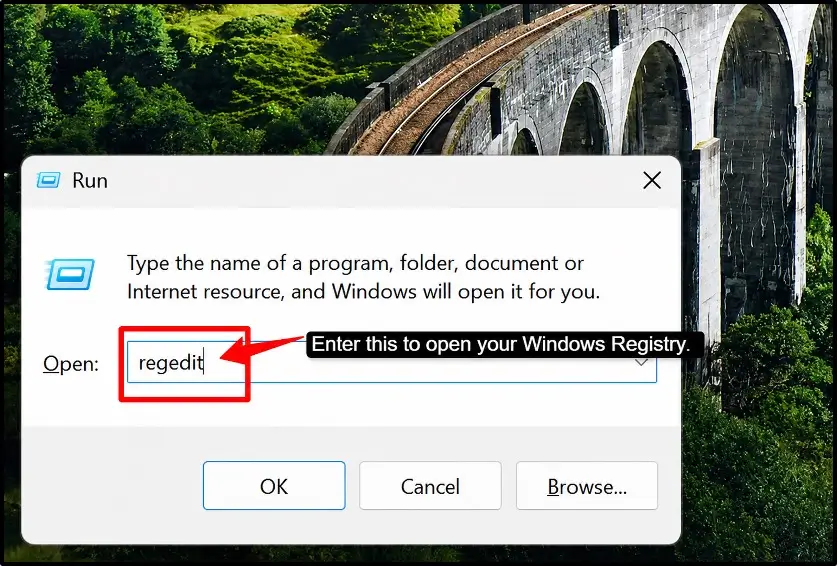
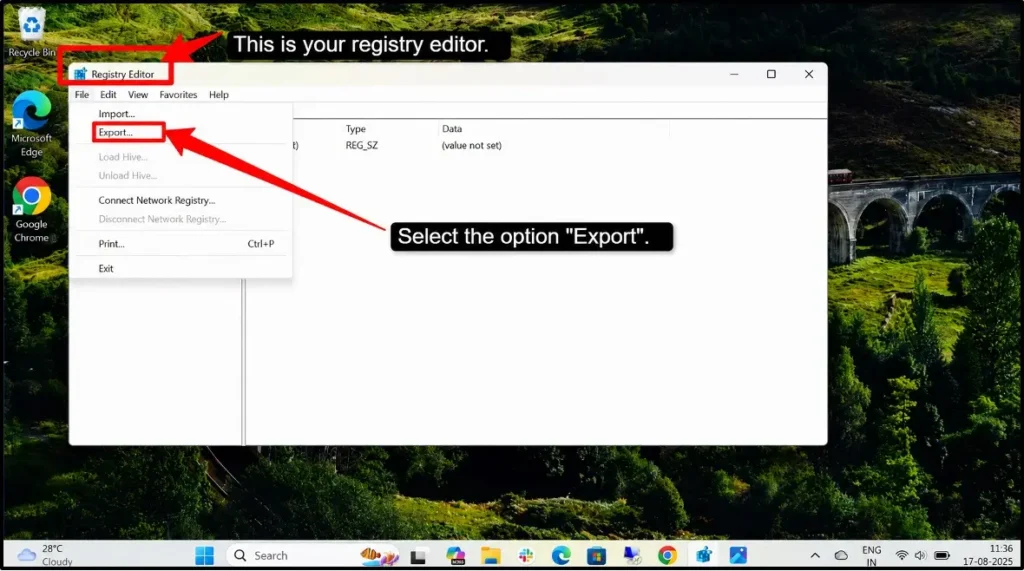
Now that your registry is backed up. If anything goes wrong, you can restore it by double-clicking your backup file.
Step 2—Edit the PortNumber Key
Now that you have backed up your Windows registry, now you can easily change the actual RDP port number in your registry.
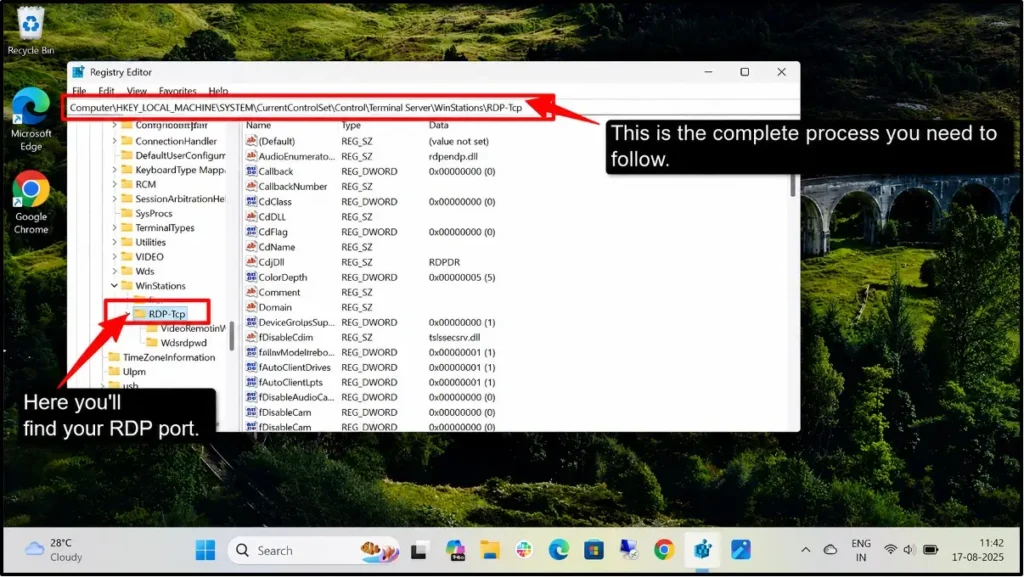
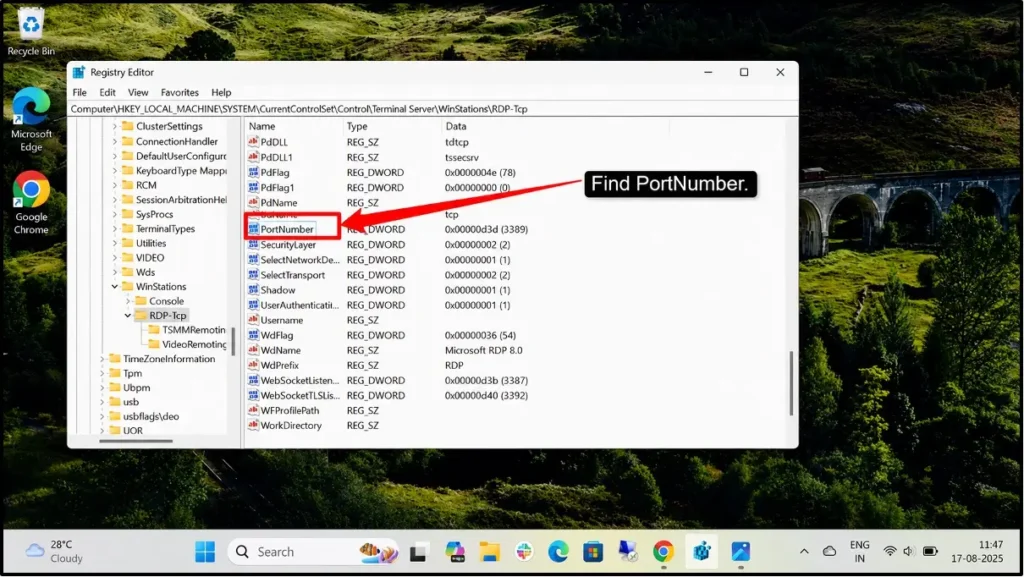
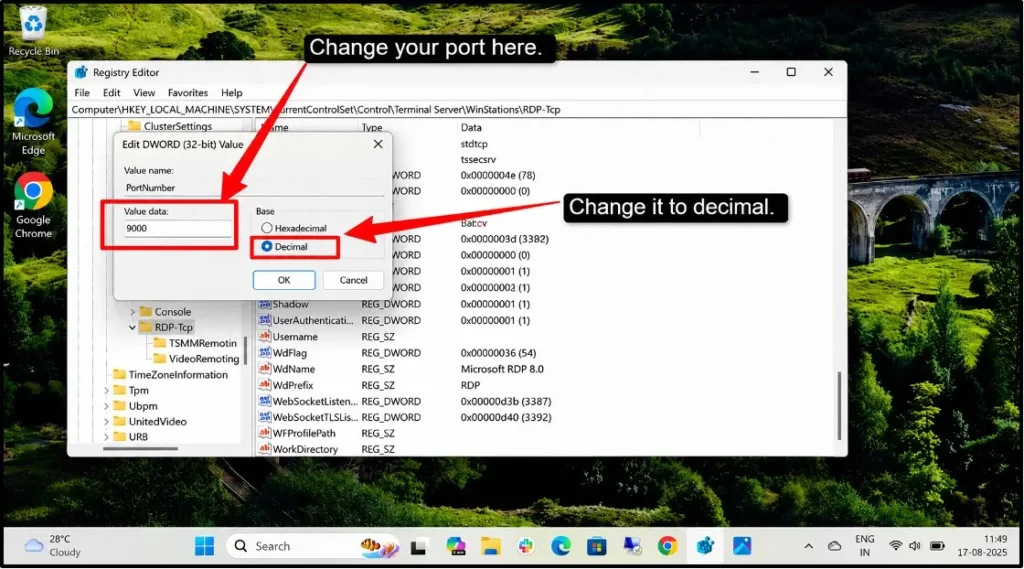
Note:
Make sure to select “Decimal” at the bottom, not “Hexadecimal.”
Your new port number is now saved in Windows. To apply this change, you need to restart your computer, as Microsoft recommends restarting after making registry changes.
Step 3 — Add a New Firewall Rule
Windows Firewall needs to know that your new RDP port is allowed through, and without this step, your users won’t be able to connect to your computer on the new port.
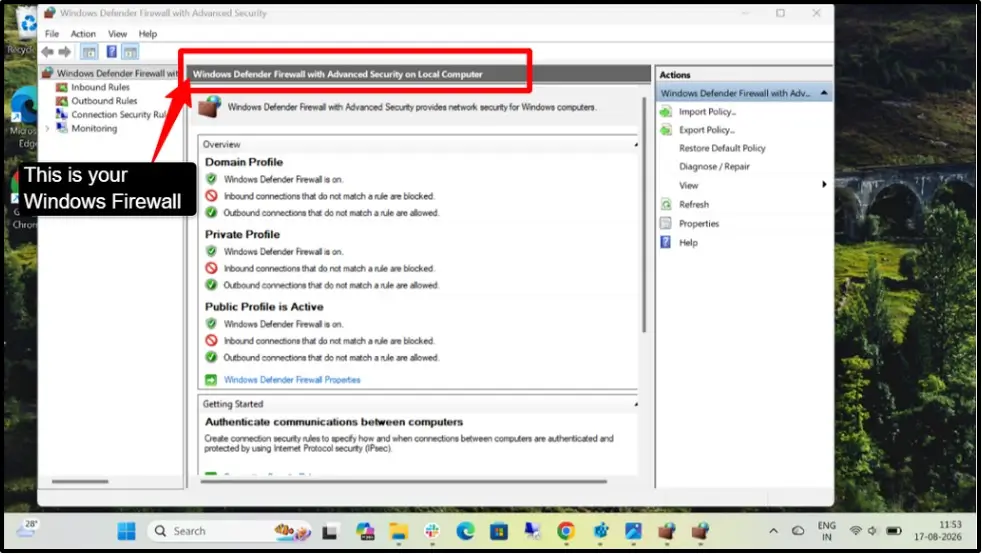
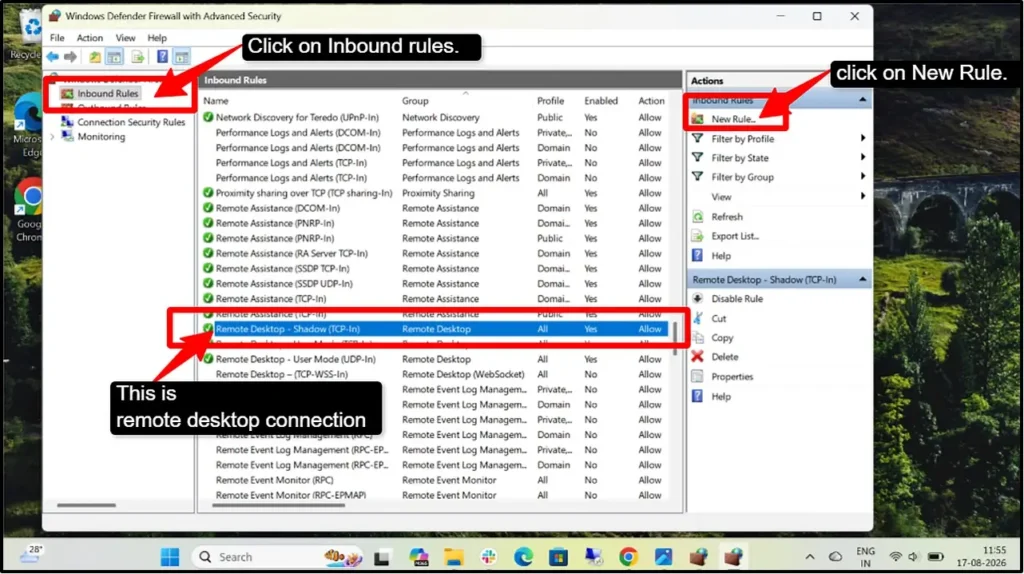
Now just click on “Finish” and repeat this process to create a rule for your second remote desktop rule as well. Now your firewall allows connections on the new port.
Step 4 — Test the New Port Before Blocking 3389
Before you disable your old port again, test that your new port is actually working. This is the most important step for you because it prevents you from getting locked out.
Once you confirm that your new port works, you can safely disable the old port 3389. Now, go back to Windows Firewall, find your original Remote Desktop rules for port 3389, and disable them. This will prevent anyone from connecting on the old port.
Common Mistakes When Changing the RDP Port (Avoid Lockout)
All of this is very simple if you do it right, but one wrong step can easily lock you out of your own computer. Here are some of the most common mistakes you can make.
Mistake 1: Not testing before blocking the old port.
Mistake 2: Changing the registry before allowing the new port in the firewall.
Mistake 3: Typing the wrong port number
Mistake 4: Using Hexadecimal instead of decimal
Mistake 5: Not testing the new port before closing your current session
Always test the new port on another computer before disabling the old port. Be sure to keep the backup plan in case something fails. Always keep a backup plan ready; make sure you have another way to access your system locally or through a remote assistant just in case something goes wrong.
Better Ways to Secure RDP (Beyond Changing the Port)
There are several ways in which you can secure your RDP port, apart from just changing your port. Only changing your port is just a minor security step, but there are much more effective ways to protect your system. These methods actually stop real attackers, not just automated bots.
Enable Network Level Authentication (NLA)
Network Level Authentication (NLA) forces users to authenticate before they connect to the desktop. This prevents attackers from even reaching the login screen.
How it works: Attackers must enter credentials before gaining access to the system. Failed authentication attempts are logged, and you can easily set lockout policies.
How to enable it:
Use Strong Passwords or Certificate Authentication
Weak passwords are the number one reason that RDP accounts get hacked; therefore, it is always suggested to use strong passwords so that they can make brute-force attacks nearly impossible.
Strong password requirements:
Enable Multi-Factor Authentication (MFA)
RDP by itself only uses a username + password. MFA adds a second step (like a phone app approval). MFA requires two or more verification methods; even if someone steals your password, they cannot access your system without the second factor.
Common second factors:
How to implement: You can use third-party tools like Cisco Duo or Authy that easily integrate with RDP and require a second authentication step.
Restrict RDP by IP Address
Only allows RDP connections from trusted IP addresses. This will prevent all attackers from connecting, even if they have valid credentials.
How to do it:
On your Windows server itself:
Now even if someone finds your RDP port, they cannot reach it unless they’re from an allowed IP.
Put RDP Behind a VPN
Instead of exposing RDP directly to the internet, force all connections through a VPN first. Users must first authenticate to the VPN before they can even attempt to connect through RDP.
Benefits:
Enable Account Lockout & Rename Admin Account
These two are the most important defenses against brute-force attacks. Weak account policies make brute-force attacks quite successful. So, strong policies stop attackers cold.
While changing your RDP port stops automated bots from finding you, account lockout stops them from cracking your password, and renaming the administrator account forces attackers to guess both the username and password.
Account Lockout Policy:
Does Your RDP/VPS Provider Handle Port Security for You?
Yes, many hosting providers and VPS companies offer built-in security features that can easily handle port management automatically. You need to check your provider’s documentation to see if they offer port security features or not.
Like, QloudRDP offers good port security for users, but it’s largely something you configure and manage yourself with their support.
They expect you to restrict RDP access (port 3389) through firewall rules, IP whitelisting, and Windows Defender settings on your VPS, and they focus on best practices like changing your default port, enabling MFA, and using VPNs or IP allowlists to reduce exposure.
(FAQ)
Is it safe to leave RDP on port 3389?
No, it is not safe to leave the RDP port on 3389. Port 3389 gets constant automated attacks because it’s the default one, but if you have strong passwords, MFA enabled, and IP restrictions, the port number does not matter much.
What port should I change RDP to?
If you decide to change the default RDP port 3389, you can use the following:
- Port 3390 (popular choice)
- Port 5501 (alternative)
Does changing the RDP port stop hackers?
No, not completely. Changing the port can stop automated bots that can scan for port 3389, but determined hackers can always find you.
Will changing the port break my RDP connection?
Yes, changing your remote access port will break your active RDP connection and will also prevent the standard connections until you update your connection address and firewall rules.
How do I connect to RDP on a custom port?
On your Windows Remote Desktop Connection
Conclusion:
People generally think that changing their default RDP port is a big step, but in reality, it’s just a simple security step that reduces only the unwanted automated attacks and keeps your logs clean. It’s not a complete security solution, as determined hackers will always find ways to attack you. The real protection comes from using NLA, strong passwords, multi-factor authentication, and IP restrictions.
The most dangerous mistake is to believe that changing the port alone can make you secure, so always combine it with stronger authentication methods. Test everything before disabling your old port to avoid locking yourself out. Security works best when you layer multiple defenses together, not just by changing the default port.
💡 Most Loved Article!








9 Comments